
CardScan 600cx Manual de usuario

1
Chapter
CardScan Getting Started
To transform business cards into an address book, follow these steps:
Check Requirements
• Windows 98 or later
• Pentium or later
•64MBRAM
• 50 MB hard disk space
• CD-ROM drive
• USB Port
Install Software
• On Windows NT, 2000 or
XP: log in as Administrator.
• Insert CD-ROM.
• Click Install and
follow onscreen
installation instructions.
Connect Scanner
• Connect USB cable to
computer and scanner
USB ports. (If previously
connected, remove and
re-insert USB cable.)
Set up Scanner
•Start CardScan and follow
the Scanner Setup Wizard.
Use Calibration Card to
calibrate scanner;
follow instructions on
Calibration Card.
Scan Cards
• Insert cards into scanner,
printed side up.
• Click Process when
scanning is complete.
Save Contacts
• Choose File→Save As, and
save the file.
• When the dialog above
appears, click OK.

1
Copyright © 2003 Corex Technologies Corp. All rights reserved worldwide.
This guide is protected by federal copyright law. No part of this guide may be
reproduced or distributed, transcribed, stored in a retrieval system, translated
into any spoken or computer language or transmitted in any form or by any
means whatsoever without the prior written consent of:
Corex Technologies Corporation
810 Memorial Drive
Cambridge, MA 02139
Tel: (617) 492-4200
Fax (617) 492-6659
Trademarks: CardScan and CardScan.Net are registered trademarks of Corex
Technologies Corp. Windows is a trademark of Microsoft Corporation. All
other trademarks are the property of their respective owners.
Disclaimer of Warranties: Corex Technologies Corp. makes no warranty,
representation or promise not expressly set forth in this agreement. Corex
Technologies Corp. disclaims and excludes any and all implied warranties of
merchantability, title, or fitness for a particular purpose. Corex Technologies
Corp. does not warrant that the software or documentation will satisfy your
requirements or that the software and documentation are without defect or
error or that the operation of the software will be uninterrupted.
LIMITATION OF LIABILITY: Corex Technologies Corp.’s aggregate
liability, as well as that of the authors of programs sold by Corex Technologies,
arising from or relating to this agreement or the software or documentation is
limited to the total of all payments made by or for you for the license. This
limited warranty gives you specific legal rights. You may have others which
vary from state to state. Some states do not allow the exclusion or limitation of
incidental or consequential damages, so the above limitation or exclusion may
not apply to you.

Table of Contents
CardScan Getting Started i
Chapter 1 Welcome to CardScan!
CardScan Features ..................................................................... 1-1
Perform Basic Tasks ................................................................... 1-1
Manage Your Contacts as Suits You Best ....................................... 1-2
Safeguard and Access Your Contacts Remotely ............................... 1-2
Keep your contacts up-to-date ...................................................... 1-3
About This Guide and Other User Resources ........................................ 1-3
Other Sources of Information and Support ...................................... 1-4
Chapter 2 Installing CardScan
Before You Begin ....................................................................... 2-1
Installing and Setting Up CardScan ................................................... 2-2
Installing the Software ................................................................. 2-2
Connecting the Scanner .............................................................. 2-3
Setting Up CardScan for Your Scanner ........................................... 2-3
If a Previous Version is Installed ....................................................... 2-4
Uninstalling CardScan ................................................................ 2-4
Converting Files Created with Earlier Versions ................................. 2-4
Chapter 3 Creating Your Address Book
Scanning Business Cards .............................................................. 3-1
Importing Contacts
from Contact Managers and PIMs ..................................................... 3-4
Creating Files and Contacts Manually ................................................. 3-7
Creating Contacts by Dragging and Dropping
Text from Emails and Electronic Documents .......................................... 3-7
Saving Your Contacts................................................................... 3-8
Chapter 4 Verifying, Editing and Organizing
Your Contacts
Why and When to Verify Contacts ..................................................... 4-1
Features That Make Verifying Simple ................................................. 4-1
Using Edit View ......................................................................... 4-1
Editing Text ............................................................................... 4-3
Checking Details of Names and Addresses ..................................... 4-3

Table of Contents
ii Corex Technologies
Adding Information to Contacts ........................................................ 4-4
Adding Phone Numbers .............................................................. 4-4
Adding Email and Web Addresses ................................................. 4-5
Features to Organize Contacts Quickly ............................................... 4-6
Using Categories ....................................................................... 4-6
Adding Notes ............................................................................ 4-7
Assigning Categories and Notes to a Batch ..................................... 4-8
Deleting Contacts....................................................................... 4-8
Chapter 5 Managing Your CardScan Contacts
Manipulating Multiple Contacts in a File ............................................... 5-1
Reviewing the Status of Your Contacts ........................................... 5-1
Sorting Contacts ........................................................................ 5-2
Finding Contacts........................................................................ 5-2
Finding Contacts with QuickSearch ............................................... 5-2
Methods to Find Groups of Contacts .............................................. 5-3
Managing Duplicate Contacts.......................................................... 5-4
Finding Duplicate Contacts............................................................. 5-4
Safeguarding Your Contacts Against Loss ............................................ 5-5
Backing Up Your Contacts ........................................................... 5-5
Chapter 6 Maximizing Your Contact Potential
with CardScan.Net
Getting Started with CardScan.Net .................................................... 6-1
About CardScan.Net Synchronization ................................................. 6-3
Conflict Resolution...................................................................... 6-3
Manual Synchronization................................................................ 6-4
Synchronizing One File ............................................................... 6-4
Synchronizing All Files ................................................................ 6-4
Automatic Synchronization ............................................................. 6-5
About AccuCard Service Updates ..................................................... 6-6

Table of Contents
CardScan Getting Started iii
Chapter 7 Exchanging Data with Other Applications
Data Exchange Wizard ................................................................. 7-1
CardScan Synchronization ............................................................. 7-2
Synchronizing Manually .............................................................. 7-4
Synchronizing Automatically ......................................................... 7-4
Chapter 8 Synchronizing with Palm OS™ Devices
First-Time Setup and Synchronization................................................. 8-1
Chapter 9 Synchronizing with Pocket PC® Devices
Setting up ActiveSync .................................................................. 9-1
Synchronizing Selected Files .......................................................... 9-3
Removing Corex CardScan ActiveSync Module ...................................... 9-3
Chapter 10 Communicating with Your Contacts
Reaching Your Contacts From Summary View ...................................... 10-1
Using Signature Card ................................................................. 10-2
Enabling Signature Card ............................................................10-2
Disabling Signature Card ............................................................10-2
Chapter 11 Printing
Selecting contacts to print ...........................................................11-1
Starting the Print Wizard .............................................................11-2
Chapter 12 Troubleshooting and Support
Troubleshooting Tips .................................................................. 12-1
General ...................................................................................12-1
Cards that are difficult to read ......................................................12-2
Error messages ........................................................................12-3
Technical Support ..................................................................... 12-3

Table of Contents
iv Corex Technologies
Appendix A: CardScan Scanner Warranty
Appendix B: Compliance with FCC and EC
FCC Statement ......................................................................... B-1
EC Declaration of Conformity .......................................................... B-1
Index

CardScan Features
CardScan Getting Started 1-1
Chapter 1 Welcome to CardScan!
CardScan is an electronic address book that scans and stores business-card
information. After scanning a business cards, using a Corex or
TWAIN-compliant scanner, CardScan processes the image, and organizes the
information into the correct fields of an electronic contact. As you continue
scanning cards, your CardScan file is filled with contacts for you to save and
use as suits your needs. For example, you can:
• Create a CardScan address book, and manage your contact information
using CardScan. For an extensive introduction, see “Creating Your
Address Book” on page 3-1.
• Use the Data Exchange Wizard to help you get your contacts from
CardScan into your favorite contact manager, personal information
manager (PIM), or personal data assistant (PDA). For an extensive
introduction, see “Exchanging Data with Other Applications” on page 7-1.
• Save copies of your CardScan files to a secure, private account on
CardScan.Net—and have a guaranteed backup as well as access to your
contacts from anywhere, using your password and a web browser. For an
extensive introduction, see “Maximizing Your Contact Potential with
CardScan.Net” on page 6-1.
The following is a summary of CardScan features.
CardScan Features
CardScan features are designed to suit the needs of both the novice and
experienced users. These features allow you to:
• Perform basic tasks.
• Manage your contacts as suits you best.
• Safeguard and access your contacts from anywhere.
• Keep your contacts up to date.
Perform Basic Tasks
• Create an address book by scanning business cards into CardScan and
saving the file.
• Verify and edit contacts.
• Add notes and assign categories to individual contacts or a group of
contacts.
• Scan the back of a card to include its image in the existing contact.
• Drag and drop contacts from one CardScan file to another or from
CardScan to another application—and vice versa.
• Find contacts with Categories and QuickSearch.

Chapter 1 Welcome to CardScan!
1-2 Corex Technologies
1• Email, dial contacts’ phone numbers, and visit their Web sites directly
from CardScan.
• Display a MapQuest-generated map of a contact’s address.
• Include your SignatureCard in your Microsoft Outlook email.
• Add new contacts by scanning, or typing, or dragging and dropping text
from emails and electronic documents, or by dragging and dropping
vCards.
Manage Your Contacts as Suits You Best
CardScan enables you to quickly get contacts into other applications, such as
your favorite contact manager, personal information manager (PIM), or
personal data assistant (PDA). The data-exchange features of CardScan
include:
• The CardScan Data Exchange Wizard to help you pick the method that
suits you best
• CardScan Synchronization to exchange contact information between
CardScan and your favorite, supported contact manager or PIM, and
keep consistent address books
• The Export Wizard to export contact information to a text file
• Transfer from CardScan to contact managers and PIMs, including Palm
OS Desktop
• Synchronization with PDAs, such as Palm OS™ handhelds and Pocket
PC® devices
Safeguard and Access Your Contacts Remotely
Save a copy of a CardScan file to a private, secure account on CardScan.Net.
With your CardScan.Net-enabled file, you can:
• Have a guaranteed backup in your CardScan.Net account.
• Access your contacts from anywhere, with a web browser and your
password.
• Make changes to the file on your PC or on CardScan.Net, and CardScan
will keep it synchronized, so the copies on your PC and in your
CardScan.Net Account are identical.
About This Guide and Other User Resources
CardScan Getting Started 1-3
Keep your contacts up-to-date
If your file is CardScan.Net-enabled—in other words, has a copy on
CardScan.Net—you can keep your contacts up-to-date using the AccuCard
Service. The AccuCard Service automatically notifies you of any updates
available for your contacts. The symbols indicating the status of your contacts
appear in your desktop CardScan file. When it is convenient, you can review,
accept, or reject the changes automatically, with a few mouse clicks.
About This Guide and Other User Resources
This User’s Guide is intended to introduce CardScan’s features and to help
you locate:
• Features you might use the most and
• Detailed descriptions of each feature in the Online Help
Each section in this Guide includes keywords for you to use when searching
the Help Index for more information. To use keywords:
1. Look for the symbol .
2. Choose Help→Search for Help on, and type one keyword at a time, or
scroll down the list in the Index and click the keyword.
If you would like to browse the help as you would a book, open it at the Table
of Contents. You can do this using any of the following methods:
• Press the F1 key on your keyboard.
• Click the button on CardScan’s Toolbar (see page 1-4).
• Choose Help→Contents in CardScan window.
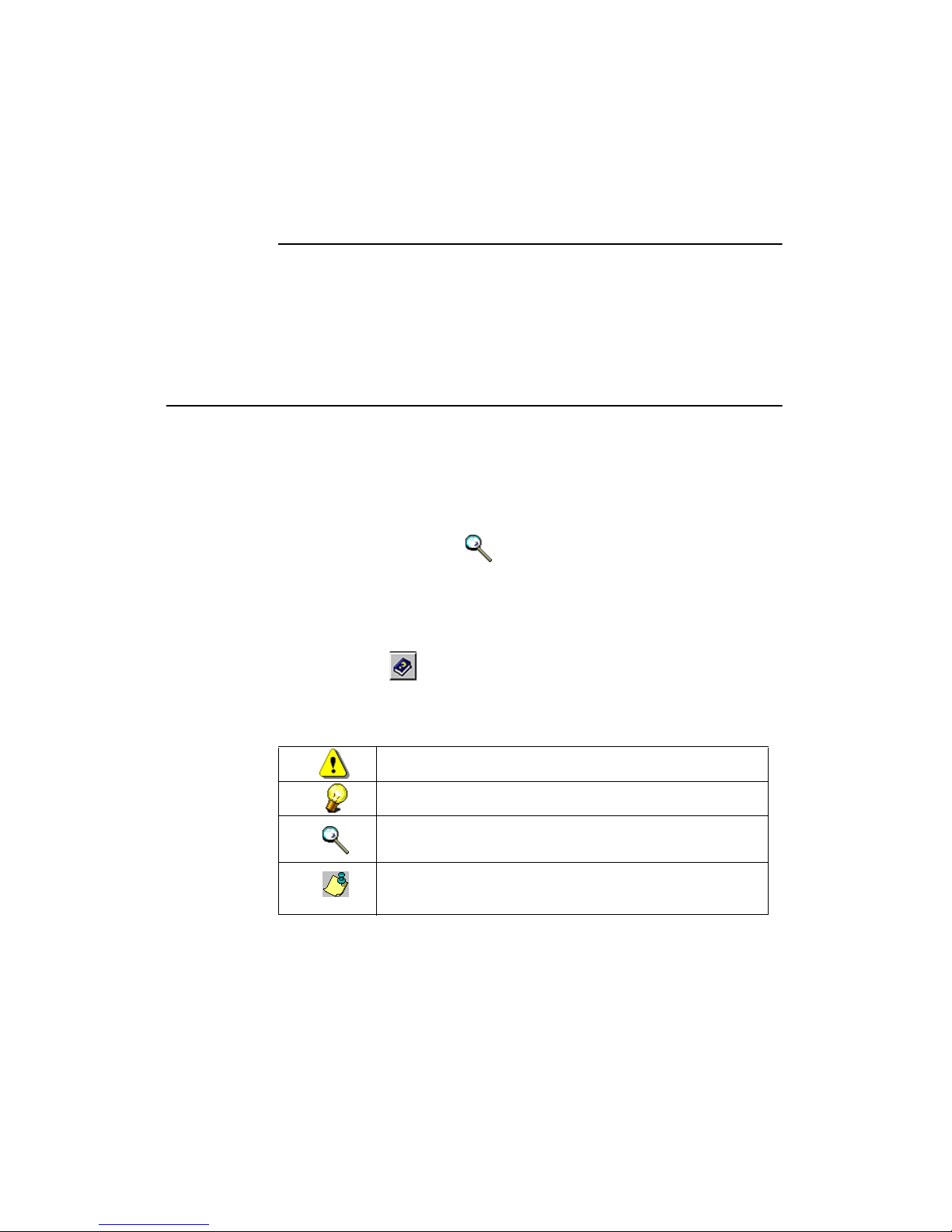
The following are conventions used in this Guide:
“Attention! Read carefully.”
“Here is a TIP for you!”
“To find more information, choose Help→Search for
Help on, and use the following keywords.”
“NOTE:”

Chapter 1 Welcome to CardScan!
1-4 Corex Technologies
1Other Sources of Information and Support
There are several other sources of CardScan information and support, all
accessible from the CardScan Help menu.
Choose Help→View ReadMe to view important information unavailable at the
time the printed documentation was published.
Choose Help→View User’s Guide to view a printable version of this Guide, in
the PDF format.
Choose Help→Technical Support to contact our Technical Support. For more
directions to Corex Technical Support, see the cover of this book.
Balloon Help
Point at any feature in the CardScan window, and a balloon-help topic
appears, describing the usage of the feature. For example, point at any button
on CardScan’s Toolbar to get things done more quickly.
Glossary of Terms
The Glossary is included in the Online Help, listed at the top of the Table of
Contents.
Visit Corex Web site at www.cardscan.com for:
• Technical Support Knowledge Base, at www.cardscan.com/support/
• The PDF document “Using CardScan with Other Scanners”, containing
detailed guidelines for users of TWAIN-compliant scanners
• Product and compatibility information
• Software and other updates
Este manual sirve para los siguientes modelos
1
Tabla de contenidos
Otros manuales de Escáner de CardScan


