
Car Solutions MimicsG4 Manual de usuario

1
Mimics
Manual v1.1
Note
*Android Smartphone's requires a MHL/HDMI/SLIMPORT/ SB/WIFI video streaming/mirroring capability
in order to display video to an external monitor.
* iOS devices require a AV/HDMI/VGA or WIFI(Airplay) to display video externally.
** Its highly recommended that you use original vid eo conversion cables and adapters.
** If using the MimicsG4 in a vehicle, you car migh t require an additional video converter.
** The latest version of the MimicsG4 is compatible with Android Smartphone from 4.4+. Most Android
sticks/boxes won't work but some development units like the Odroid will. For Android devices other than
Smartphone's, please refer to the MimicsLT.
Car-Solutions.com

2
M-MM12-8W
Table of Contents
1. Overview
2. What's in the Box
3. Connection Overview
4. Quick start guide
- Touchscreen test mode
- Calibrating the touchscreen
- Pairing a new Smartphone
5. pdating The Firmware
6. Connecting to a vehicle WITHO T a factory touchscreen installed.
7. Connecting to a vehicle WITH a factory touchscreen installed.
8. sing the touchscreen switcher
9. Additional Information
Release Notes:
v1.0 - Initial Release Dec-07-2016
v1.1 - pdated manual for easier setup Mar-04-2018
v1.2 - Minor edits Mar-30-2018
Car-Solutions.com

3
1. Overview
The MimicsG4 (4th generation) is a device that allows multitouch remote control of an Android/iOS
device remotely via Bluetooth. No root access, custom ROMs or even developer mode enabled is
required. Although it will still work on a non stock android device. However, iOS devices currently are
required to be Jail broken (for our driver to be installed). When connected and configured, this system
will allow you to access all your Android/iOS devices features and functions when connected to an
external display such as an in-car display/monitor. The MimicsG4 supports resistive, I2C, ART and SB
touchscreen protocols. The MimicsG4 uses a low bandwidth connection that allows simultaneous use
with other Bluetooth connections such as hands free or A2DP. The MimicsG4 module is a fully embedded
module that allows very fast startup times, high reliability and automotive grade hardware.
* If you have an idea to embed our technology into your custom products, we can design/develop a
custom solution based on your requirements. We also have licensing options available for volume
customers. Please contact us @customgadz.com for further details.

4
2. What's in the Box
The MimicsG4 is available as a standalone unit, and an optional touchscreen switcher kit is also available
For interfacing to a vehicle fitted with a factory touchscreen, the MimicsG4 switcher adapter currently
only supports 4-wire and 8-wire resistive OEM touchscreens. The SB port can be used for connecting
various SB touchscreens.
MimicsG4 Basic kit components
MimicsG4 Optional Touchscreen switcher add-on
MimicsG4
Bluetooth dongle Included
Touchscreen
switcher
MimicsG2 to touchscreen
adapter connecting cable
4-pin S B Board
8-pin S B Board
Switching
trigger cable
4-pin Ribbon
1 x 2", 1 x 8" For OEM touch
board connection.
8-pin Ribbon
1 x 2", 1 x 8" For S B board
to switcher connection.
Car-Solutions.com

5
3. Connection Overview
How it's all connected.
* Avoid using old, frayed or severely worn micro USB cables to power up the mimicsG4
SUB Board
Can adapt to various
touchscreens.
OEM board
connection.
Touchscreen
Connection.
SUB Connect
Connecting cable for
switcher and S B board.
Supplied in two lengths.
Switcher
Allows one touchscreen to
switch between two target
devices. i.e OEM system and a
Smartphone.
MimicsG4 Connect
Connects the G4 to
optional touchscreen
adapters.
Bluetooth
Dongle used to pair to
Smartphone/tablet.
USB Touchscreen port
se this port if you are using a
SB type touchscreen.
lternative touchscreen port
sed to connection to non
SB touchscreens.
Micro USB Power
Powered from a single 5v.
General power consumption is
approximately 0.15A.
Tri mode switching input
sed to switch between mimics and
OEM touch mode.
MimicsG4
Main controller
Multimedia Port
Standard 3.5mm steering
wheel control input set to
SONY protocol by default.
Car-Solutions.com

6
4. Quick start guide
PDATE THE FIRMWARE
If you haven't already done so, you will need to make sure you have the latest firmware in your
MimicsG4. See Section 5 on how to do this.
* It s possible that a newly received MimicsG4 will not have the latest firmware installed! - so please
update.
TO CHSCREEN TEST MODE
The MimicsG4 can generally detect most SB touchscreens and some I2C touchscreens (adapter board
required). If the Mimics can't detect your touchscreen then you won't be able to proceed with
calibration. To assist in setup, we have implemented a mode called 'Touchscreen Test Mode' to check if
your touchscreen is compatible.
To Initiate this mode, you simply turn off the mimics, plug in your desired touchscreen but unplug the
Bluetooth dongle. Now Power up the Mimics.
You will see one of the following:
• The RED light starts blinking once per second - Good news, Mimics identified the touchscreen.
• The RED light stays off - Means that the touchscreen can NOT be detected, so please contact us if
this is the case so we can assist further.
* After getting a blinking RED light, pressing the external touchscreen will keep the red light on while its
pressed. This will be even a better indication of your touchscreen being compatible.
continued..
Car-Solutions.com

7
CALIBRATING THE TO CHSCREEN - FOR ANDROID SMARTPHONES
1. Ensure the touchscreen you are planning to setup has passed the "TO CHSCREEN TEST MODE"
and make sure you have the latest firmware installed. See Section 5 on how to do this.
2. Mirror your Android device to the external display via cable/WIFI. You will need a cable, dongle or
video interface box to do this.
3. Download the MimicsG4 app from the Play store if haven't already done so then open the app.
Ready to calibrate
4. Make sure the Bluetooth dongle and touchscreen are plugged into the MimicsG4.
5. Power on the Mimics.
6. Press the CAP button repeatedly (the RED light will turn on at each press) until you see the BL E
light start flashing. The Mimics will now reboot.
7. The RED/BL E lights will now be flashing left to right once per second. (Discovery mode).
8. Press "PAIR MIMICSG4" and the Bluetooth setting screen of your device will be launched.
After a few moments you should see MimicsG4 appear in the list, if not you can press "scan",
"search" or "Pair new device" depending on your android version to enable re scanning of
Bluetooth devices. Click on 'MimicsG4' and after a short time you will notice the calibration
screen launch as follows
1. Calibrating 2. Complete!
* PRESS and HOLD the marker until it
moves to the next position.
Android Touchscreen calibration complete!
Car-Solutions.com
8
CALIBRATING THE TO CHSCREEN - FOR IOS DEVICES
1. Ensure the touchscreen you are planning to setup has passed the "TO CHSCREEN TEST MODE",
and make sure you have the latest firmware installed. See section XX
2. Mirror your iOS device to the external display via cable/WIFI. You will need a cable, dongle or
video interface box to do this.
3. Search and install the "MimicsX2 Driver" in Cydia on your Jail broken iOS device.
4. Reboot your iOS device by pressing and holding the power button.
5. Depending on the Jailbreak you might need to re-activate it after a reboot.
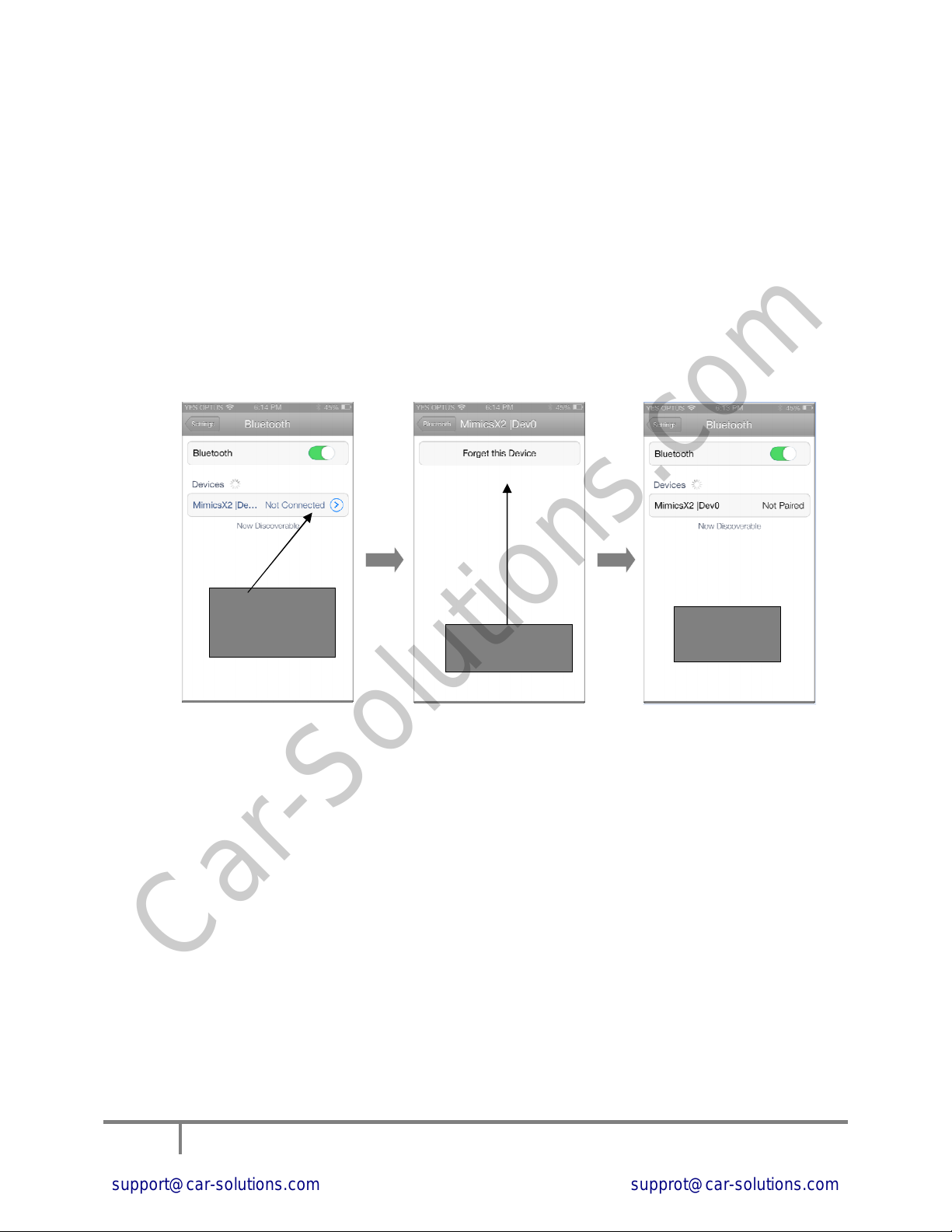
6. Open up the Bluetooth settings screen and make sure any previous connections the Mimics are
removed!
7. Make sure the Bluetooth dongle and touchscreen are plugged into the MimicsG4.
8. Power on the Mimics.
9. Press the CAP button repeatedly (the RED light will turn on at each press) until you see the BL E
light start flashing. The Mimics will now reboot.
10. The RED/BL E lights will now be flashing left to right once per second. (Bluetooth Discovery
mode)
11. After a few moments you should see 'MimicsG4' appear in the Bluetooth list, so proceed to click
on it. Mimics will now start to connect.
12. Once connected, the iOS device will return to the HOME screen.
13. Open the Mimics app previously downloaded from Cydia.
14. You will be presented with the following screen.
continued...
If you see this icon
press it to 'un-pair'
the MimicsX2 Press here to
'forget' or 'un-pair'
MimicsX2 is
now 'un-paired'
Car-Solutions.com
9
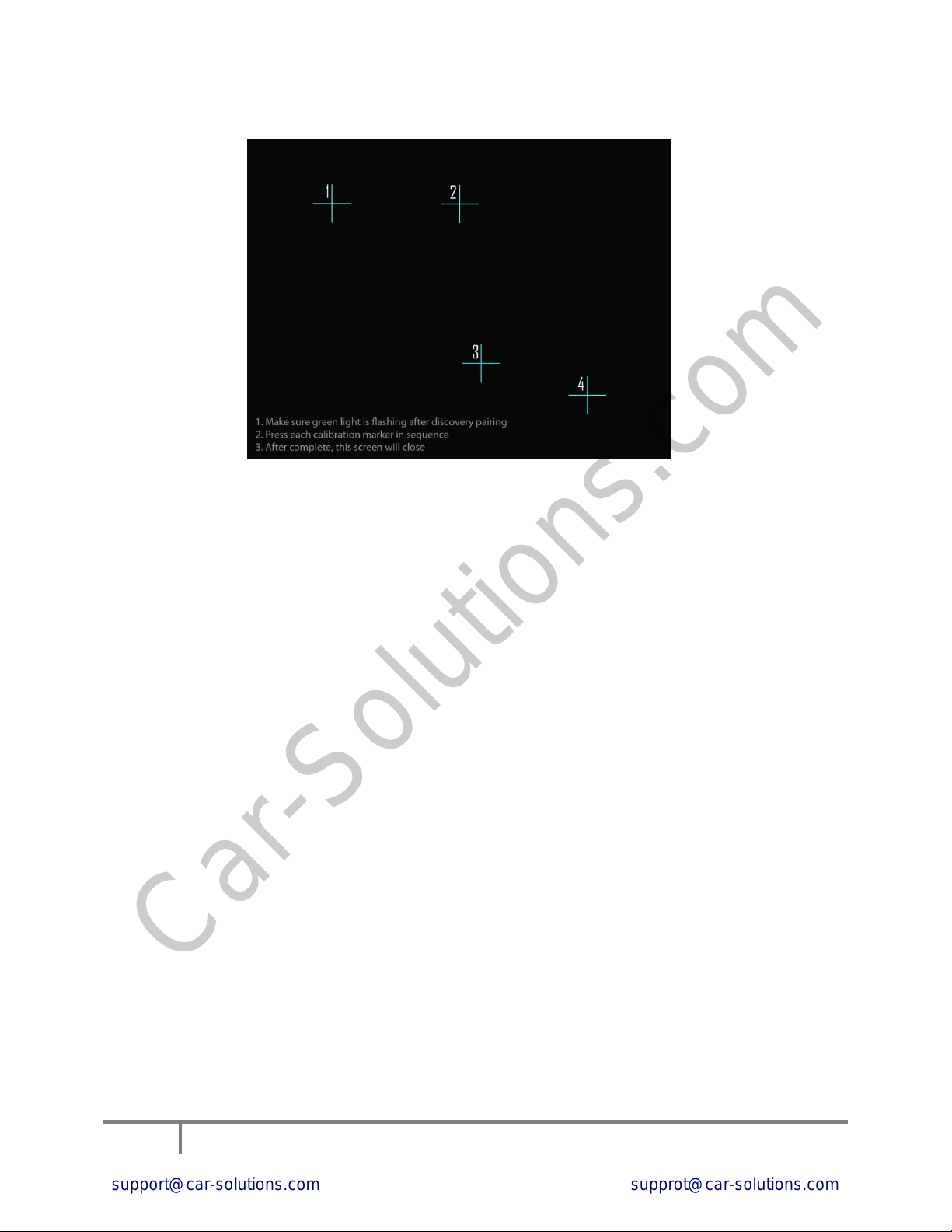
iOS Calibration screen
15. Press each marker in the numbered sequence.
16. If successful the iOS device will automatically return back to the HOME screen, and calibration is
done.
iOS Touchscreen calibration complete.
Car-Solutions.com

10
PAIRING A NEW SMARTPHONE
If you have already calibrated your touchscreen but decided to change your Smartphone, you will need to
do the following in order to use a new device (different device used when calibrating the touchscreen).
1. PRESS and HOLD the CAP button until you see the BL E light start flashing, the mimics will now
reboot. At this point you will see the RED/BL E light flashing left to right once per second (i.e.
Bluetooth discovery mode).
2. Now open the MimcisG4 app and press the "PAIR MIMICSG4" button and proceed with pairing
the mimics like you did when calibrating the touchscreen.
3. After the device is connected you are ready to use your new device.
* If after you pair a new device and the calibration seems incorrect, please repeat the "CALIBRATING THE
TOUCHSCREEN" step using your new device.
* Its highly recommended that you use the MimicsG4 app when initiating a "CALIBRATING THE
TOUCHSCREEN" or "PAIRING A NEW SMARTPHONE". Failure to do so can result in some app features not
to work and might cause pairing issues.
* After the initial pairing (first time discovery) the mimicsG4 will automatically reconnect to the
Smartphone when the MimicsG4 is turned on. Bluetooth will need to be enabled on your device for this to
automatically happen.
End of pairing Smartphone.
Car-Solutions.com
Tabla de contenidos
Otros manuales de Mando a distancia de Car Solutions


