
BulletHD PRO 4 Manual de usuario

Welcome
Thanks for purchasing this Action Camera
Please read this instruction manual to ensure correct use of
the product prior to use.
Please keep this instruction manual in a safe place.
Please ensure that the sales store fills out the warranty with
the date of purchase and the name of the store.
The warranty does not cover any damage that may occur
during a sport activity. It is the users responsibility to
secure the action cam securely to any sport equipment.
Contents
What’s in the Box
How to use
Action Camera Overview
Initial Set Up
Charging The Battery
Power on/off Your Action Camera
Card Slot Empty
APP Settings
Micro SD card Storage Chart
Basic Settings Via SETTINGS.TXT File
Take a Video
Take Still Pictures
Playback on your computer
On a Mac
LED Status Table
Removing/Installation Battery
LED Status
Wi-Fi Built In
Repairs
Technical Specifications
Warranty

What’s In The Box
1. Camcorder with Sound Cap (water resistant)
2. Camcorder Mount
3. Universal Mount
4. Roll Bar Mount
5. Curved Mount
6. Battery
7. USB Cable
8. Adhesive Stickers 5pcs
9. Magic Tape 2pcs
10. Hand Safety Strap
11. User Manual
12. Waterproof Cap
13. Rubber O-ring 6pcs
14. Silicon Grease

How to use
1. Camera on handlebar
2. Camera on vented helmet
3. Camera on top of helmet / any curved surface
4.Camera on any flat surface / tripod

Action Camera OVERVIEW
①LED ②Power / Shutter ③Rear Cap ④WiFi OFF/WiFi On
⑤USB ⑥Micro SD Card Slot ⑦Battery ⑧Battery Charging LED
Initial Set Up
1. Make sure the Action Camera is OFF before adding or removing the
memory card!
2. Screw out the rear cap (open) located at the back of the Action
Camera ③.
3. Install a micro SD memory card (max up to 128GB(FAT32) into the
rear slot. To insert the micro SD card, slide the micro SD card into the
card slot on the back of the Action Camera with the card label facing
down. The micro SD card will click into place once it is inserted past
flush with the Action Camera. Use your fingernail to do this. Then
screw in the rear cap till is complete lock.
4. If no micro SD memory is inserted in the Action Camera, the LED on
top of the camera will blink red and blue.
5. When using a micro SD memory card in the Action Camera, there
should be no data from other devices on the card. If you are using a
micro SD memory card for the first time in the Action Camera, first you
should format the card in your computer.

Using Action Camera for Water Sports
Remind you to put some silicon grease to the rubber O-ring from time to
time, especially before using underwater. Make sure the rear cap ③was
closed tight.
Charging The Battery
Screw out the rear cap located at the rear of the camera ③and Plug the USB charger to
the camera. The charging LED⑧is on while charging, goes off when the battery is fully
charged. On the first use charge the battery 10 hours before use! You can record up to 90
minutes with one charge.
Power on/off Your Action Camera
Turn Action Camera On Turn on the Action Camera by pressing the
Power/Shutter button ②for at least 3 seconds until the
blue LED turns on. The camera will vibrate once long.
After releasing the button the red LED flashes and beep
three times, indicating that the Action Camera is in
standby mode.
Turn Action Camera Off Turn the Action Camera off by pressing the
Power/Shutter button ②in standby mode until the red
LED flashes. The Action Camera will short vibrate twice
and beep 6 times and will switch off.
Card Slot Empty
If there is no Micro SD card in the camera, the red and red LED will
flash for 15 seconds. Then, the camera will switch off automatically.
Friendly reminder: Please insert the Micro SD card before using the
camera!
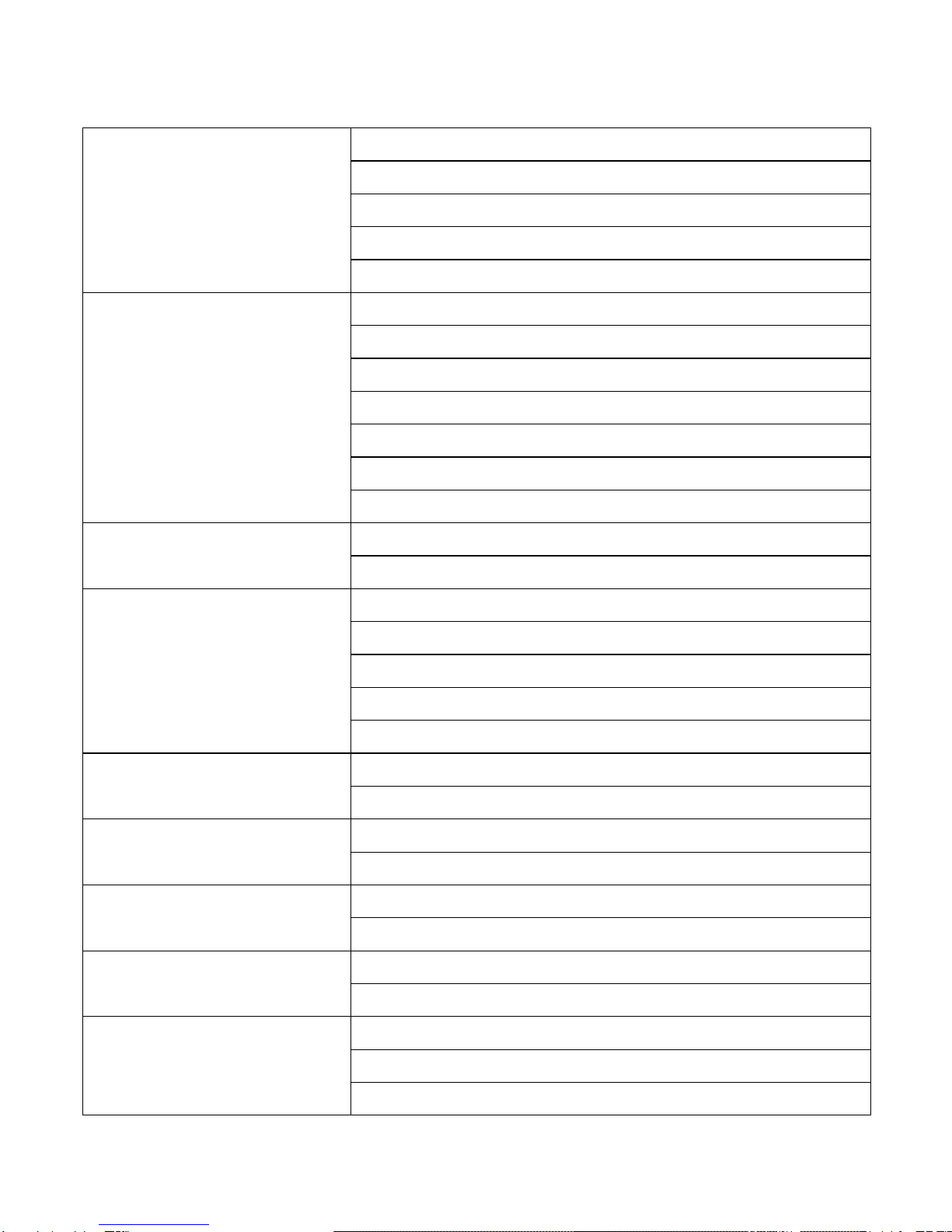
APP Settings
Video Resolution
4K@24fps
1080P@60fps (defaut)
1080P@30fps
720P@60fps
720P@30fps
Time Lapse
Off(default)
1 frame per second
1 frame per 2 second
1 frame per 5 second
1 frame per 10 second
1 frame per 30 second
1 frame per 60 second
Loop Record Off (defaut)
ON
Video time
3min
5min (defaut)
10min
15min
30min(4K\1080P@60fps)
Audio Record Off
ON (defaut)
Auto Recording Off
ON (defaut)
Date Stamp Off (defaut)
ON
Image Size 12M 4032x3024
5M 2593x1944 (defaut)
Quality Fine (defaut)
Good
Normal

Default Setting OK
Cancel
Auto Power Off
Off
3min (defaut)
5min
10min
Wi-Fi Name
Reset Password
Version
Remember to insert a micro SD card before you start taking videos or pictures!
Basic Settings Via SETTINGS.TXT File
You can also change the settings via the SETTINGS.TXT file, the file
will be created automatically on the micro SD sard after the camera is
turned ON

Take a Video
Turn on the Action Camera by pressing the Power button ②. Connect
the Action Camera to your smartphone via WiFi. Use “Action Camera”
APP to set to Photo Mode. Then, you can use APP to start taking
photos now. Or press the Power/Shutter Button ②shortly to start a
video recording. The red LED will blink while the video is recording.
Press the Power/Shutter Button ②again to stop recording.
Take Still Pictures
Turn on the Action Camera by pressing the Power button ②.
Press the Power/Shutter ②button to start taking photos, the red LED
will blink and it will beep once. Press the Power/Shutter button ②again
and it will beep twice to stop taking photos and to go back to the
standby mode.
In photo mode the Action Camera will take sequentially photos every 3
seconds. It stops automatically if the battery is empty or if the micro SD
card is full.

Playback On Your Computer
Power on the Action Camera and connect with your computer via
USB cable from the USB port ⑤. The camera will be recognized
automatically as USB Device. Or you can take out the micro SD
card and use your own card reader to connect with your computer
too.
The device must be power on while connected with
computer for data download. Don’t remove the
battery!
When you remove the battery while the video is
playing, damage to your video data could occur!
Don’t remove the USB cable under “Mass Storage”
status! Please switch off the camera before removing
the USB cable!
On a MAC
Simply plug the Action Camera into your MAC with the included USB
cable, turn your Action Camera on, and the MAC OS will recognize the
Action Camera as an external hard drive.
IMPORTANT TIP FOR MAC USERS
When deleting files from your Micro SD cards you must empty the trash
before removing it or unplugging the Action Camera. If you do not

empty your trash the photos and videos files will not be completely
erased from your cards.
Removing/Installation Battery
The battery is designed to have a very tight fix to maximize reliability in
high vibration activities. To remove the battery, pull it out with the
battery holder.
It is intentionally not easy to do, but the battery will come out.
Additional batteries and mount packages are available at www.Action
Camera.us
LED Status
REMARKS:
THE SPECIFICATION IS SUBJECT TO CHANGE WITHOUT NOTICE.
Otros manuales para PRO 4
2
Tabla de contenidos
Otros manuales de Videocámara de BulletHD


Manuales populares de Videocámara de otras marcas


Panasonic
Panasonic AG-HMC152EN Manual de usuario

Insignia
Insignia NS-DCC5HB09 - Camcorder - 720p Manual de usuario

MYDLINK
MYDLINK DCS-6100LH Manual de usuario

Sony
Sony video Hi8 Handycam CCD-TR555 Manual de usuario

SECURECOM
SECURECOM V-5014B Manual de usuario

Panasonic
Panasonic HDC-SD100 Manual de usuario


