BTC 2001ARF Manual de usuario

2001ARF
Wireless Keyboard & Mouse Kit
User’s Guide
Version 1.2

The information in this document is subject to change without notice and does not represent a commitment
on the part of the vendor.
No warranty of representation, either expressed or implied, is made with respect to the quality, accuracy or
fitness for any particular purpose of this document. The manufacturer reserves the right to make changes to
the content of this document and/or the products associated with it at any time without obligation to notify
any person or organisation of such changes.
In no event will the manufacturer be liable for direct, indirect, special, incidental or consequential damages
arising out of the use or inability to use this product or documentation, even if advised of the possibility of
such damages.
Copyright ©2003. All rights reserved
IBM, PC/AT and PS/2 are registered trademarks of International Business Machines Corporation.
Microsoft, Windows, and Windows NT are registered trademarks of Microsoft Corporation in the United
States of America and/or other countries.
All other trademarks are trademarks of their respective holders.

Table of Contents
1Introduction......................................................................................................1
What's in this package ....................................................................................1
2System Requirements .....................................................................................2
3Hardware Installation.......................................................................................2
4Software Installation ........................................................................................6
4.1 Keyboard Driver Installation ....................................................................6
4.2 Mouse Driver Installation .........................................................................6
5Using Keyboard and Mouse ...........................................................................7
5.1 Using the Keyboard.................................................................................7
5.2 Using the Mouse Driver...........................................................................8
6Troubleshooting.............................................................................................11


1
1 Introduction
Congratulations on your purchase of the 2001ARF wireless keyboard and mouse
kit! This keyboard and mouse kit will finally free you of the constraints of your
desktop by providing a wireless connection between the keyboard or mouse and
your PC. Pass around the keyboard or mouse during meetings without having to
bother about a cable blocking your way or write e-mails and surf the Internet from
the comfort of your living room couch!
The 2001ARF keyboard and mouse kit consists of a keyboard, a mouse and a
receiver. The receiver is connected to your PC through a cable with both a
keyboard and mouse connector. The keyboard and mouse can operate freely
within a radius of at least 1.5 meters from the receiver, which itself has a
maximum range from your PC of around 1.5 meters. Because the 2001ARF kit
uses radio frequencies to transmit the wireless signals it has no constrictions on
viewing angles such as with infrared devices like your TV’s remote control, etc.
Besides providing unprecedented freedom of movement when operating the
keyboard or mouse, the 2001ARF kit also offers even more extra functionality by
introducing 7 dedicated buttons for often used Internet browser functions as well
as a Sleep button. (Please note: The Internet keys work only under Microsoft
Internet Explorer 5.0 or later version!). And last but not least, this package also
provides a special driver that provides unique shortcut functions.
In order to enjoy your 2001ARF kit to the fullest it is recommended that you first
read this manual carefully before installation of the 2001ARF keyboard and
mouse kit.
What's in this package
A wireless keyboard with palmrest
A wireless mouse
A receiver
A driver CD
A user's guide
Batteries (2 pcs of AA; 2 pcs of AAA alkaline batteries)

2
2 System Requirements
MicrosoftWindows NT4.0, Windows95, Windows98, WindowsME,
Windows2000 or Windows XP operating system
MicrosoftInternet Explorer 5.0 or later version (for the Internet keys)
The system supporting ACPI or APM II (for power management buttons)
ATX mother board and ATX power supply (for power management buttons)
Available PS/2 keyboard port and mouse port.
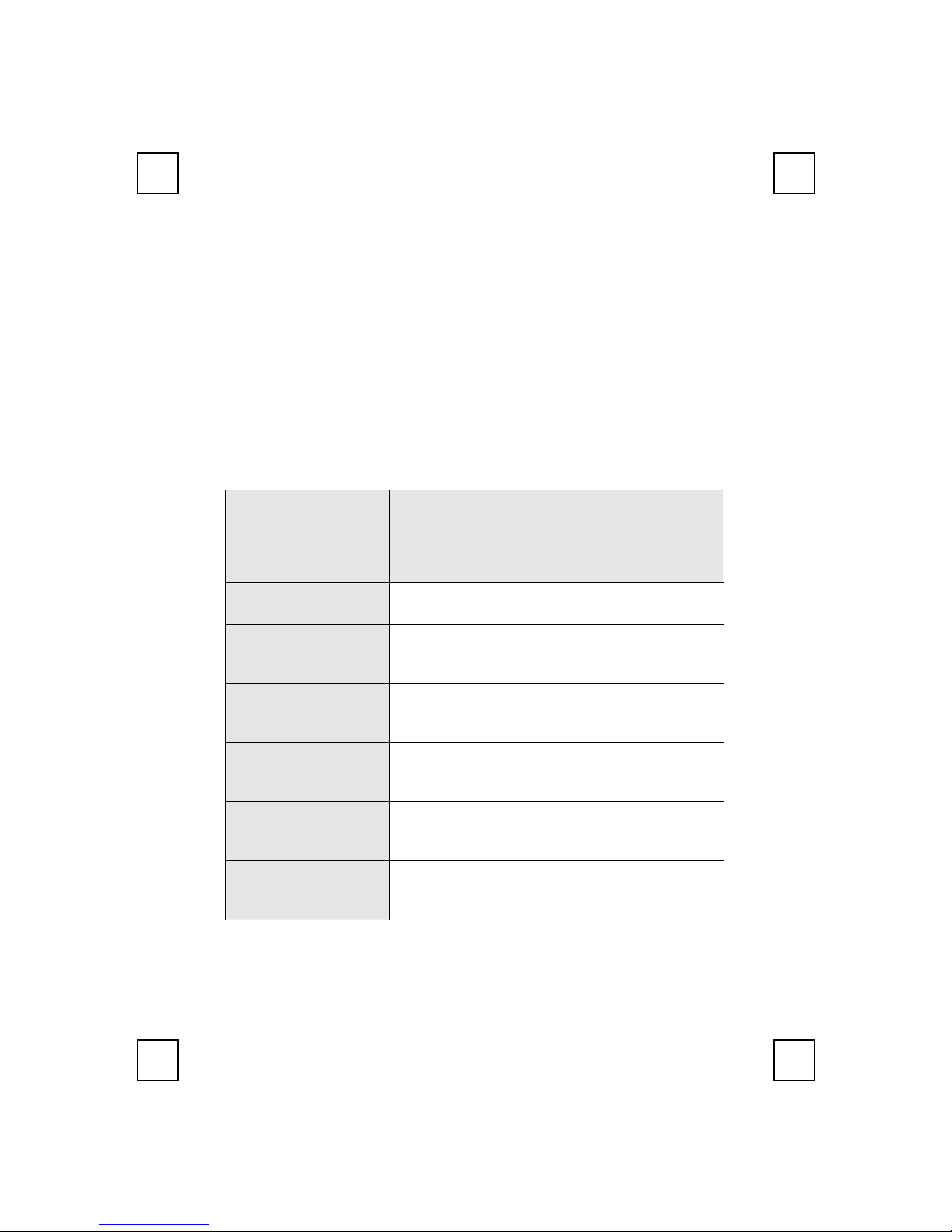
Please refer to below table for the other system requirements for the 2001ARF’s
various features.
Operating System
Function Description Windows NT 4.0 /
Windows 95 /
Windows 98
Windows ME /
Windows 2000 /
Windows XP
Wireless Functionality Available immediately
after hardware installation
Available immediately after
hardware installation
Keyboard Extra Internet
Buttons
Requires installation of
keyboard driver (see
driver CD for details)
Available immediately after
hardware installation
Keyboard Extra ACPI
Keys
Requires enabling of
system ACPI (Power
Management) function
Available immediately after
hardware installation
Mouse Driver Shortcut
Function
Requires installation of
mouse driver (see driver
CD for details)
Requires installation of
mouse driver (see driver
CD for details)
Keyboard Battery Low
Function
Requires installation of
keyboard driver (see
driver CD for details)
Requires installation of
keyboard driver (see
driver CD for details)
Keyboard LED Light
Function
Requires installation of
keyboard driver (see
driver CD for details)
Requires installation of
keyboard driver (see
driver CD for details)

3
3 Hardware Installation
Step 1: Make sure your PC is switched off.
Step 2: Connect the receiver to your PC by plugging in the receiver’s green
connector into the mouse port of your PC and the purple connector into
the keyboard.
Step 3: Take the keyboard and make sure the batteries on the back are installed
correctly. (Follow the polarity signs in the battery compartment.)
ID Button
1.5V 2pcs
Step 4: Take the mouse and make sure the batteries on the back are installed
correctly. (Follow the polarity signs in the battery compartment.)
ID Button
Remarks:
1. The keyboard uses 2pcs. standard UM-3 (AA) 1.5V alkaline batteries, and
the mouse uses 2pcs. UM-4 (AAA) 1.5V alkaline batteries.
2. Battery life is approximately 3-4 months, depending on the intensity of
usage.
Mouse Connector
Keyboard Connector
Bottom View of Keyboard
Bottom View of Mouse

4
3. Make sure the receiver is placed in a location where is relatively free of
strong electromagnetic or transmission sources in order to ensure optimal
reception of the keyboard and mouse signal.
ID Button Setting
This wireless keyboard kits have 255 sets ID in each unit. This extra
ID-recognition function helps to protect against interference from other RF
keyboards in the same environment.
After completing the hardware installation you must power on your PC to
set the ID of the receiver, mouse and keyboard
The word CONNECT labels the ID button on each unit..
Step 1: Press the ID button on the side of the receiver once.
ID Button
Step 2: Press the ID button on the bottom of the mouse once.
ID Button
Step 3: Press the ID button on the bottom of the keyboard once.
ID Button
1.5V 2pcs
ID Button of Receiver
ID Button of Mouse
ID Button of Keyboard

5
Remarks:
1. You must follow the procedure above to set the ID of receiver, mouse and
keyboard. Once the receiver ID button is pressed you have 35 seconds to
complete the entire process, or you will need to begin again.
2. Once the keyboard and receiver are plugged in, the yellow receiver light will
flash. Once the ID is set, it will remain steadily lit..
3. When changing the batteries of keyboard or mouse, there is no need to reset
all the ID’s. Simply reset one of them.
4. When keyboard batteries are low, a battery low icon will show on the
system tray.
5. When mouse batteries are low, a battery low icon will show on the system
tray.
Detachable Palmrest
At your discretion, you may choose to connect the palmrest with keyboard.
To connect the palmrest with the keyboard please follow figure 1 & figure 2.
Figure 1
Figure 2

6
4 Software Installation
After finishing the hardware installation as described above and starting up your
PC, you should be able to immediately take advantage of the wireless function of
the 2001ARF wireless keyboard and mouse kit. If the keyboard and mouse are
not working properly, then please check Chapter 6 Troubleshooting for tips on
how to solve your problem.
4.1 Keyboard Driver Installation
If your operating system is Windows ME, Windows 2000 or Windows
XP, you can immediately take advantage of the extra function buttons
on the keyboard (except ‘Battery Low’ and ‘LED Light’ functions). But, if
your operating system is Windows NT 4.0, Windows 95 or Windows 98,
you will have to install the keyboard driver software to take advantage of
these functions. The keyboard driver program is located on the driver CD
included in the box.
1. Insert the driver CD into your computers CD-ROM drive.
2. Run the SetupKey.exe in the \2003RF&2001ARF\keyboard
software directory of the driver CD.
3. Follow the on screen instructions to finish the installation procedure.
4. For detailed information, please refer to the Readme file in the
\2003RF&2001ARF\Keyboard Software\Readme folder.
4.2 Mouse Driver Installation
In order to take advantage of the special shortcut button functionality
of the mouse, you will have to install the mouse driver which is
located on the driver CD included in the box.
1. Make sure the driver CD is in your computers CD-ROM drive.
2. Run the setup.exe in the \2003RF&2001ARF\mouse software
directory of the driver CD.
3. Follow the on screen instructions to finish the installation procedure.
4. For detailed information, please refer to the Readme file in the
\2003RF&2001ARF\Mouse Software\Readme folder.
Otros manuales para 2001ARF
1
Tabla de contenidos
Otros manuales de Accesorios de computadora de BTC

BTC
BTC 2001BRF Manual de usuario

BTC
BTC 9001URF Manual de usuario

BTC
BTC 9001URF Manual de usuario

BTC
BTC 2001ARF Manual de usuario

BTC
BTC 6301URF Manual de usuario

BTC
BTC 9001BRF Manual de usuario

BTC
BTC 9013RF Manual de usuario

BTC
BTC 2003RF Manual de usuario

BTC
BTC 2001URF Manual de usuario

BTC
BTC 9013RF Manual de usuario