
BrilliantTS FuzeW Manual de usuario

QUICK START GUIDE
F_M_1.0_181231
It is the user who is responsible for the consequences resulting from theft or loss of the device.
The ‘recovery phrase’, which is created when a wallet is set up for the first time,
is the only means to recover the wallet. Please keep it safe and secure.
provides hardware devices to generate user's wallets,
but is not liable for losses incurred due to the loss of the recovery seed and passphrase.
BrilliantTS Co.,Ltd. All Rights Reserved.

RECOVERY SHEET
Private passphrase
01 02 03 04
05 06 07 08
09 10 11 12
13 14 15 16
17 18 19 20
21 22 23
DO NOT DISCLOSETHE WORD TO ANYBODY
24
Components 02
Charging Cradle with Battery
A cable designed to supply power
to the portable charging cradle
A paper sheet to write down recovery phrase
* The recovery phrase is the only means to recover your wallet.
Make sure that it is secure and safe.
Recovery Sheet
1
Portable Charging Cradle
USB Cable

Before start 03
Initial setup requires more power than usual use.
For smooth implementation, we recommend you charge thedevice during the initial setup.
1 / Card charging
2
Insert the USB cable into the cradle’s port and supply power to the setup.
If the charging cradle LED turns red, insert the card into the slot
(charging port into the slot inwardly).
If the charging cradle LED turns red, orange, green and red in order, charging begins normally.
If the cradle Led turns green, charging is successfully done.
LED Light
Charging port
Card slot
Charge button
In case a card is being charged with the auxiliary power of the charging cradle, insert the card into the charging cradle
and press [Charge].
Charging cradle
1
2
3
4
Before start 04
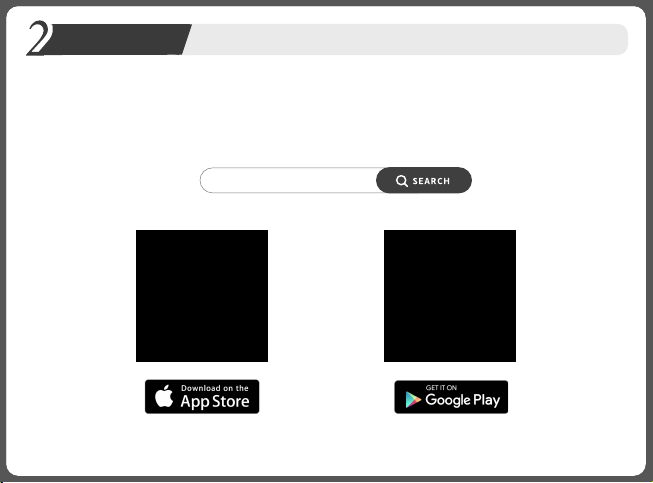
The assets in a hardware wallet are managed by the app ‘W Manager’.
Search ‘W Manager’ on Apple’s App Store/Google’s Play Store or scan the QR code below.
Then, download the app.
W Manager
2 / Download the W Manager app

WELCOME
Initial Setup 05
1-1 / PIN Code Setup
3
1 2Press and hold until the
‘WELCOME’ message appears
(1-2 second(s)).
Press or to choose the numb
-er. Then, press to set the PIN
code one by one.
Once the 4-digit PIN Code is set,
appears on the fifth digit.
If you want a 4-digit code, press
and save the settings.
* If 5 or longer digit code is wanted :
Select a number using the or button
on the digit and press to set the PIN Code.
After setting the wanted PIN Code (up to 10 digits),
select .
Then, press and save the settings.
* Long Press to go back to the pre-
vious step.
Hardware wallet
Enter 4~10 Digits
5
PIN Code
Enter 4~10 Digits
PIN Code
3
The PIN Code is used to turn on the wallet or edit the settings.
In case the code is entered incorrectly more than 5 times, the device
will be reset. Then, you may need to go through the recovery process.
Keep the code safe and secure to avoid such unwanted procedure.

The number of the code entered appears on
the screen. Press and re-enter the PIN Code.
Once the PIN Code is set, the
Confirm PIN Code page appears.
Press and start the confirma-
tion process.
Press or and select the preset
PIN Code.
Then, press and start the confirma-
tion.
PIN Code
Enter 4~10 Digits
5
PIN Code
4 5
* If the PIN Code is entered correctly
* If the PIN Code is entered incorrectly
‘Processing’ appears on the screen, and the
next step (Create Wallet) appears.
* You are allowed to enter the PIN Code up to five times.
If it is entered incorrectly more than 5 times, the device is
automatically reset, and the system then returns back to
the PIN Code Setup page.
Processing ...
Launch
1/5 Failed attempt
Launch
Initial Setup 06
1-2 / Confirm PIN Code
3
Confirm new
PIN Code

Initial Setup 07
2 / Create Wallet ㅣ Recovery Phrase Backup
3
1 2Once the PIN Code is set, the Create
Wallet page appears.
Press and start the setup process.
Get a pen and the attached recovery
sheet and press .
Then, write down the recovery phrase.
Write down your recovery word on
the recovery sheet and press to
enter the next recovery word.
Sequence of Recovery Words
Sequence of
Recovery Words
Recovery
Words
Configure as
new device
Launch
3
4Once all the 24 words are all entered,
press and move on to the Confirm
Recovery Phrase page.
Phrase 24
Write down
your recovery phrase
Launch
BOX
Phrase 01
SWEET
BOX GIFT MEMORY
Recovery Words

The digits of the code entered incorrectly
appears on the screen.
Press and enter the PIN Code again.
Sequence of
Recovery Words
Confirm your
Recovery phrase
* If the recovery phrase is entered correctly
* If the recovery phrase is entered incorrectly
A message confirming that the recovery
word was correctly entered appears.
Press and enter the next word.
Confirmed phrase
Launch
1/5 Failed attempt
Launch
Check the sequence on top and choose
a correct word using the and
buttons.
Press and check the answer.
6
SWEET
Initial Setup 08
2 / Create Wallet ㅣ Confirm the Recovery Phrase Backup
3
Phrase 01
5Press and start the Confirm Re-
covery Phrase Backup process.
If the words are all entered correctly,
a message confirming that they were
correctly entered appears.
Press and move to the next step.
Confirmed
all phrase
Launch
Launch
In case the PIN Code is entered incorrectly
more than five consecutive times, the dev-
ice is automatically reset, and the system
returns back to the PIN Code Setup page.
Reset the system all over again.
Enter 4~10 Digits
5
PIN Code

Initial Setup 09
2 / Create Wallet ㅣ Generate Private Passphrase (Optional)
3
A private passphrase is a password which can be additionally set,
in addition to the 24 recovery words that are randomly created for each user’s privacy.
Generate your own phrase which cannot be guessed by anyone.
1) Private Passphrase setup is not wanted
Setting
private passphrase?
Private passphrase Private passphrase
Yes No
Launch
Processing ...
1Once the recovery seed backup is
completed, the system moves to the
Generate Private Passphrase step.
Press and start settings.
2
2
In case you don’t want to set the
Private Passphrase, press
and move on to the next page.
3Your wallet has been successfully
created.
The message ‘Processing’ appears
on the screen. Once the process is
completed, the system moves to the
next step (mobile linkage).
* If you want the setup, refer to in
Page 10.
* Go to Page 12.

Initial Setup 10
2 / Create Wallet ㅣ Generate Private Passphrase (Optional)
3
2) Private Passphrase setup is wanted
Setting
private passphrase?
Private passphrase Private passphrase
Yes No
Private passphrase
1Once the recovery seed backup is
completed, the system moves to the
Generate Private Passphrase step.
Press and start the setup process.
4
*
*
The Private Passphrase can have a length of 1 to 8 digits.
If a 1-digit passphrase is desired:
Confirm on the 2nd digit and then press .
If a 2 or longer digit passphrase is desired:
1) Confirm and select letters using the or button. Then, press .
2) 2) Set the phrase (up to 8 words) and select next to the last word. Then, press .
2Press and start the Private
Passphrase setup process.
3
a
Private passphrase
Press or and select the alphabet
on the first digit of the wanted word and
press .
Tabla de contenidos


