Bridgeworks Appliance a202 Manual de usuario

Appliance a202
Hardware Manual
Eli-v5.02.153
Bridgeworks
Unit 1, Aero Centre, Ampress Lane,
Ampress Park, Lymington,
Hampshire SO41 8QF
Tel: +44 (0) 1590 615 444
Email: [email protected]

Warning
The Bridgeworks Appliance contains no user serviceable components. Only an Authorised Service
Centre should carry out any servicing or repairs. Unauthorised repairs or modifications will
immediately void your warranty.
Before you start
There are a number of additional pieces of equipment you will require for the successful installation
of your Appliance depending on the feature cards installed:
Ethernet Cable
You will require at least one good quality cable of suitable length to go between your network access
point and the Appliance. This should be marked as certified to Cat 5e and have an RJ45 style
connector at the Appliance end.
10Gb Ethernet Cable
Depending on the configuration you have purchased, you will require at least one cable from either:
LC Multi-mode Optical Fibre Cable (SFP+)
• Multi-mode Optical Fibre 50/125 OM3 or OM4 Patch Cable (LC), up to 300 meters.
Or Copper Interface Cable (SFP+)
•
SFP+ Direct Attach Copper (DAC) Twin-Ax interface cable (passive), up to 7 meters. Bridgeworks
Part Number 017/034.
Or 10GBASE-T Category 6/6a Cable (RJ45)
• Category 6 certified cable with an RJ45 style connector, up to 55 meters.
• Category 6a certified cable with an RJ45 style connector, up to 100 meters.
6Gb SAS Cable
The Appliance uses a Mini-SAS style connector, also known as an iPASS or SFF-8088 connector,
with 4 phys per wide port. You will require a SAS cable that supports this connector at the Appliance
end and the type of connector your peripheral device supports at the other end.
Fibre Channel Cable
You will require at least one Multi-mode Optical Fibre 50/125 OM3/OM4 Patch Cable (LC) of suitable
length to go between your Appliance and device, host, or Fibre Channel switch.
If you are in any doubt, please contact your reseller for assistance.
2

Table of Contents
1 Introduction 4
1.1 ManualLayout ....................................... 4
1.2 SafetyNotices ....................................... 5
2 Installing the Appliance 7
2.1 ApplianceConfiguration.................................. 7
2.2 Connecting the Ethernet Interface . . . . . . . . . . . . . . . . . . . . . . . . . . . . 7
2.3 Connecting the 10Gb Ethernet Cables . . . . . . . . . . . . . . . . . . . . . . . . . . 8
2.3.1 Using a LC Multi-mode Optical Fibre Cable (SFP+) . . . . . . . . . . . . . . . 8
2.3.2 Using a Copper Interface Cable (SFP+) . . . . . . . . . . . . . . . . . . . . . 10
2.3.3 Using a 10GBASE-T Category 6 or 6a Cable (RJ45) . . . . . . . . . . . . . . 10
2.4 Connecting the 6Gb SAS cables . . . . . . . . . . . . . . . . . . . . . . . . . . . . . 10
2.5 Connecting the Fibre Channel Interface . . . . . . . . . . . . . . . . . . . . . . . . . 11
2.6 Connecting the Power Supply . . . . . . . . . . . . . . . . . . . . . . . . . . . . . . . 12
Appendix A Visual Indicators 14
A.1 Ethernet........................................... 14
Appendix B Technical Specifications 15
3

1 Introduction
1.1 Manual Layout
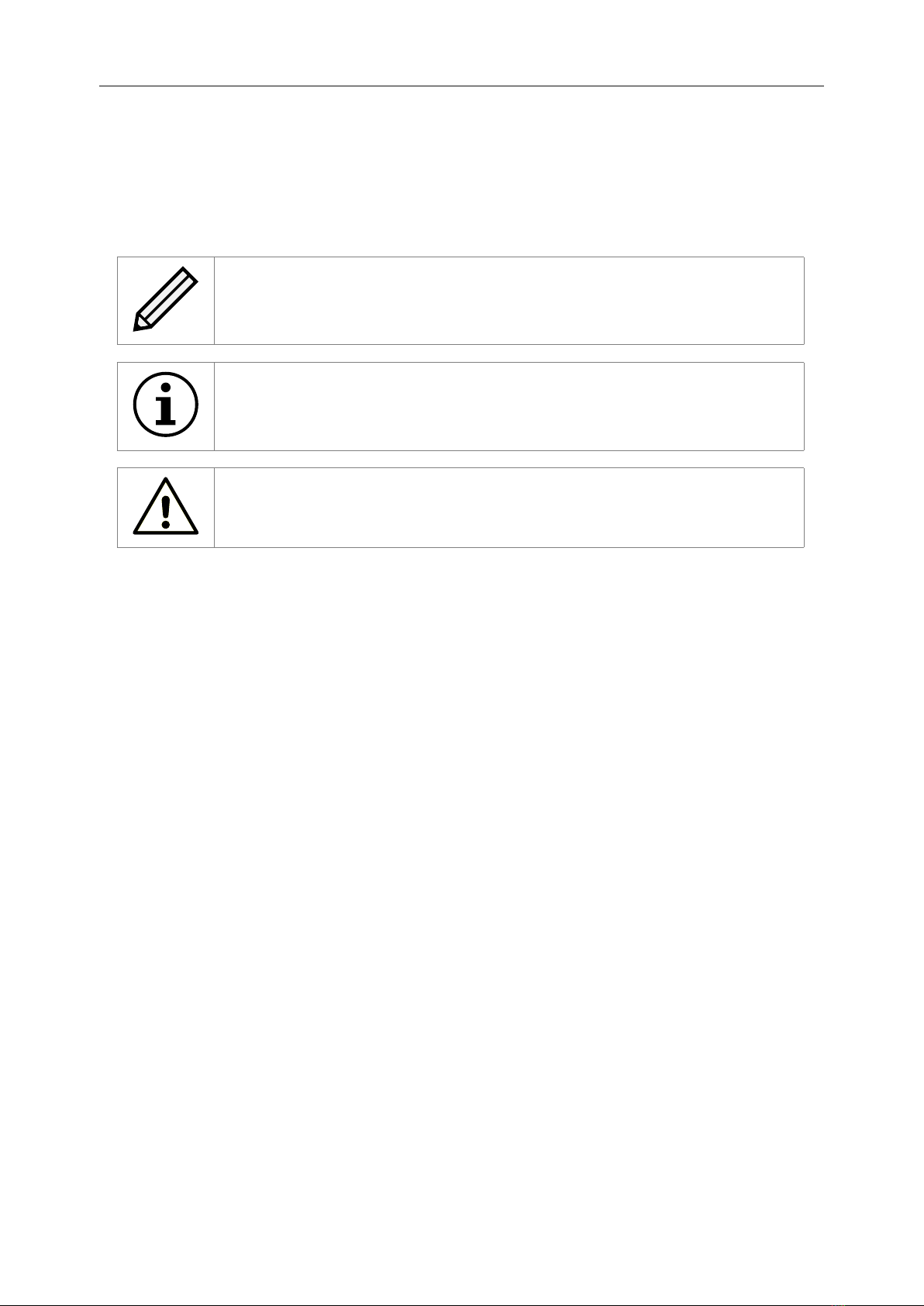
Throughout the manual, symbols will be used to quickly identify different pieces of information.
This icon represents a note of interest about a step or section of information.
This icon represents an important piece of information.
This icon represents a warning. Care must be taken and the warning should
be read thoroughly.
4

1.2 Safety Notices
This device should only be installed by suitably trained personnel.
Protection provided by the equipment may be impaired if used in a manner
not specified by the manufacturer.
Do not block the enclosure’s vents. Air enters from the front and is exhausted
out the back of the device.
This device requires a connection to AC power in order to operate. Before
using the device, please read the instructions carefully, in order to use the
device correctly and safely. For the installation instructions, refer to Chapter 2:
Installing the Appliance.
Class I Equipment. This equipment must be earthed. The power plug must
be connected to a properly wired earthed ground socket outlet. An improperly
wired socket outlet could expose hazardous voltages on accessible metal
parts.
Do not attempt to service the equipment yourself. Doing so will void the
warranty and may damage the system. This unit may contain hazardous
voltages and should only be opened by a trained and qualified technician.
To prevent electric shock, do not remove the cover. Contact an authorised
service center to perform any servicing inside the Appliance, the user should
not attempt to service any parts inside the unit themselves.
The power cord is used as a disconnection device, be aware after
disconnection of the AC power some internal components may retain charge
still and represent a shock hazard.
Do not use the equipment where it can get wet. Protect equipment from liquid
intrusion. If your equipment gets wet, disconnect power to the equipment and
to any attached devices. If the Appliance is connected to an electrical outlet,
turn off the AC power at the circuit breaker before attempting to remove the
power cables from the electrical outlet. Disconnect any attached devices.
Use only approved power cables(s) rated for the equipment. The voltage and
current rating of the cable should be greater than the ratings marked on the
equipment.
If the incorrect cables for your geographical area have been supplied with
your unit please contact your supplier.
The mains plug to the rear of the unit is used as the power disconnect device;
please ensure that this is kept clear from any obstruction and is visible at all
times.
To prevent electrical shock hazard, disconnect the power cable from the
electrical outlet before relocating the system.
5

Class 1 Laser Product: Certain models will use a Small Form factor Pluggable
(SFP) Transceiver module for connection to an optical network. These devices
may use a Class 1 Laser device—it is important that you do not stare into the
Laser beam.
6

2 Installing the Appliance
The following are the basic steps to installing the Appliance:
•Connecting the Ethernet Interface
•Connecting the 10Gb Ethernet Cables*
•Connecting the 6Gb SAS cables*
•Connecting the Fibre Channel Interface*
•Connecting the Power Supply
*If an appropriate feature card is installed.
2.1 Appliance Configuration
The following image is a representation of the back of the Appliance and can be used to identify the
positions of the various feature cards available on your product.
Product Onboard Ports MA and MB Onboard Ports 8A and 8B
WANrockIT 400 Management WAN
WANrockIT 800 Management WAN
All other slots will contain feature cards chosen at time of purchase.
2.2 Connecting the Ethernet Interface
The onboard Ethernet interfaces on the Appliance can be used on the following network configurations:
• 10BASE-T
• 100BASE-T
• 1000BASE-T (Gigabit)
It is not necessary to specify which network type you are connected to, as the Appliance will
automatically select the correct network speed.
7

The onboard Ethernet interfaces can be found at the back of the Appliance and are used for either
Management or WAN. See Section 2.1:Appliance Configuration to see interface assignments.
To connect an onboard interface, insert a Cat 5e cable (or better) into it as shown in the following
image. When the plug is in the correct position a “click” should be heard. The other end of the
cable should be connected to a network.
Rear Panel of the Appliance Showing Ethernet Cable Connections
2.3 Connecting the 10Gb Ethernet Cables
Depending on the configuration you have purchased, either one of the following cables will be
required for your product.
• LC Multi-mode Optical Fibre Cable (SFP+)
• Copper Interface Cable (SFP+)
• 10GBASE-T Category 6 or 6a Cable (RJ45)
2.3.1 Using a LC Multi-mode Optical Fibre Cable (SFP+)
If you have purchased a 10GBASE-SR feature card, connections up to 300 metres are supported
using OM3 or OM4 grade Multi-mode Optical Fibre 50/125 using LC connectors.
To connect the Appliance to an Ethernet network or directly to a device, insert one or two SFPs into
the unit.
8

Note: SFPs will come pre-installed when a 10GBASE-SR feature card has
been purchased with your configuration.
Insert the multi-mode cables in to the SFP as shown below. When the plug is in the correct position
a “click” should be heard.
9

2.3.2 Using a Copper Interface Cable (SFP+)
If you are using a copper based solution, an SFP+ Direct Attach Copper (DAC) Twin-Ax interface
cable must be used; the maximum supported length of which is a 7 meter passive cable.
To connect the Appliance directly to a device, insert one or two SFP+ cables in to the connector as
shown below. When the plug is connected a “click” should be heard.
Note: Speeds other than 10Gb/sec may not be supported by your 10Gb NIC.
2.3.3 Using a 10GBASE-T Category 6 or 6a Cable (RJ45)
If you are using a copper based solution using the RJ45 connector, a Category 6 or 6a Ethernet
cable is required, with a maximum length of 55 meters for Category 6 and 100 meters for Category
6a.
To connect the Appliance to an Ethernet network or directly to a device, connect one side of the
Category 6 Ethernet cable into a RJ45 port located on a 10 Gigabit Ethernet card at the back of the
unit. When the plug is in the correct position, a “click” should be heard. Connect the other side of
the cable to your Ethernet network or device.
2.4 Connecting the 6Gb SAS cables
The SAS bus on the Appliance is capable of running at speeds of up to 6Gbits/s. However, devices
that operate at slower speeds (1.5 Gbits/s and 3Gbits/s) can still be connected to this SAS bus. The
Appliance will automatically negotiate with these devices to obtain their optimal operating speed
upon power up. Each SAS wide port can support up to 4 phys.
Connect the SAS cable(s) to the Appliance as shown below, ensuring that connector is the correct
way up.
10
Tabla de contenidos
Otros manuales de Hardware de red de Bridgeworks
Manuales populares de Hardware de red de otras marcas

Matrix Switch Corporation
Matrix Switch Corporation MSC-HD161DEL Manual de usuario

B&B Electronics
B&B Electronics ZXT9-IO-222R2 Manual de usuario

Yudor
Yudor YDS-16 Manual de usuario

D-Link
D-Link ShareCenter DNS-320L Manual de usuario

Samsung
Samsung ES1642dc Instrucciones de uso

Honeywell Home
Honeywell Home LTEM-PV Instrucciones de montaje