Blaupunkt VIO-HP20 Manual de usuario

Home Security IP Camera
Enjoy it.
Quick Start Guide
Indoor IP Camera | TrackCam VIO-HP20


EN Quick Start Guide
Indoor IP Camera VIO-HP20
4
DE Schnellstart-Anleitung
Indoor IP Kamera VIO-HP20
14
FR Mode d’emploi
Caméra IP intérieure VIO-HP20
24
ES Manual de usuario
Cámara IP para interiores VIO-HP20
34
NL Snelstartgids
Binnen IP Camera VIO-HP20
44

4
English
1. Kit Content
VIO-HP20 IP Camera
English | Manual
Power adapter EU type and
2m USB cable
Mounting plate and sticker3x wall screws / 3x plastic anchors
Safety Information:
Please read this manual carefully before using it for the rst time and keep it for future
reference to look up.
The safety precautions contained herein reduce the risk of re, electric shock and injury,
if they are followed correctly.
• The device is not a toy. Never leave unsupervised children with electrical
appliances. Do not leave packaging material behind. Children can swallow small
parts and choke on it
• Before use, make sure that the existing mains voltage matches the required
operating voltage of the article (see“Technical data”).
• Do not use the product if it is damaged. All the examination and repair work should
be done by qualied service engineers. We are not liable for any problems caused
by unauthorized modications or attempted repair.
• Avoid contact of the item with water or other liquids.
• The IP camera must be attached to a power outlet near the device and easily
accessible. Always lay cables in such a way that they do not endanger people or pet.
•Please turn o the power and unplug the power cable, if there is any smoke,
upleasant smell, or noise. Please contact your local retailer or customer service
center for help
•No liability is accepted for damage to property or personal injury caused by
improper handling or failure to observe the hazard information. In such cases all
warranty claims are void! No liability is assumed for consequential damage

5
English
2. Product Description
1. Indicator LED
2. Camera Lens
3. Built-in microphone
Indicator LED status: Camera status:
O - Powered o/LED turned o
- Rebooting after reset
Red light on - Booting
- Device malfunction
Green light ashing Booting completed, waiting for WiFi
conguration
Green light on Wi connection succeeded, operate normally.
Red and green lights ash
alternately
Camera rmware upgrade
Red light ashing Network connection failure or disconnected from
the network
6. Speaker
7. Ethernet port
8. USB power port
4. Micro SD-Card slot
5. Reset Button
NOTE:
This quickstart guide explains the installation and registration of the VIO
camera. If you want to learn more about the camera or the Cam4Home Plus app
please check chapter 6.
2
1
3
4
5
6
7
8

6
English
Download and install the“Cam4Home Plus”APP to
your smartphone from the App Stores.
3. Learn in a Camera
Connect your smartphone to your Wi-Fi network.
Step 1:
Step 2:
NOTE: If you are using a dual-band router, make sure that your smartphone is
connected to a 2.4 GHz WiFi Network and not to a 5GHz Wi Network. To learn
more about this please check your router manual.
Open the“Cam4Home Plus”APP. Create a user account by pressing the
“sign up”button located at the bottom left hand side.
To add a new camera tap the“+”button at the top right of the screen and
scan the QR code of the camera. Then follow the insturctions on the App to complete
the camera registation.
Step 3:
Step 4:
NOTE: If you encounter any problem during the registration, check Chapter 6
4. Cam4Home Plus Management
Camera dashboard:
After setup, select your camera in the
“Device”menu, this will bring you to the
camera dashboard, where you can see
the camera live stream video and access
various features as take a snapshot ,
start a video recording , fullscreen
mode speak or listen . Tap
the icon to open the PTZ menu to
move the camera up and down and right
to left.
Tap to change the stream video
quality between Standard Denition (SD)
and High Denition (HD).

7
English
Share your camera with others:
A camera can be shared to other Cam4Home Plus accounts for live streaming only.To
modify the camera settings please use the account where the camera was registered.
On the account where the camera was registered go to the camera dashboard and
tap on the icon. Select device share and tap on“Add user to Share”. Type the email
of the Cam4Home Plus account you want to share the camera with and tap the save
button at the top right of the screen.
To stop sharing the camera with an user go to the camera dashboard --> settings -->
Device sharing and tap“Cancel”.
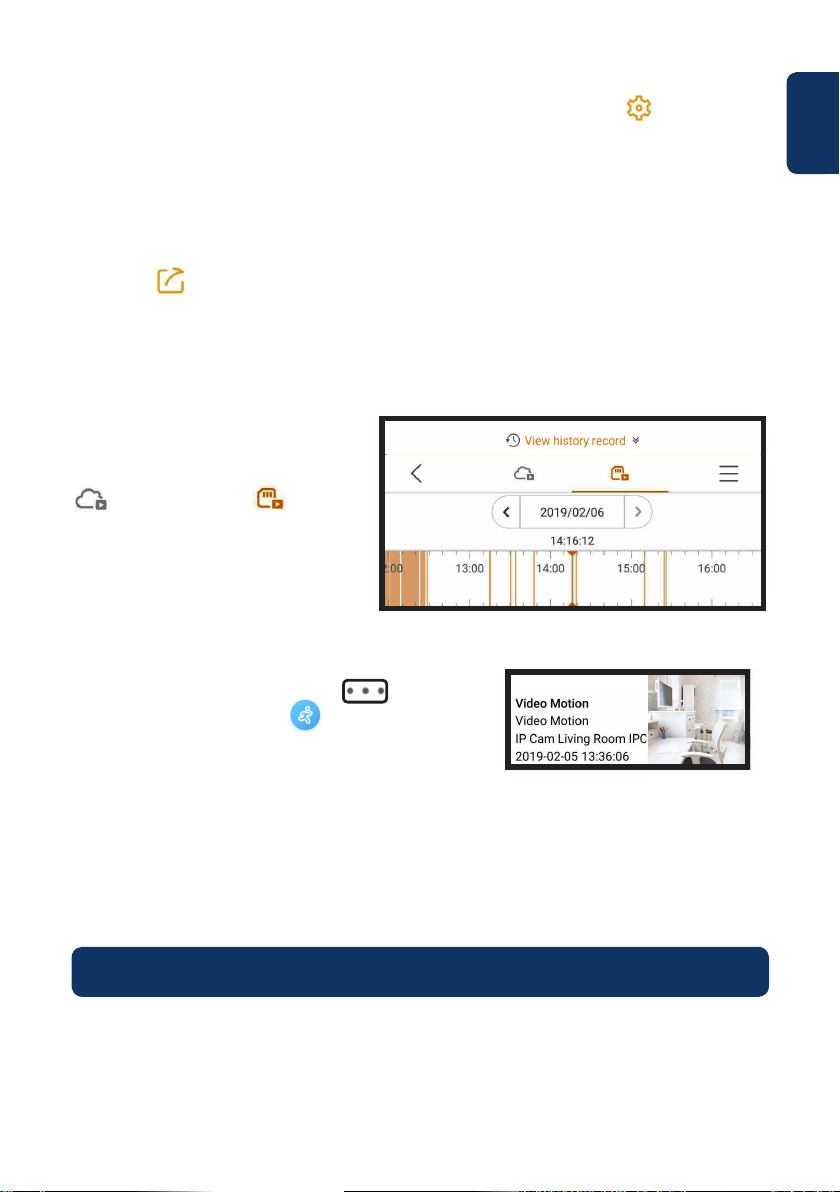
Playback video recordings
On the camera dashboard tap on
“View history record”and select Cloud
or SDcard storage . Tap on
date and select a day on the calendar.
Use the timeline bar to watch video
recordings from the selected day.
Video recordings are marked in
orange.
Push notications
On the device menu tap the 3 dot icon and
select“Alarm Notications” . Then tap the
“Alarm Notication”button to turn activate /
deactivate the push notications.
NOTE: To receive push notications“motion detection”must be enabled.
Important: Ensure that you give the app the permission to show pop up notications
on the home screen.
Motion detection
To enable / disable motion detection go to: Camera dashboard --> settings icon --> Arm
Setting --> Motion detection. Note: Motion detection its enable by default.
Camera settings:
To access the camera settings go to the camera dasboard and tap the settings icon
at the top right.

8
English
Motion detection zones
To adjust the detection area which is
enabled for motion detection go to:
Camera dashboard --> settings icon -->
Arm Setting --> Detection region setting
By default the motion zone covers the
camera vision eld completely.
To delete all the previously selected
detection zones, tap on the“Clear”icon. To
delete specic areas tap the“Eraser”icon
and slide your nger through the screen.
Tap again the“Eraser”icon to exit eraser
mode. To create a new detection zone tap
on the screen and draw a motion detection
zone. Create as many motion zones as
needed, then tap“Save”to save the motion
zones.
Clear Invert Eraser
Smart tracking
To enable / disable this feature go to: Camera dashboard --> settings icon --> Arm
Setting --> Smart tracking. Once enabled, the camera will automatically follow the
moving object.
Audio detection alarm
To enable / disable motion detection go to:
Camera dashboard --> settings icon --> Abnormal
Sound Alarm. Then tap on“decibel settings”to set
the noise threshold to trigger the audio detection
alarm.
Note: Audio detection alarm detection its disabled
by default.
Smart Human detection
To enable / disable this feature go to: Camera dashboard --> settings icon --> Arm
Setting --> Human Shape Detection. Once enabled, the camera will trigger push
notications only if the detected object has a human shape, decreasing the false alarms
from cars or animals.

9
English
NOTE: Motion detection is triggered based on a certain percentage of pixel
change. Low sensitivity: The camera will alert, if many pixels in the picture have
changed. High sensitivity: The camera will alert when few pixels in the picture
have changed.
Motion sensitivity
To adjust the motion sensitivity go to: Camera dashboard --> settings icon --> Arm
setting --> Detection Sensitivity.
Adjust the motion sensitivity according to your needs between 1 (min) and 5 (max).
Please keep in mind that setting to high sensitivity could trigger false alarms and at the
same time low sensitivity could ignore alarms on low light environment.
Tap the icon to save the changes
NOTE:
The Cam4Home Plus App is designed mainly for smartphones, full
compatibility on tablets cannot be assured.
Privacy mode
On the“Device”tap the“Camera Shielding”
button located at the top right of the VIO-
HP20 camera to activate the privacy mode.
When the privacy mode is activated
the camera lens will be hidden and the
microphone deactivated avoiding any
audio or video recording. Additionally video
live streaming, listening, speaking, taking
snapshots or video recordings trhought the
app will be disabled until the privacy mode is
deactivated.
To deactivate the privacy mode tap again on the“Camera Shielding”button located in
the device menu or tap“Cancel hiding”on the camera dashboard.

10
English
5.2. Installation
Stick the mounting map
sticker on the wall or ceiling, then use it
as a template to mark the three drilling
points.
Drill through the marked
points and install the plastic anchors on
the three holes.
Place the mounting bracket
on the ceiling and drive the screws into
the plastic anchors until they are ush
with the mounting bracket and the
bracket is at against the wall.
Install the camera on the
mounting bracket and turn it clockwise
to lock it.
Step 1:
Step 2: Step 4:
Pull the camera lens up and locate the Micro SD-Card compartment (refer to
chapter 2 point )
Install the Micro SD-Card into the indicated MicroSD-card slot.
4
Step 1:
Step 2:
Step 3:
5. Installation
•Check your WiFi signal strength and make sure that the WiFi signal is strong at
the location of your camera. For best performance, the smartphone needs to be
connected to a WiFi network.
5.1. Micro SD installation (optional)
NOTE: The Micro SD-Card is mandatory for local recording. Please make sure
the Micro SD-Card is CLASS10 rated. Supported are Micro SD-Cards from 8GB
to 256GB.
1
2
3
4
5
6
Mounting Surface
Positioning Map
Plastic Anchors
Mounting Plate
Screw
Camera
Tabla de contenidos
Idiomas:
Otros manuales de Cámara IP de Blaupunkt