
BigBlue CellPowa 2500 Manual de usuario
2500多国语言说明书 尺寸:160*115m
材质:105克双铜,单黑印刷,胶装
(书脊背与文字边距保持8mm左右) 封1
CellPowa 2500
User Manual
BigBlue supports environmental sustainability.
Scan the QR code using a smartphone device,
Portable Power Station
CellPowa 2500
User Manual
BigBlue supports environmental sustainability.
Scan the QR code using a smartphone device,
for the latest user manual in dierent languages.
Portable Power Station

1 Disclaimer..............................................................................................01
2 Introduction...........................................................................................01
3 Safety Instructions ................................................................................01
4 Technical Data .......................................................................................02
5 Product Overview..................................................................................04
5.1 Connectors.......................................................................................04
5.2 Screen ..............................................................................................05
5.2.1 Primary User Interface .............................................................05
5.2.2 Secondary User Interface.........................................................06
6 APP Guide ..............................................................................................07
6.1 Registration and Login ....................................................................07
6.2 Connect to Cellpowa 2500 ..............................................................07
6.3 APP Operation .................................................................................09
6.4 APP Download .................................................................................10
7 Operation...............................................................................................10
7.1 Output Mode....................................................................................11
7.1.1 AC Output..................................................................................11
7.1.2 DC, USB-A and USB-C Outputs.................................................12
7.2 Input Modes .....................................................................................14
7.2.1 AC Input.....................................................................................14
7.2.2 Solar Recharging ......................................................................15
7.2.3 Car Recharging .........................................................................16
7.3 GPS Positioning ...............................................................................17
8 Battery Instructions...............................................................................17
9 Recycling................................................................................................18
10 Warranty ................................................................................................18
11 Contact Information..............................................................................18
12 Certifications .........................................................................................18
13 FAQ.........................................................................................................19
14 Warranty Card........................................................................................20
Contents

1. Disclaimer
2. Introduction
3. Safety Instructions
Thank you for purchasing this product. Read all instructions carefully before using
this product. If you do not follow the safety instructions and information on proper
handling in this manual, we assume no liability for any resulting personal injury or
damage to property. This manual is intended to assist you in using the product.
Software and hardware specifications in this manual are for reference purpose only.
For detailed specifications of your product, see the Purchase Agreement (if any) of
your product or consult your local dealer. All pictures shown in this manual are for
illustration purpose only. Actual product may vary. BigBlue reserves the right of final
interpretation for the contents in this manual and all documents associated with this
product. We also reserve the right to update, change or terminate this manual
without prior notice. If you have any questions or comments, please contact us at
[email protected]om. We will get back to you as soon as possible.
Thank you for using Cellpowa 2500. The product is intended to provide electricity for
your electrical or electronic appliances in the event of a power outage or during a
trip. Equipped with DC output, USB output and AC output, the product can supply
electricity to devices such as mobile phones, tablets, notebooks as well as lighting
and automobile devices. The product has a built-in LifePO4 battery, which is the
safest and most reliable.
Read all instructions carefully before using this product.
1. Keep the product out of the reach of children. Close supervision is necessary when
the product is used near children.
2. Use accessories only recommended or sold by BigBlue. Otherwise, it may cause
electric shock.
3. Disconnect the product from the power supply when the product is not in use.
4. Never disassemble the product. Disassembling the product may cause hazards
such as fire or electric shock.
5. Charge the product in a well-ventilated area. Never cover the ventilation slots on
the product in any way.
6. Put the product in a ventilated and dry place to prevent water entering the
product. Risk of electric shock!
01
4. Technical Data
7. Follow local rules to dispose of your old product. Never dispose of the built-in
battery with normal household waste to avoid pollution.
8. Do not put your finger, palm or any part of your body into the product.
9. Do not store the product with metal objects such as coins, jewelry and keys, etc.
10. Do not throw the product into fire, water or other liquids. Protect the product
from extreme temperatures and direct sunlight.
11. Do not place the product under heavy objects. Do not subject the product to
strong impacts, such as letting it fall.
12. Do not cover the product with towels and clothes when it is in use.
13. Disconnect the product from the power outlet promptly after it is fully charged.
14. Never insert metal objects into the connectors or other openings on the product.
Risk of personal injury!
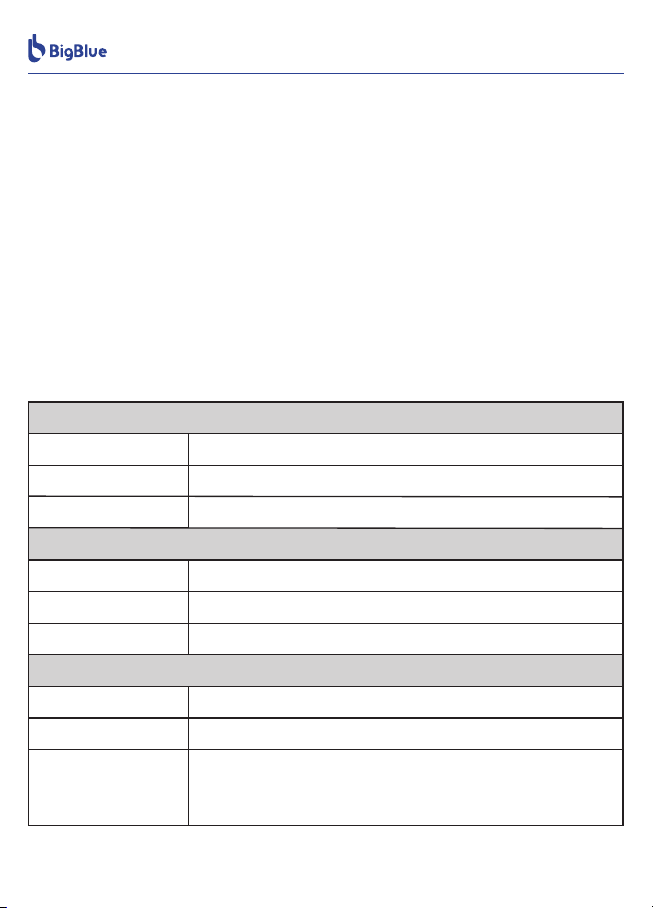
Battery capacity
Built-in battery
AC recharging
AC recharging
Car recharging
Battery
Recharging
Time to recharge
1200W
1.5 hours (charge to more than 80%)
12-14 hours (12V), 6-7 hours (24V) (charge to 80%)
Solar recharging
12-24V ⎓ 10A (max. 240W)
12-65V ⎓ 22.5A (max. 25A/1200W)
1843.2Wh (36Ah / 51.2V)
LiFePO4 battery (electric vehicle grade)
Life cycle ≥3500 times (capacity ≥ 80%)
Car recharging
Solar recharging
1.5 hours (charge to 80% via six BigBlue SP200 or three
BigBlue SP400 solar panels)
At standard irradiance of 1000W/m2
02
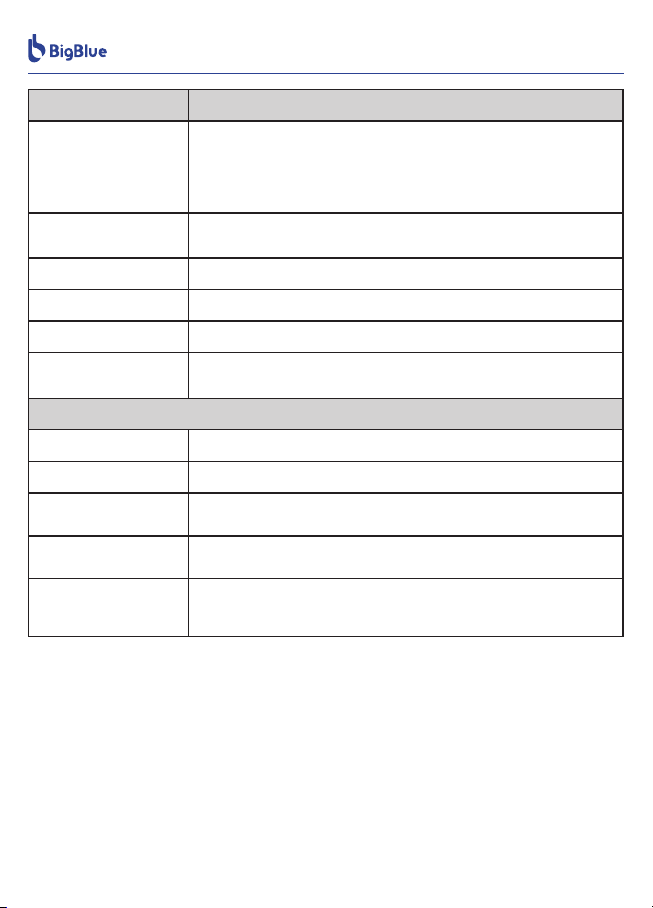
Outputs
AC
2 x USB-A
(fast Charge)
2 x USB-C (PD)
2 x USB-C (PD)
2 x DC 5.5mm
1 x Car charger
(cigarette lighter)
5V⎓3A,9V⎓2A,12V⎓1.5A,max. 18W (2 x USB-A:max. 36W)
5V,9V,12V,15V⎓3A,20V⎓2.25A,max. 45W (2 x USB-C:max. 90W)
12V⎓5A,max. 60W
12V⎓10A,120W (2 x DC + 1 x car charger: max. 120W)
5V,9V,12V,15V⎓3A,20V⎓5A,max. 100W (2 x USB-C:max. 200W)
other
Weight about 25.3kg / 55.77lbs
384 x 274 x 325mm / 15.12 x 10.79 x 10.8inch
-15℃~45℃ (5℉~113℉)
What’s in the box
0℃~45℃ (32℉~113℉)
1 portable power station, 1 AC charging cable,
1 MC4-XT60 cable, 1 cigarette lighter-XT60 cable,
1 user manual (with warranty card),1 accessory bag
Dimensions
Discharging
temperature
Charging
temperature
Technical data above are provided by BigBlue Laboratory. Actual data may vary
depending on the operating environment, how the product is used as well as the
charging duration. Technical data are subject to change without notice.
03
EU: 220V-240V~10.8A, continuous 2500W (peak 5000W);
50Hz (2xAC: max. 2500W)
US: 120V~20.83A, continuous 2500W (peak 5000W);
60Hz (6xAC: max. 2500W)
5. Product Overview
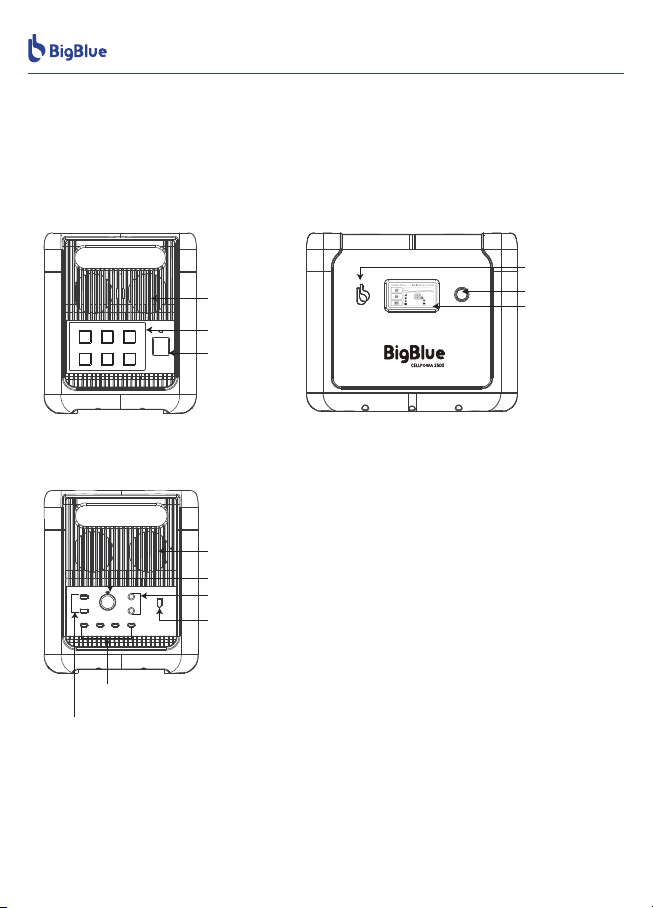
5.1 Connectors
USB-A fast charge output
Car charger (cigarette lighter) output
DC5.5 x 2.1 output
USB-C PD output
Solar/car recharging input port
Air inlet
LOGO
Touch screen
Power switch
Air outlet
AC output
AC input
20.00H
2500W
toempty
50Hz60Hz
20.00H
1200W
tofull
04
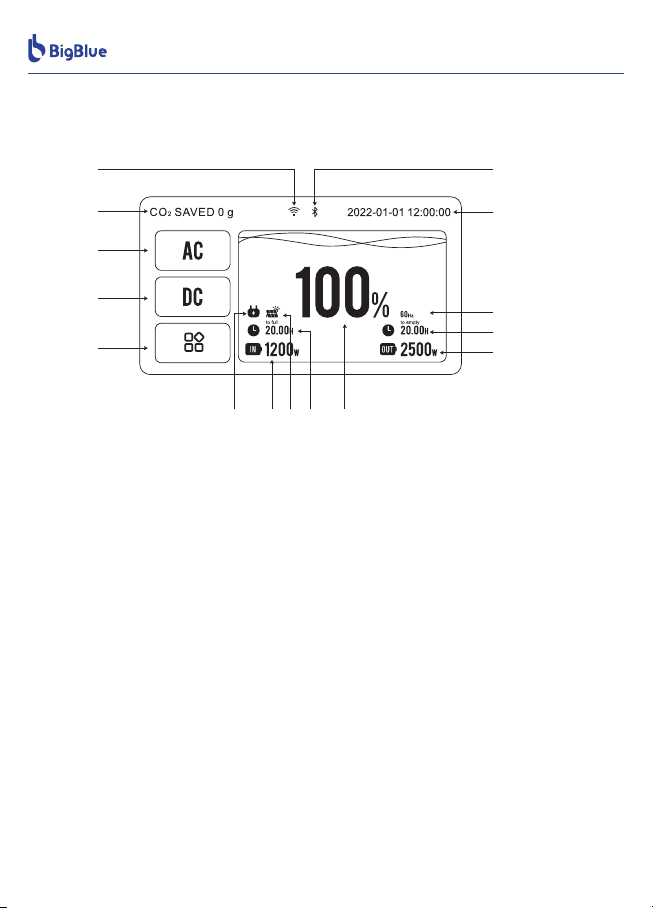
5.2 Screen
M
J
K
L
N
E
D
C
B
A
F G H I
O
5.2.1 Primary User Interface
A. Wi-Fi: The Wi-Fi icon is displayed on the home screen when the Wi-Fi connection is
completed. To connect to the network for the very first time, enter your account and
password.
B. Reduction of CO2: Amount of CO2 reduced through solar charging using the product.
C. AC: Tap the AC icon to activate the AC output.
D. DC: Tap the DC icon to activate the DC, USB-A and USB-C outputs.
E. MENU: Tap the MENU icon to view/change the device information, including the
output/input parameters, battery, time and network settings.
F. AC charging: AC input icon.
G. Input power: Current input power.
H. Solar charging: solar input icon.
I. Time to recharge: Determined based on the current power consumption.
J. Battery percentage: Current remaining battery. Recharge the product when the
remaining battery is less than 10%.
K. Output power: Current output power.
L. Remaining battery in hours: Determined based on the current electricity consumption.
M. AC frequency: Current AC frequency of the inverter.
N. Date and time: Current date and time, which can be reset in Settings.
O. Bluetooth: Bluetooth is enabled.
05
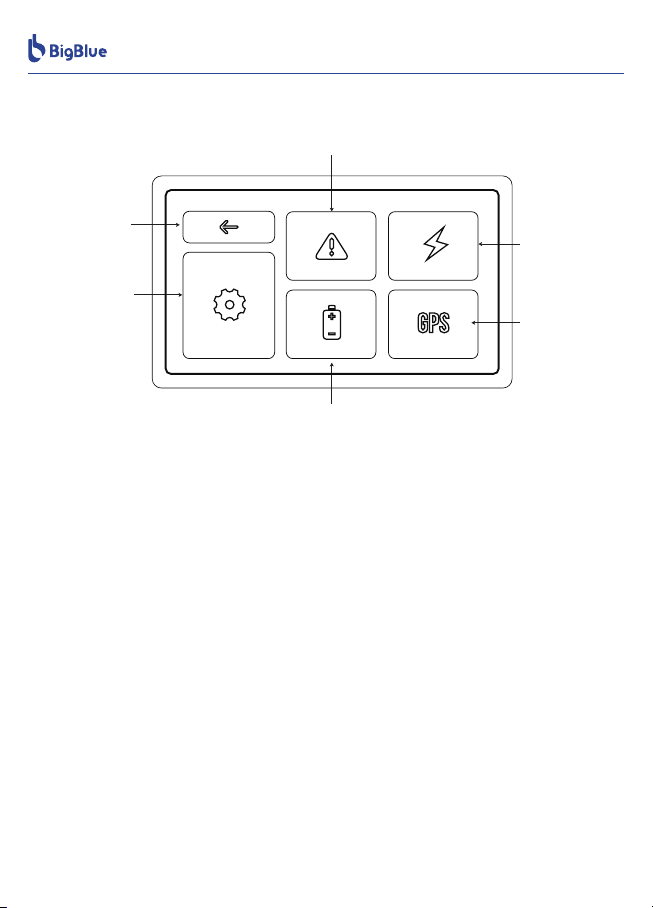
5.2.2 Secondary User Interface
P. Back: Tap to return to the previous menu.
Q. Settings: Tap to enter the system settings.
R. Warning.
S. Charge and discharge information: Displays AC/DC charge and discharge power,
voltage, current and temperature.
T. GPS: Tap to enter the GPS positioning. When positioning is completed, the longitude
and latitude coordinates are displayed.
U. Battery information: Tap to view the remaining battery, remaining capacity, health
data, voltage, temperature, time to recharge and remaining battery in hours.
06
T
Q
S
P
R
U
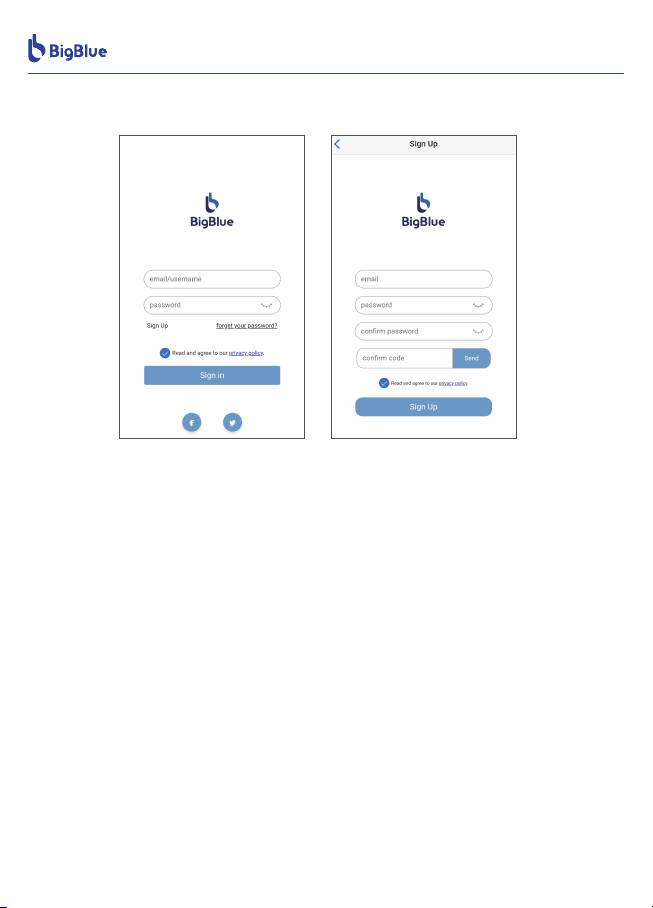
6. APP Guide
6.1 Registration and Login
6.2 Connect to Cellpowa 2500
● You are allowed to control the product via app. Download and install the “BigBlue
Energy” app on the App Store, Google Play or the BigBlue official website
https://bigblue -tech.com.
● Create an account first. Tap “Register” and fill in your email address (used to
receive the verification code) and password.
● Tap “Send”. Enter the verification code received in your email and tap “Register” to
finish the registration process. Enter your account and password to log in to the app.
1. Add a device first. Go to the Menu → Settings → Product Information to view the
Bluetooth Mac address of the product (each device has a unique Mac address).
2. Turn on Bluetooth on your phone. Open the BigBlue Energy app and tap “+” at the
upper right of the app to add device. Search the Bluetooth Mac address of the device
you want to add in the device list. Tap “OK” in the popup window to complete the
addition, then you can control the Cellpowa 2500 via the app.
3. Bluetooth connection.
07
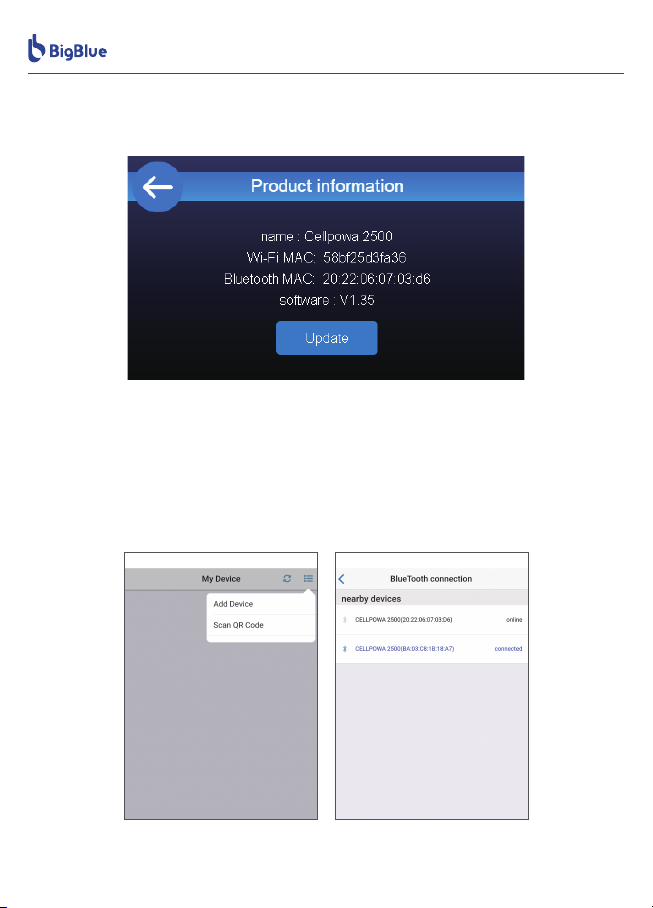
● On the Home screen, go to Menu → Settings → Product Information to view the
Bluetooth Mac of the product (A unique Mac address is assigned to each machine).
● Open the BigBlue Energy app. Tap “Add Device” at the upper right corner. Tap the
Bluetooth Mac address of the device you want to add. Once the device is added, the
device name turns blue, indicating successful connection.
08
Tabla de contenidos


