
Bg NEMESIS Manual de usuario

3 ENGLISH
8 DEUTSCH
13 ESPAÑOL
18 SUOMI
23 FRANÇAIS
28 ITALIANO
33 NEDERLANDS
38 NORSK
43 PORTUGUÊS
48 SVENSKA
53 中文
www.bandg.com
NEMESIS™
QUICK GUIDES


| 3
NEMESISTM | Quick Guide - EN
NEMESIS™
Quick Guide
About this document
This document describes the basic operation of the unit.
Turning the system ON/OFF
The unit will turn ON when power is applied.
First time startup
When you start the unit for the rst time or after a factory reset, the unit displays a setup
wizard. The wizard will guide you through the set up of the screen orientation, language,
and other settings.
¼Note: Any settings made during the rst time set up can be changed later from the
system settings.
Lock/unlock the screen
By default, the screen is automatically locked when the unit is idle for a period of time. This
screen lock feature can be changed in the system settings.
When the dashboard bar is shown, press the lock button to lock the screen.
To unlock the screen, if installed in landscape orientation swipe from the right edge of the
display. If installed in portrait orientation swipe from the bottom of the display.
Landscape
orientation
Portrait
orientation
Landscape
orientation
Portrait
orientation
EN

4|NEMESISTM | Quick Guide - EN
Home screen
The Home screen is accessed by selecting the Home button.
AB CD
E
A Settings button - gives access to the system settings.
B Browser button - can be used to access the B&G® CPU web server or for browsing the
internet.
C Dashboards - select the dashboard that you want to activate, or select the new
dashboard option to create a custom dashboard.
D Status bar
E Dashboard bar - pinned and recently used dashboards.
Dashboard bar
A
B
C
D
A Lock button
B Pinned dashboards - user favorite dashboards.
C Recently used dashboard.
D Home button
¼Note: The active item in the dashboard bar will be highlighted.

| 5
NEMESISTM | Quick Guide - EN
Pin/unpin a dashboard
Pin a dashboard
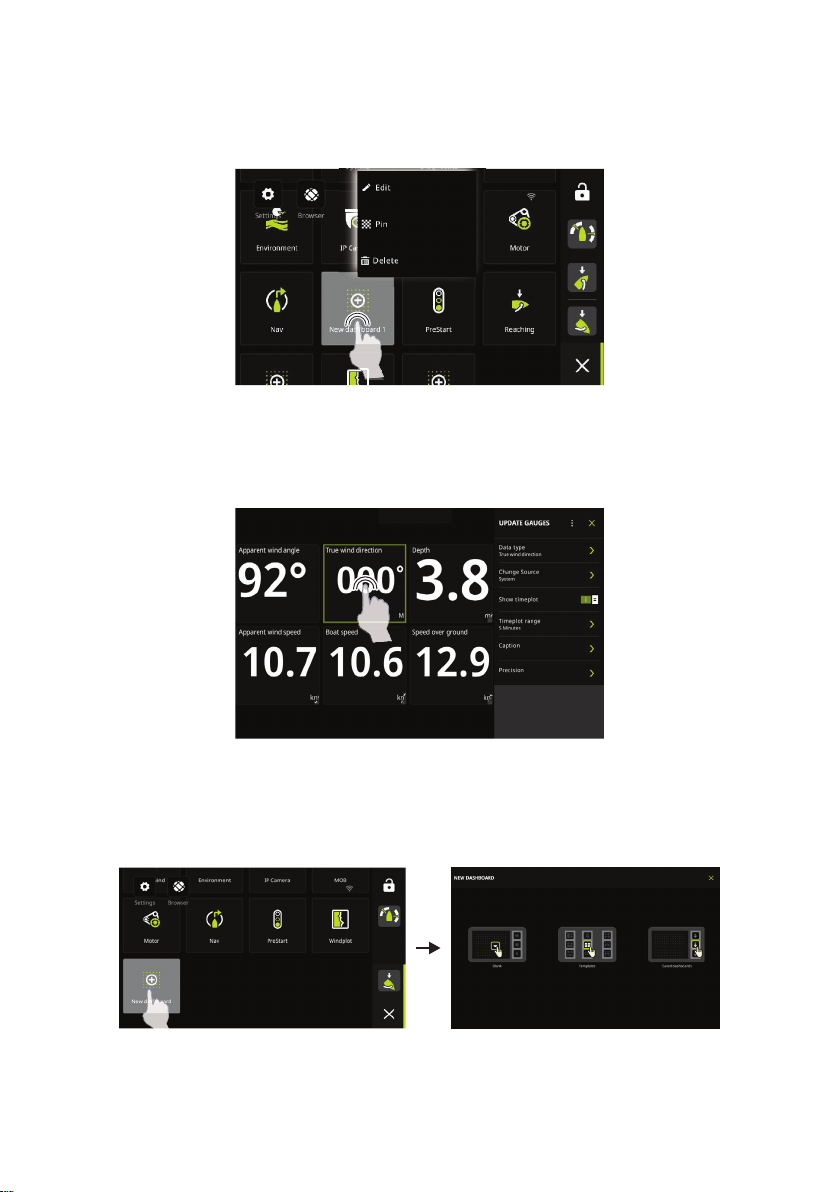
On the home screen, press and hold on the dashboard that you want to pin to the
dashboard bar. You can pin a dashboard to a new position or overwrite existing position on
the dashboard bar.
Unpin a dashboard
From the dashboard bar, press and hold to display the unpin option.
Dashboards
Swipe left/right to change between pinned dashboards.
6|NEMESISTM | Quick Guide - EN
Edit and delete a dashboard
On the home screen, press and hold on the dashboard you want to edit or delete.
¼Note: Some options might not be available depending on the selected dashboard.
Customize gauge settings
Gauges included in a dashboard can be customized. Press and hold on the gauge to display
the edit options.
Create a new dashboard
¼Note: You can start from a blank dashboard, a template, or from a saved dashboard. A
saved dashboard is one of your previous dashboards you have created.

| 7
NEMESISTM | Quick Guide - EN
A
B
C
A Change gauge settings, choose data to be shown on the gauge.
B Resize gauge.
C Change dashboard attributes.
System settings
The system settings is accessed from the home screen.
Quick access menu
Use the Quick access menu to change the screen brightness, activate night/day mode, or to
report an issue.
Access the menu by swiping from the top edge of the display.
Product manuals
For the latest information and updated documentation refer to the website:
www.bandg.com.

8|NEMESISTM | Kurzanleitung– DE
NEMESIS™
Kurzanleitung
Über dieses Dokument
In diesem Dokument werden die Grundlagen zur Bedienung des Systems beschrieben.
Ein-/Ausschalten des Systems
Das System schaltet sich ein, sobald die Versorgungsspannung anliegt.
Erstmaliges Einschalten
Wenn Sie das Gerät zum ersten Mal einschalten bzw. auf die Werkseinstellungen
zurücksetzen, zeigt das Gerät einen Setup-Assistenten an. Der Assistent führt Sie durch die
Einrichtung des Bildschirms sowie der Sprach- und anderer Einstellungen.
¼Hinweis: Alle Einstellungen, die bei der ersten Einrichtung vorgenommen wurden,
können später über die Systemeinstellungen geändert werden.
Sperren/Entsperren des Bildschirms
Standardmäßig wird der Bildschirm automatisch gesperrt, wenn das Gerät eine gewisse Zeit
lang nicht benutzt wird. Diese Bildschirmsperrfunktion kann in den Systemeinstellungen
geändert werden.
Wenn die Dashboard-Leiste angezeigt wird, drücken Sie die Sperrtaste, um den Bildschirm
zu sperren.
Um den Bildschirm zu entsperren, wischen Sie vom rechten Rand des Displays zum linken,
wenn der Bildschirm im Querformat eingerichtet ist. Wenn der Bildschirm im Hochformat
eingerichtet ist, wischen Sie von unten nach oben über das Display.
Querformat Hochformat Querformat Hochformat
DE

| 9
NEMESISTM | Kurzanleitung– DE
Startseite
Über die Schaltäche Home können Sie auf die Startseite zugreifen.
AB CD
E
A Über die Schaltäche Einstellungen können Sie auf die Systemeinstellungen zugreifen.
B Über die Schaltäche Browser können Sie auf den B&G® CPU-Webserver zugreifen oder
im Internet surfen.
C Über die Schaltäche Dashboards können Sie das Dashboard auswählen, das
Sie aktivieren möchten, oder die Option Neues Dashboard auswählen, um ein
benutzerdeniertes Dashboard zu erstellen.
D Statusleiste
E In der Dashboard-Leiste nden Sie angeheftete und zuletzt verwendete Dashboards.
Dashboard-Leiste
A
B
C
D
A Sperrtaste
B Angeheftete Dashboards sind die vom Benutzer bevorzugten
Dashboards.
C Zuletzt verwendetes Dashboard.
D Schaltäche Home
¼Hinweis: Das in der Dashboard-Leiste aktivierte Element wird
hervorgehoben.
Anheften/Lösen eines Dashboards
Anheften eines Dashboards
Halten Sie auf der Startseite das Dashboard gedrückt, das Sie an die Dashboard-Leiste
anheften möchten. Sie können ein Dashboard an eine neue Position anheften oder die
vorhandene Position auf der Dashboard-Leiste überschreiben.

10 |NEMESISTM | Kurzanleitung– DE
Lösen eines Dashboards
Halten Sie das Dashboard in der Dashboard-Leiste gedrückt, um die Option Lösen
anzuzeigen.
Armaturen
Wischen Sie nach links/rechts, um zwischen angehefteten Dashboards zu wechseln.
Tabla de contenidos
Idiomas:


