Beijing Backbone Computer Technology IDRS-IPCAM1-Q Manual de usuario

IDRS IP Camera IE Client User Manual
IDRS IP CAMERA (OR DVS)
IE Client
User Manual
Beijing Backbone Computer Technology Co.,Ltd
Tel: 86-10-62975811 Fax: 86-10-62979244
www.chinasecuritysystem.com

IDRS IP Camera IE Client User Manual
2/ 30
Content
1. FEATURES........................................................................................................................................................3
2. PRODUCTS SHAPE.........................................................................................................................................4
3. IP SEARCH & SET...........................................................................................................................................5
4. IP CAMERA(OR DVS) TO IE CONNECTION & OPERATION.......................................................................6
4.1FIRSTTIMEINSTALLATIONWITHPLUG‐IN.............................................................................................................................6
4.2MAININTERFACE...........................................................................................................................................................8
4.2.1 Operation introduction...................................................................................................................................9
4.2.2 Playback interface operation......................................................................................................................10
4.2.3 Log search interface operation..................................................................................................................12
4.3REMOTESETTINGOPERATION.........................................................................................................................................12
4.3.1 Configure parameters of server.................................................................................................................12
4.3.2 Channel parameters configuration............................................................................................................14
4.3.3 Serial parameters set up.............................................................................................................................18
4.3.4 Alarm parameters setup..............................................................................................................................19
4.3.5 User setup.....................................................................................................................................................21
4.3.6 Other functions.............................................................................................................................................22
5. SPECIFICATIONS...........................................................................................................................................24

IDRS IP Camera IE Client User Manual
3/ 30
1. Features
Camera
1 /3" Sony Super HAD CCD
Horizontal resolution 540/480/420 TV Lines
Auto Day/Night Switch
Auto electronic shutter and auto gain control
IR LED: ¢5×36PCS
IR distance: 30m
Video Compression
H.264 compression algorithm with high compression ratio & good image quality
Set -able video quality and bit rate
Support up to D1 (4CIF) resolution
Multi -zone motion detection function
Support Mask function to mask sensitive area
Video signal loss alarm function
Position configurable OSD&LOGO function
Support both variable bit rate and variable frame rate
Support SD card
Network function
Support TCP, UTP, RTP, DHCP, etc
Support ADSL (PPPoE) dialup function
Remote parameters setup
Remote playback, download the recorded files in DVR
Remote record function
Remote upgrade function
Remote control PTZ
Support Internet Explore for network preview
Network voice talk
Related Software
IDRS - NVR Client software
IDRS - NVMS
IE Browser (Web function)
IDRS - PC Based DVRs Server Software

IDRS IP Camera IE Client User Manual
4/ 30
2. Products Shape
---------------------------------------IDRS-IPCAM1--------------------------------------------- IDRS-IPCAM2------------------------------------
----------------------------------------IDRS-IPCAM3--------------------------------------------------------IDRS-IPDOME3-----------------------
----------------------------------------------------------------------------IDRS401D----------------------------------------------------------------------
----------------------------------------------------------IDRS-401A/IDRS-402A/IDRS-404A-------------------------------------------------------

IDRS IP Camera IE Client User Manual
5/ 30
3. IP search & set
In the network camera software packages, there is a "search software SADP of IP Camera" folder,
including SADP software. SADP software is used to identify and configure all the cameras’ IP address
and mask address in the LAN (must be in an open state). SADP software uses unique search activated
equipment technology, when the user does not know or has forgotten network camera's IP address, can
find it via SADP software. This software can be run in Windows2000/XP system, and needed the support
from the operation of Wincap; users need to install software Wincap Package, The packages include
"WinPcap_3_1_beta_3" software.
SADP is not needed to be installed, can be run directly, the software will automatically search IP
cameras in the LAN after running, then displayed the cameras in the table form, as below: Initiative
IP address: 123.127.244.165
Here you can change the current equipment’s IP address and mask address, then input the one you
want, after that, click .
Note:
The new IP address will take effect after restarting this equipment.
Display the IP address; connect port and
Hardware series number of equipments
searched out

IDRS IP Camera IE Client User Manual
6/ 30
4. IP Camera(or DVS) to IE connection &
operation
4.1 First time installation with Plug-in
When you want to connect to the network camera, only need to input the network camera's IP address in
the IE Address bar, then click the "link" or the "Enter" button on the keyboard.
If it is your first time to access to the network cameras through the IE browser, the operating system will
prompt you to install a plug-in, as the following picture: (Take Windows XP-as the example, basically
similar to other operating systems.)
Click to install this Active X. You need to wait different time according to different net
speed. (Usually between 20-120 sec)
After installation, the page will automatically enter into the user interface to verify the users,
Inputs the corresponding connects port, the user name and password, and selects the suitable stream
type (Master Stream, Sub Stream. See more information: 4.3.1), after all this, click OK, and then enter
the main browser interface, as below:
Default admin name:Admin
Default admin password:12345
Default connect port:8000

IDRS IP Camera IE Client User Manual
7/ 30
Note
:
If no window displayed or no respond after clicking on the installation button, check whether there is
third-party software (such as firewalls, YAHOO assistant, 3721, and other software) to restrict the
installation, if there are restrictions from third-party software, please remove the restrictions, or
temporarily close the third-party software or firewall.
In addition, please make the following adjustments in the "IE security settings" of "Internet Options":
1) Click the [customer level], then click [ok].As below:
2) Access to security settings of pages, use the settings circled in the bellowed picture. (This picture
shows Windows XP-option, Windows2000 similar to this).

IDRS IP Camera IE Client User Manual
8/ 30
4.2 Main interface
The logon interface will be displayed automatically after installation of plug-in. Input related user name
and passport, as below:
Notice:
Initiative User name: admin
Passport: 12345

IDRS IP Camera IE Client User Manual
9/ 30
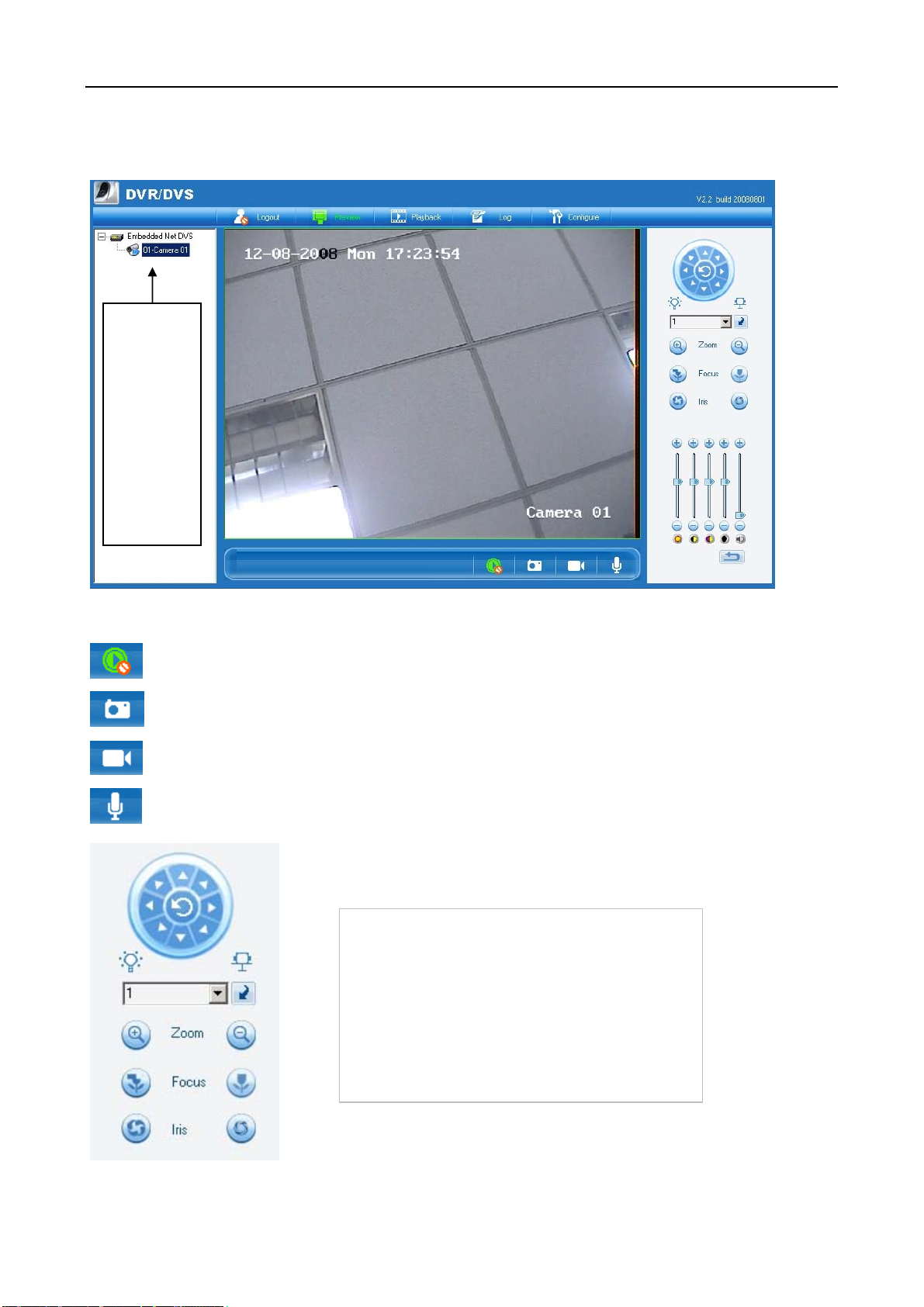
4.2.1 Operation introduction
Connect/disconnect image
Snapshot
Manual record
Talkback (available to talk to web servant positively)
Device list,
double-click
: Connect
to image;
double-click
again:
disconnect
to image
PTZ control button: control pan / tilt/zoom/aperture, as
well as position of presetting
Notice: before control, preset control protocol/address
code/bit rate etc.

IDRS IP Camera IE Client User Manual
10 / 30
4.2.2 Playback interface operation
Press into search interface, like picture:
Play button provides play, stop, slow play, rapid play and
frame play. Mouse-hovering appears hint
During remote playback, support snapshot, instant store, adjust
playback volume. Press download button and wholly download video data selected.
Adjust saturation, grayscale, contrast, brightness.
Real-timely adjust eavesdropping volume. Restore default
by pressing lower-right corner. Mouse-hovering appears
hint
Este manual sirve para los siguientes modelos
10
Tabla de contenidos