
Bauhn AMCD-415 Manual de usuario

INSTRUCTION MANUAL
Model Number: AMCD-415
Tablet / Smartphone Mirroring Dongle
1300 886 649 Model: AMCD-415 Product Code: 49738 04/2015
www.tempo.org
AUS

2
1300 886 649 Model: AMCD-415 Product Code: 49738 04/2015
www.tempo.org
AUS
Warranty Details 3
Welcome 4
General Safety Instructions 5
Product Overview 6
Getting Started 7
Instructions 8
Specications 23
Repair and Refurbished Goods or Parts Notice 24
Contents

Tablet / Smartphone Mirroring Dongle
Warranty Details
The product is guaranteed to be free from defects in workmanship and
parts for a period of 12 months from the date of purchase. Defects that
occur within this warranty period, under normal use and care, will be
repaired, replaced or refunded at our discretion, solely at our option with
no charge for parts and labour. The benets conferred by this warranty
are in addition to all rights and remedies in respect of the product that the
consumer has under the Competition and Consumer Act 2010 and similar
state and territory laws.
Our goods come with guarantees that cannot be excluded under the
Australian Consumer Law. You are entitled to a replacement or refund for
a major failure and for compensation for any other reasonably foreseeable
loss or damage. You are also entitled to have the goods repaired or
replaced if the goods fail to be of acceptable quality and the failure does
not amount to a major failure.
1300 886 649 Model: AMCD-415 Product Code: 49738 04/2015
www.tempo.org
AUS
3

4
1300 886 649 Model: AMCD-415 Product Code: 49738 04/2015
www.tempo.org
AUS
Congratulations on choosing to buy a BAUHN®product.
All products brought to you by BAUHN®are manufactured to the highest
standards of performance and safety and, as part of our philosophy of
customer service and satisfaction, are backed by our comprehensive 1 Year
Warranty. We hope you will enjoy using your purchase for many years to
come.
Welcome

5
1300 886 649 Model: AMCD-415 Product Code: 49738 04/2015
www.tempo.org
AUS
General Safety Instructions
Read this manual thoroughly before rst use and keep it in a safe place for
future reference, along with the warranty card, purchase receipt and carton.
The safety precautions enclosed herein reduce the risk of re, electric shock
and injury when correctly adhered to. Follow all instructions and take notice
of all warnings to reduce the risk of re or electric shock.
Important warnings and cautions!
• Do not attempt to open the cover or the back of this product. There are no
user-serviceable parts inside this product.
• Do not repair the unit yourself. Only have it serviced by qualied personnel.
• Do not expose this product to water, rain, moisture or dust. Do not use it
anywhere near water or where water splashes or drips; do not touch the
power plug with wet hands.
Usage conditions and restrictions
• Follow the instructions in this manual when installing this appliance. If
damage occurs, unplug the appliance and have it serviced by appropriately
qualied personnel.
• Supervise young children to ensure they do not play with the product.
Close supervision is always necessary when an appliance is used by or
near children.
• Take care not to block any ventilating openings.
• This appliance is not intended for use by persons (including children) with
reduced physical, sensory or mental capabilities, or lack of experience
and knowledge, unless they have been given supervision or instructions
concerning use of the appliance by a person responsible for their safety.
• Improper installation or use can result in electrical shock and/or material
damage. We accept no liability for any damage resulting from inappropriate
use or installation.

6
1300 886 649 Model: AMCD-415 Product Code: 49738 04/2015
www.tempo.org
AUS
Front panel
2 3 4
1
Product Overview
1 Wi-Fi Antenna
2 Dongle Cover
3 HDMI Port
4 Micro USB Port

7
1300 886 649 Model: AMCD-415 Product Code: 49738 04/2015
www.tempo.org
AUS
Getting Started
Introducing your Tablet / Smartphone Mirroring Dongle
With your Tablet / Smartphone Mirroring Dongle, you can easily enjoy your
favourite local and online TV shows, YouTube videos, photos, movies,
websites and Oce software on your TV in High Denition. The Tablet /
Smartphone Mirroring Dongle (to be referred to as Dongle) automatically
updates to work with a growing number of supported apps and provide you
with the latest version of the EZCast Software.
The Dongle supports WiFi EZCast, DLNA, EZMirror, EZAir (Airplay), and is
compatible for Android smartphones and tablets, iPhones and iPads, and
Windows and Mac laptops.
Connecting to your TV
• Plug the Dongle into the HDMI port of your TV, connect the USB power
cable to your Dongle, and plug the other end into your TV USB port.
Alternatively you can plug into a 5V/0.5A power adaptor (not supplied).
• Turn on your TV and switch to the HDMI source. The EZCast boot-up
logo will appear on your TV screen.

8
1300 886 649 Model: AMCD-415 Product Code: 49738 04/2015
www.tempo.org
AUS
Instructions
Setting up an Android Device
• Search and Install the EZCast App from the Google Play Store on
your mobile device. (Available for Android devices running Android
4.0 and higher)
• Once the Dongle is plugged into your TV (see Page 7 for
instructions), the Main Menu will appear and will show the SSID
Number (EZCast WiFi Network account), and Password which you
will require.
• Go to the WiFi settings on your Android device and nd the WiFi
account which matches with the SSID Number displayed on your
screen. Click on the EZCast network and enter the Password also
displayed on your Main Menu.
• Your Dongle and Android device will now be connected.
• Launch the EZCast App and
you’ll be ready to start using
your new Dongle.
• NOTE: Your Dongle can
connect to 2 or more Android
devices, however only one
device can control the Dongle
at a time. The connection
speed may decrease
if multiple devices are
connected.

9
1300 886 649 Model: AMCD-415 Product Code: 49738 04/2015
www.tempo.org
AUS
Setting up an iPhone or iPad
• Search and Install the EZCast App from the App Store on your
iPhone or iPad. (Available for iOS 6.0 and higher)
• Once the Dongle is plugged into your TV (see Page 7 for
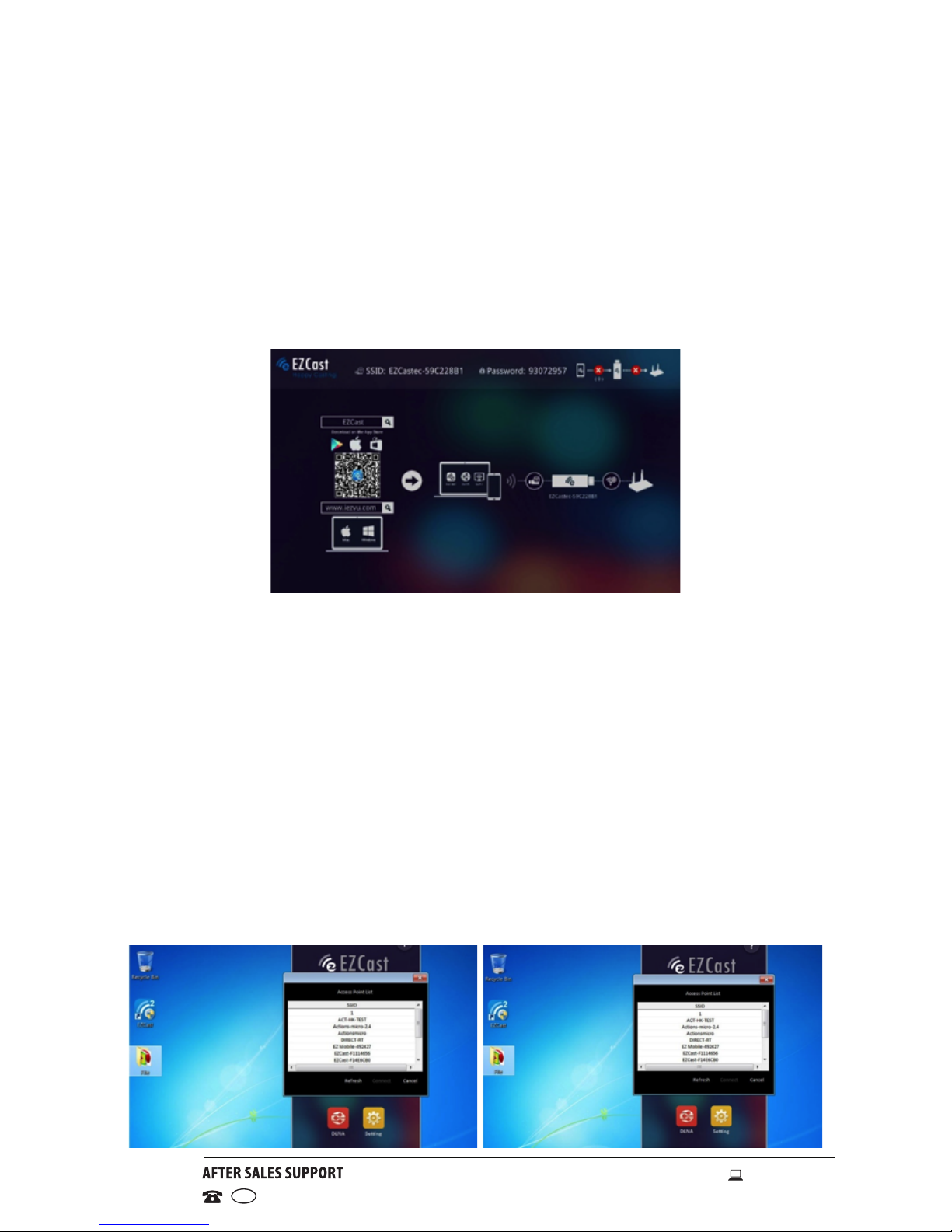
instructions), the Main Menu will appear and will show the SSID
Number (EZCast WiFi Network account), and Password which you
will require .
• Go to the WiFi settings on
your iPhone or iPad and
nd the WiFi account which
matches with the SSID
Number displayed on your
screen. Click on the EZCast
network and enter the
Password also displayed on
your Main Menu.
• Your Dongle and iPhone or
iPad will now be connected.
• Launch the EZCast App and
you’ll be ready to start using
your new Dongle
Instructions (Cont.)
10
1300 886 649 Model: AMCD-415 Product Code: 49738 04/2015
www.tempo.org
AUS
Instructions (Cont.)
Setting up a Windows Laptop
• Search and Install the EZCast App from https://www.iezvu.com/ on
your Windows Laptop. (Available for Windows XP SP3 and higher)
• Once the Dongle is plugged into your TV (see Page 7 for
instructions), the Main Menu will appear and will show the SSID
Number (EZCast WiFi Network account), and Password which you
will require .
• Go to the WiFi settings on your Windows Laptop and nd the WiFi
account which matches with the SSID Number displayed on your
screen. Click on the EZCast network and enter the Password. also
displayed on your Main Menu.
• Your Dongle and Windows Laptop will now be connected.
• Launch the EZCast App and you’ll be ready to start using your new
Dongle.
NOTE: EZMirror function is supported by Windows 8 / 8.1 Operating
System.
Tabla de contenidos
Otros manuales de De oficina de Bauhn


