
Baling H31 Manual de usuario
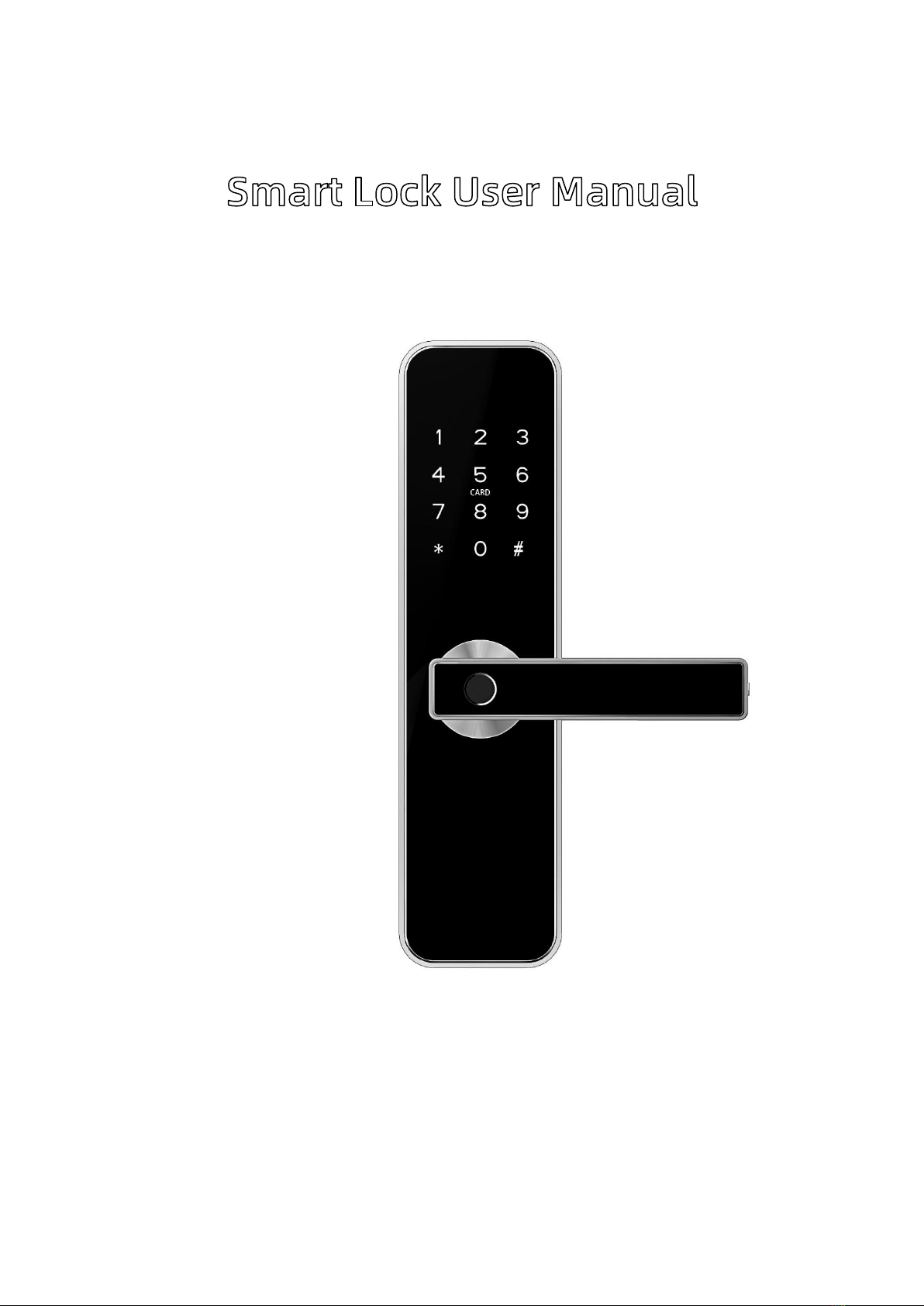
Smart Lock User Manual
Special Attention:
1. Mechanical keys please keep outdoor, just in case keys lock in doors.
2. Please charge for the battery when low wattage alarm.
3. Reading this manual carefully before installation, and keep it for future
reference.

ϭ
1. Lock Structure
2. Mortise

Ϯ
3. Installation
3.1 Turn the handle
Notice: Adjust the handle according to the direction you open the door
For Front Panel˖
For Back Panel˖

ϯ
3.2 Installation Diagram
6WHS ,QVWDOO 0RUWLVH
6WHS ,QVWDOO 6OLGLQJ 6FUHZ &DVLQJ DQG )L[HG
)URQW 3DQHO
6WHS &RQQHFW )URQW DQG %DFN 3DQHOV
6WHS ,QVWDOO %DFN 3DQHO
6WHS ,QVWDOO WKH %DWWHU\
7KH VFUHZ FDVLQJ
SODFH LV
DGMXVWDEOH IURP
PP WR PP
IDU IURP WKH
VTXDUH VKDIW
'HSHQGLQJ RQ WKH
ORFDWLRQ RI WKH
KROHGULOOLQJ RU WKH
ROG GRRU KROH
<ĞĞƉ ĂƌƌŽǁ ĚŝƌĞĐƚŝŽŶ;ƐŚŽǁƐ
ŝŶ ŝŵĂŐĞͿ ĂůǁĂLJƐ ƵƉǁĂƌĚ

ϰ
4. Specifications
Suitable for Models WL41BTS
Materials Zinc Alloy
Front Panel Lock Size 270*70*20mm
Back Panel Lock Size 270*70*20mm
Lock Weight 3KG
Unlocking way
Bluetooth
Fingerprint
Password
Card
Mechanical key
Color Silver
Black
Doors Applicable Aluminum Door
Wooden Door
Working Voltage 6V/8x AAA Batteries
Door Thickness to Fit 35-65mm
Data Capacity
Fingerprint 200 pcs
Passcode 150 pcs
IC Card 200 pcs
Working Temperature -30ȭ-60ȭ
Working Humidity 20%-90%
Low Wattage Alarm Less than 4.5V
Device Reset
Open lock back panel battery cover
plate >>>Press the "Reset" button for 5
seconds, than enter “000#”. A prompt
will be place once it’s reset successfully.

ϱ
5. Registration
5.1 Connect lock to the phone
1) Android mobile phone, please scan the left QR code as above
2) Apple mobile phone, please scan the right QR code as above
3) You can also search for TTLock in the APP store(Google Play)to download
4) Register a new account (phone number or email) or login with an existing account.
5) Touch the lock screen to light, click "+ Add Lock”
6) The lock nearby will appear on the phone screen, Click "+"
7) Re-name the lock
8) The lock added successfully
NOTE: TTLock supports multiple types of lock devices. You must first select the lock type. The lock needs to be
added by the app after entering the add mode. Generally, a lock that has not been added, as long as the lock
keyboard is touched, it will enter the add mode. Locks that have already been added need to be deleted on the
app before they can be added to the add mode by touching.
ϭͲϭ
ϭͲϮ
ϭͲϯ

ϲ
Features:Ͳ
9Semiconductor fingerprint sensor(508dpi)
9Passage mode function
9Stainless steel handle
9Smart APP operation & Unlock Remotely & User unlock records
9Voice guided operation
9Auto secure & break-in alarm
9Voice setting function
9Auto locking time setting function
9Screen locking
9Anti-theft Password
9Smart freeze
9Emergency power supply through USB
9Material of Lock Body
9Material of Lock
9SS304
9Zinc Alloy
Note : The lock can be opened using default code 123456 followed by # in trial mode
ϭͲϰ
ϭͲϱ
ϭͲϲ
,ϯϭ
ϭͲϳ

ϳ
5.2 User Management
5.2.1 Bluetooth management
Make sure there is no problem with Bluetooth communication. After connecting the phone to the
door lock as above, Click " " as show as figure2-1 to unlock.(the phone is within 5meters
from the door lock)
5.2.2 Remote control management(Option)
TTLock is directly connected via Bluetooth and is not connected to the network itself, which is why
it is not vulnerable to network attacks. The gateway is an accessory of the smart lock, it is the
bridge connecting the smart lock and the home wifi network. Through the gateway, users can
remotely view and calibrate the lock clock, read the unlocking records of passwords, ICs,
fingerprints, etc. in a timely manner, and remotely delete and modify passwords.
After confirming that your phone and door lock are connected to the gateway, Click " " as
show as figure 2-1 to unlock. You can unlock it anywhere you have a network.(How to set up the
gateway to connect to your phone refer to step 5.3)
5.2.2.1 Add fingerprint
The premise that a fingerprint can be used to open a door is that it needs to be added first. The
adding process needs to be performed by the APP beside the lock. The fingerprint expiration data
can be set, it can be permanent, or it can be limited. After setting ,you can modify its validity
period.

ϴ
5.2.2.2 Setting Passcode
Passcodes are also a way to unlock. After entering the passcode on the locked keyboard, press
the unlock button in the lower right corner to unlock. Passcodes are divided into permanent,
time-limited, single, clear, cycle, and custom.
5.2.2.3 Send e-Key
Click on the " " as shown in figure, you can send the eKey to other users of TTlock to
authorize the unlock(the receiver must be download the APP and set up an account)ɠSelect
e-key format (Timed, permanent, One-time, Recurring) ɠEnter recipient's account of TTlock,set
the name and effective time of the eKey, Can choose to allow remote unlocking or disallowing,
authorized administrator or not authorized, as shown in figure ɒSendɒThe recipient's account
has Bluetooth unlock permission
(Only the administrator can authorize the ordinary key. After the authorization is successful, the
authorized key is the same as the administrator's interface. You can send keys, passwords, etc. to
others. However, the authorized administrator can no longer authorize others.)
You can share the
Passcode to other user via
WeChat/SMS/Email/Messe
nger/WhatsApp

ϵ
5.2.2.4 Add card and add card remotely
Supports opening doors through various IC cards. Before an IC card is used to open the door, it n
eeds to be added first. The adding process needs to be performed by the app beside the lock. Th
e validity period of the IC can be set, it can be permanent, or it can be limited in time. After setting,
you can also. Modify its validity period.
You can authorized
admin to other user
Este manual sirve para los siguientes modelos
1
Tabla de contenidos


