
AXIOMTEK ExBoot Manual de usuario

ExBoot
ExBoot User Guide
Copyright © 2005 AXIOMTEK CO., LTD. All Rights Reserved.
Windows is a registered trademark of Microsoft Corporation.
All other brand and product names are trademarks or registered
trademarks of their respective owners.
For more product information, please visit www.exboot.com.
ExBoot User Guide 1

ExBoot
Contents
ExBoot
INTRODUCTION ......................................................................................................................3
SPECIAL BENEFITS OF THE EXBOOT .................................................................................4
EXBOOT CONSOLE................................................................................................................5
BEFORE GETTING STARTED ................................................................................................6
SYSTEM REQUIREMENTS .....................................................................................................6
REMOVE THE USB HARD DISK FROM YOUR PC ................................................................7
BACK UP A DRIVE ..................................................................................................................8
RESCAN DISKS.....................................................................................................................16
RESTORE A DRIVE ...............................................................................................................16
RESTORE INDIVIDUAL FILES AND DIRECTORIES ............................................................21
POINT-IN-TIME RECOVERY..................................................................................................22
ONE-TOUCH BUTTON BACKUP ..........................................................................................27
TROUBLESHOOTING ...........................................................................................................29
ExBoot User Guide 2
ExBoot
ExBoot
Introduction
Until now, external USB hard drives were just solutions for adding extra disk
storage or for archiving files. However, if your computer’s hard drive failed, it was
impossible to access the files stored on your external drive. Until now...
ExBoot maximizes your system availability by allowing you to back up your
computer’s hard drive to a bootable external USB hard drive.
Because this external USB drive is now bootable, it can dramatically shorten your
recovery time after a computer or notebook hard drive failure.
Upon hard drive failure, instead of needing to install the operating system and all of
your applications on a replacement hard drive, you can now rapidly boot your
system from the external USB drive and restore the entire drive to the new hard
drive.
In addition, ExBoot provides protection against damage to files on your hard drive
caused by virus infection or hacker attack. Using Windows Explorer, you can
access the external USB drive to restore individual data files or directories as
needed.
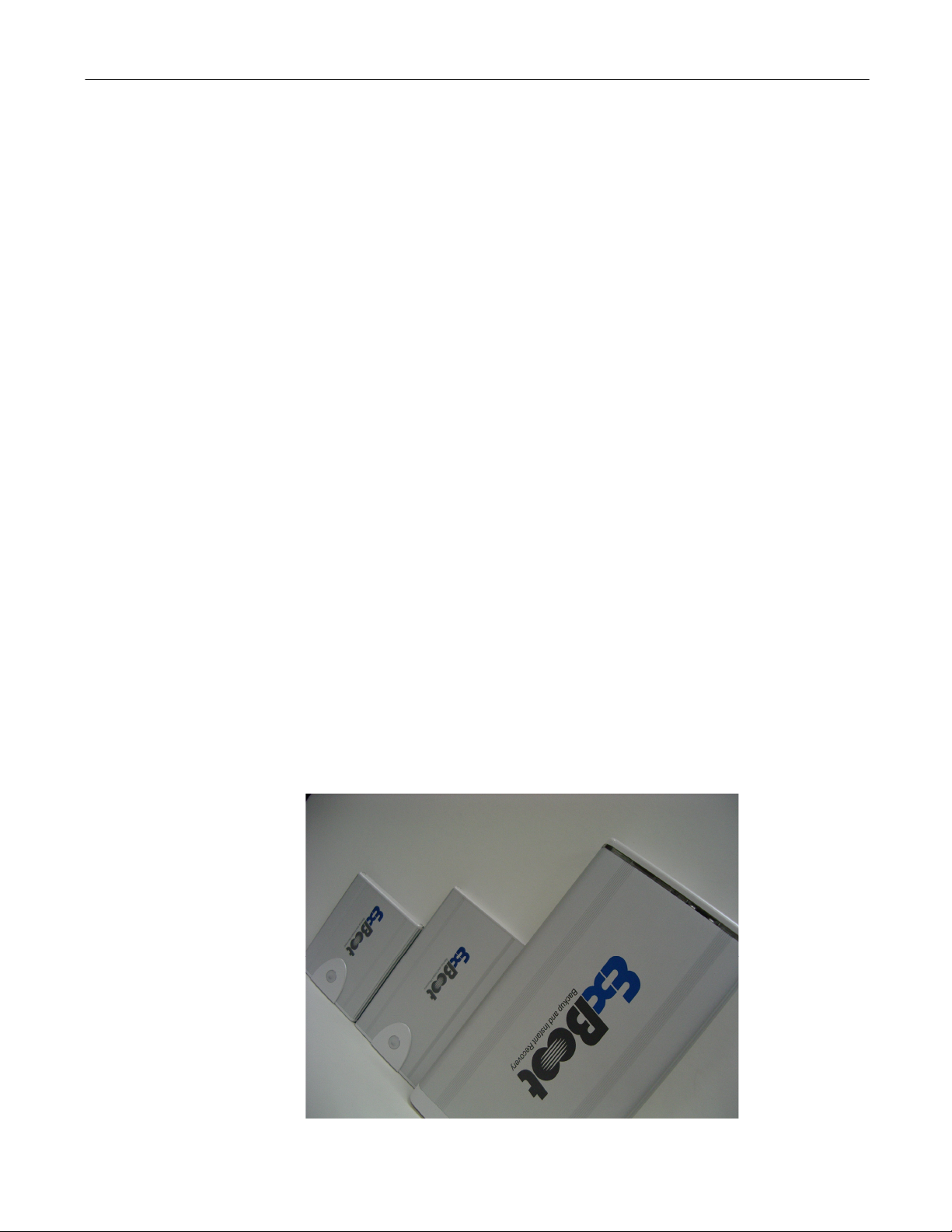
ExBoot consists a full product line suitable for 3.5-inch (EXB-0131), 2.5-inch
(EXB-0121), and 1.8-inch (EXB-0111) IDE hard disc drive. Therefore, all
conventional PC devices, sever, workstation, desktop PC, Notebook, can
work with ExBoot.
EXB-0131
EXB-0111 EXB-0121
ExBoot User Guide 3

ExBoot
Special Benefits of the ExBoot
◆Minimal Downtime: In just a few simple steps, and without the
time-consuming installation and configuration of the operating system,
you can always boot directly from the external ExBoot USB Drive, and
promptly get back to work.
◆Backup Verification: Unlike other backup software, which require a great
deal of effort in order to verify, you can no do so by booting from the
ExBoot USB Drive.
◆Compatibility Test: Whenever an upgrade or a service pack for the
operating system or application software is needed, the EXB-0131
allows for execution of these programs on the ExBoot USB Drive itself.
Once successful, you can easily transfer your system.
ExBoot User Guide 4

ExBoot
ExBoot Console
ExBoot features an easy-to-use console.
ExBoot User Guide 5

ExBoot
Before Getting Started
Please read the following information before starting using ExBoot and perform
backup and recovery.
1. Please use the USB cable and the hard disk case included in the package for
the optimal performance.
2. Please operate the ExBoot carefully to avoid damage of the hard drive. When
you move the hard disk or when the hard disk is not in use, please locate the
hard disk in the secured position. If your ExBoot is EXB-0131, we recommend
that you always use the hard disk case with the vertical stand and make sure
that the case is always in the firm and stable status.
3. Please connect the USB cable to the high-voltage USB port on your PC or
notebook. If any difficulty occurs, try to connect to the other USB port. Please
always make sure using the same USB slot the first time you installed in your
PC or laptop, and do not connect ExBoot to any USB Hub.
4. When connecting to a notebook equipped with USB 2.0 PCMCIA slot, make
sure that you provide the sufficient power voltage for the ExBoot hard drive
enclosure.
System Requirements
Before you start installing the ExBoot software, please make sure you meet the
following requirements.
1. 200MHz Intel Pentium Processor
2. 64MB RAM
3. CD-ROM or DVD-ROM used to read the ExBoot Installation CD-ROM
4. USB 2.0 slot, if your ExBoot is EXB-0121, you need 2 USB slots
5. BIOS that supports Boot up from USB device and make sure it has been
configured as the first option of the boot up sequence.
6. Supported operating systems including Windows XP Home SP1, Windows XP
Professional SP1, Windows 2000 Professional SP4, Windows 2000 Server
SP4, Windows 2000 Advance Server, Windows 2003 Server, and Windows
2003 Enterprise Server.
ExBoot User Guide 6

ExBoot
Remove the USB Hard Disk from your PC
Please follow the procedure below to unplug the USB Hard Disk from your PC.
1. Click on Safely Remove Hardware icon in the system toolbar.
2. Click on the USB Mass Storage Device icon to remove.
3. If your ExBoot is EXB-0131, power off the EXB-0131 USB hard disk
4. Unplug the USB cable.
ExBoot User Guide 7

ExBoot
Back up a Drive
When you perform a backup, ExBoot copies files from your hard drive to
your external USB drive.
When you perform a full backup, your entire hard drive is copied to your external
USB drive. With ExBoot’s built-in synchronization feature, after the backup is
complete, you will have the same files on your hard drive and your external drive.
To ensure that the two drives are identical, if you had previously run another full
backup, any files that no longer exist on your hard drive will be deleted from
external drive.
When you perform an incremental backup, only files changed since the last
backup are backed up. Because only changed files are backed up, incremental
backups are generally faster than full backups. In addition, incremental backups
enable you to maintain multiple copies of files on your external USB drive. This is
useful if you need to restore an older version of a file, rather than the last backed
up version. Incremental backups require a full backup as a foundation before the
incremental method can be used.
To back up your hard drive:
1. Click the Back up Drive button ( ).
2. Select the external USB drive that is the destination for the backup.
ExBoot User Guide 8

ExBoot
3. Select the source drive(s) that you want to back up.
ExBoot User Guide 9

ExBoot
Click Next button to continue. If this is the first time that the drive has been
used for backup, you will be led through a wizard to prepare it for backup.
4. (First time drive use) Select how the external USB drive should be partitioned.
ExBoot needs more partitions if you choose to back up more than one disk. In
most cases, you should select Re-arrange Partition Table so that the
appropriate partitions can be created for you.
ExBoot User Guide 10
Este manual sirve para los siguientes modelos
3
Tabla de contenidos
Otros manuales de Almacenamiento de AXIOMTEK

Manuales populares de Almacenamiento de otras marcas


Spectra Logic
Spectra Logic T-Series Spectra T50e Manual de usuario

Panasonic
Panasonic LKM-F931-1 Manual de usuario

Tabernus
Tabernus Enterprise Erase E2400 Manual de usuario

Rocstor
Rocstor COMMANDER 3F series Manual de usuario

HP
HP P9000 Manual de usuario

Western Digital
Western Digital Ultrastar Data60 Manual de usuario