
Audiovox Universal RDS USB Guía de solución de problemas

Installation Guide/User manual
UNIVERSAL RDS USB
OMA-UNI-200-USB-012012_rev012312.indd 1 1/24/2012 10:06:02 AM

2
Copyrights and Trademarks
Copyright 2012 Audiovox Electronics Corporation
The Audiovox and Audiovox Driven by DICE Electronics logos are trademarks of
Audiovox Electronics Corporation
iPod and iPhone are trademarks of Apple, Inc.
All Trademarks and Logos are the property of their respective owners.
All rights reserved.
Printed in the U.S.A.
OMA-UNI-200-USB-012012_rev012312.indd 2 1/24/2012 10:06:02 AM

3
Warning and safety
Product registration
Universal RDS USB kit contents
Frequency conguration settings
Compatible iPod & iPhone Models
Note to Installers
Connection diagram
Installation
Charging
Basic operation
Text display on typical car radios
Optional wireless remote function for iPod/App
Optional wireless remote function for USB ash drive
Notes on USB memory source
Optional wireless remote function for SIRIUS
..........................................................4
.........................................................5
......................................6
.....................................6
..................................7
..............................................................8
.........................................................9
......................................................................10
.........................................................................11
..............................................................11
...................................12
............13
...14
.......................................15
................16
Table of Contents
Sirius ConnectTM operation
Internet Radio App
Auxiliary audio source
Troubleshooting
Firmware update
Warranty
..............................................17
.........................................................18
...................................................22
.............................................................23
...........................................................26
........................................................................27
OMA-UNI-200-USB-012012_rev012312.indd 3 1/24/2012 10:06:03 AM

4
Please read these instructions carefully before proceeding. Failure to follow instructions may result in
improper operation or injury. Neither Audiovox Electronics Corporation nor Apple Inc., its regional ofces,
distributors or resellers take any responsibility for any damage or injury as a result of using the integration kit.
- Do not open, disassemble or alter the interface in any way.
- Do not insert anything into the casing.
- Do not cut or try to alter cables in any way and always use the correct connections.
- Only operate unit when stationary or ask passengers to operate it for you.
- Do not allow the Apple iPod/iPhone to distract you from driving.
- Exercise good judgement and keep your eyes on the road at all times.
- Do not expose unit to extreme temperatures, humidity or shock.
- Keep the unit and iPod/iPhone away from uids.
- Keep away from children! - Interface components may contain small parts, can be broken or disassembled
and components may become loose from vibration and heat. Small components and packaging materials
may be a choking hazard when handled by children.
Warning and safety!
OMA-UNI-200-USB-012012_rev012312.indd 4 1/24/2012 10:06:03 AM

5
Thank you for purchasing this integration kit. Please review this booklet before operating the unit. This
interface was designed and manufactured to seamlessly integrate with your vehicle’s factory audio system.
We recommend registering your Audiovox product so you can receive news about important rmware updates
and have unlimited access to our online support system.
To register your Audiovox product, please complete the following steps:
1. Visit http://www.audiovoxproducts.com
2. Look up and save the serial number of the product.
3. Complete the product registration form.
4. Submit the form.
5. Save the registration sheet in a safe place for future reference.
If you are unable to complete the registration via internet, please call Audiovox at 1-800-645-4994.
Congratulations on your purchase!
Product registration
Prior to installation make sure the module’s rmware is up to date to ensure compatibility
with the latest features and enhancements. Please refer to page 26 to update rmware.
OMA-UNI-200-USB-012012_rev012312.indd 5 1/24/2012 10:06:03 AM
6
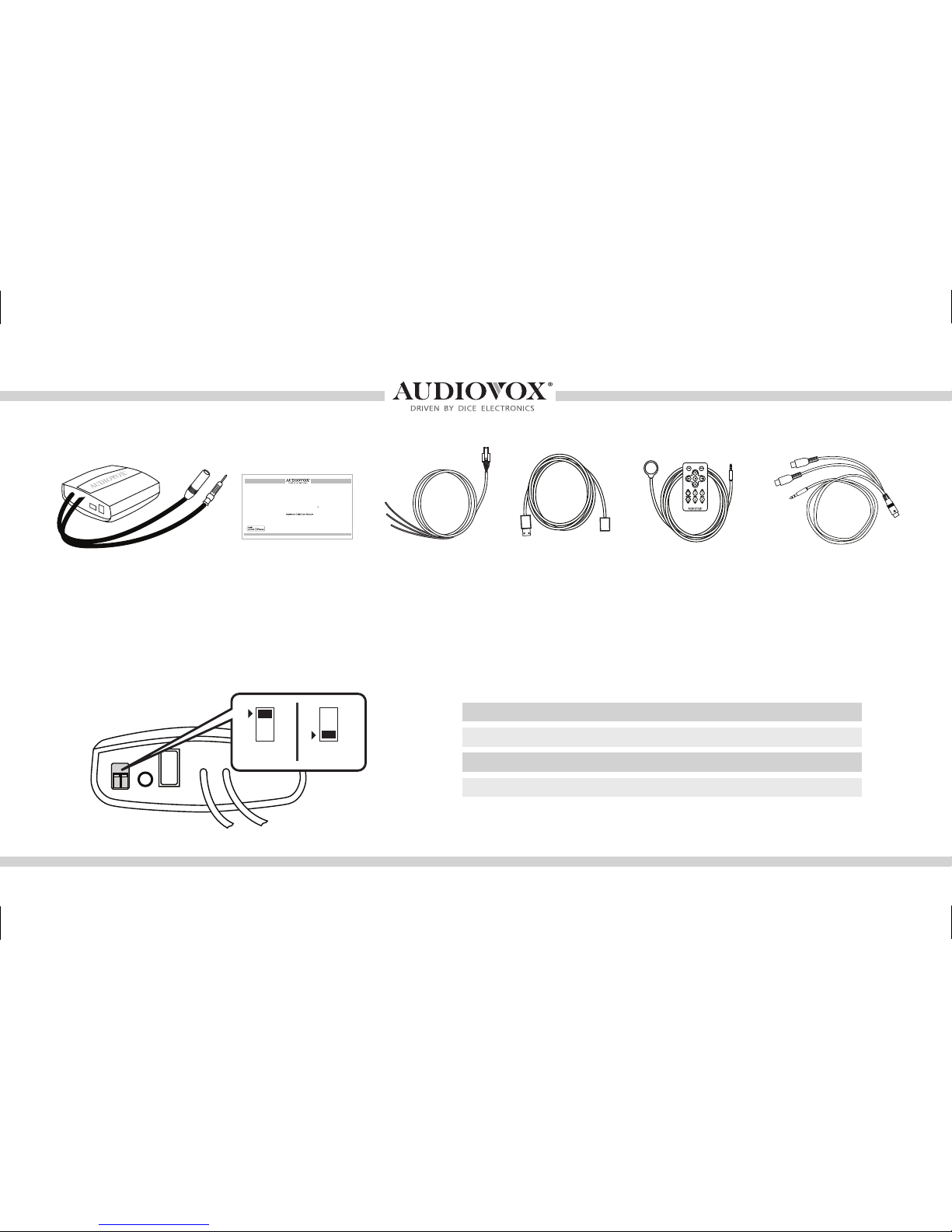
Universal RDS USB kit contents
Frequency conguration settings
Universal RDS
USB module
ON/OFF Switch Positions FM (MHz) Dip switch 1 Dip switch 2
Module
frequency selector
user manual pro-install power
cable
UNIVERSAL RDS USB
ON
12
OFF 88.7
93.3
97.5
107.7
OFF
ON
ON
OFF
OFF
OFF
ON
ON
USB
extension
IR Receiver &
Remote
AUX connector
(optional)
OMA-UNI-200-USB-012012_rev012312.indd 6 1/24/2012 10:06:04 AM

7
Supported iPod models and rmware version requirements
Model Model
1G nano 160 GB classic
iPod 5G 5G nano
2G nano 3G touch
iPod classic iPhone 4
3G nano
4G touch
iPod touch
6G nano
iPhone
iPhone 3G
4G nano
120 GB classic
2G touch
iPhone 3GS
Firmware / OS Version Firmware / OS Version
1.3.1 2.0.4
1.3 1.0.2
1.1.3 iOS 5
1.1.2 iOS 5
1.1.3
iOS 5
iOS 3.1.3
1.2
iOS 3.1.3
iOS 4.2.1
1.0.4
2.0.1
iOS 4.2.1
iOS 5
iPhone 4S iOS 5
OMA-UNI-200-USB-012012_rev012312.indd 7 1/24/2012 10:06:04 AM

8
Attention installer! Please read the following!
Audiovox strongly recommends that the unit be installed in an easily accessible place!
DO NOT PLACE IT BEHIND THE RADIO AND DO NOT HIDE UNDER CARPET!
Whether the unit is professionally or self installed, put the module where you, the end user can get to it easily
in the future. (Have the installer show you where the box is.)
Installing the Universal RDS module behind the radio will make it difcult to:
-Add possible future upgrades, changing software, adding new features, improving operation;
-Access the AUX input on the module to attach any audio device;
-Access the DIP switches located on the module;
-Remove the unit in case of failure.
MAKE SURE THAT THE MODULE IS IN AN ACCESSIBLE PLACE!
OMA-UNI-200-USB-012012_rev012312.indd 8 1/24/2012 10:06:04 AM

9
Connection Diagram
USB/dock cable
SC-C1 cable
USB ash
drives
SIRIUS SAT radio tuner
(SC-C1, not included)
USB
upgrade port
+12
(yellow)
ground
(black)
ignition
(red)
power cable
iPod
or
antenna
out
antenna
in
module(front)
module(back)
IR receiver
wireless remote
MENU
PLAYLIST ARTISTALBUM
1
MENUSOURCE
2 3
45 6
OMA-UNI-200-USB-012012_rev012312.indd 9 1/24/2012 10:06:04 AM

10
Installation
1. Verify compatibility, certain radios require
antenna adapter(s), not included in the kit.
5. Test for 12V costant, 12V switched, and ground sources.
Splice into with leads from power cable.
6. Route kit to glovebox or other accessible location.
7. Connect battery & test*
8. Complete install by re-installing radio
9. Save frequency to a preferred preset on the radio if
desired.
*Warning: Do NOT connect any mini-din and iPod cable used on other Audiovox
products to the mini-din port. Failure to follow this will cause permanent damage
to the unit/iPod!
2. Disconnect battery
3. Remove radio from car
4. Install Universal RDS USB cable. Plug the
factory radio antenna to the receptacle on
the module.
OMA-UNI-200-USB-012012_rev012312.indd 10 1/24/2012 10:06:05 AM
Tabla de contenidos
Otros manuales de Reproductor multimedia de Audiovox


