
Audiovox PVR1000 Manual de usuario

Personal
Video Recorder
PVR1000
Owner’s Manual
128-7114

2 PVR User Guide
WARNINGS
CAUTION
Keep product out of direct sunlight. Exposure to direct sunlight or extreme
heat may cause damage or malfunction.
To prevent fire or shock hazard, do not expose to rain or moisture.
CAUTION WHILE DRIVING
Use of headphones while operating an automobile or moving vehicle is not
recommended. Be careful and attentive on the road. Stop operation of the
unit if you find it disruptive or distracting while driving.
IMPORTANT BATTERY INFORMATION
The battery used in this unit may present a risk of fire or chemical burn if
not used as directed. Do not separate, recharge, disassemble, or heat above
100C (212F).
Battery replacement should be performed by qualified technicians.
Do not attempt to open the unit. No user serviceable parts inside.
Keep the unit away from children. Do not disassemble or dispose product
in fire.
Use only the specified chargers which were packaged with the product. Use
of a different charger may present a risk of fire or explosion.
Keep the charger plugged in to the unit for at least 30 minutes before
attempting to operate unit if battery is completely run down and is
insufficient to power up unit.

PVR User Guide 3
Table of Contents
First Time Use >>-------------------------------------------------------------- 4
Identifying the Parts >>------------------------------------------------------ 5
Software Installation >>----------------------------------------------------- 7
Synchronizing Files between PC and PVR >>-------------------------- 8
Converting and Transferring Files >>-------------------------------------- 8
Mass Storage Mode >>------------------------------------------------------ 9
Disconnecting the PVR from your COMPUTER>>------------------ 10
OSD Menu >>------------------------------------------------------------------ 12
A. Photo Player >>---------------------------------------------------------- 13
B. Video Player >>-----------------------------------------------------------16
C. Voice Player >>----------------------------------------------------------- 19
D. MP3 Player >>----------------------------------------------------------- 23
E. AV Recorder >>---------------------------------------------------------- 27
F. Slide Show >>------------------------------------------------------------ 29
G. Calendar >>-------------------------------------------------------------- 30
H. Game >>------------------------------------------------------------------ 33
I. Setup Menu >>------------------------------------------------------------35
Direct Print >>---------------------------------------------------------------- 37
Specifications >>------------------------------------------------------------- 40

4 PVR User Guide
First Time Use
Thank you for purchasing this product. This multi-function portable
Personal Video Recorder (PVR) enables you to:
• Play MPEG-4 videos
• View JPEG images
• Record digital videos
• Record digital audio
• Listen to MP3 files
• Use it as an USB Portable Disk
• Use it as a SD/MMC card reader
• Record TV shows (MPEG 4 compatible ASF file format)
• Print photos directly without attaching to a PC (DPS-ready)
• Use it as an alarm clock
• Convert multiple video file formats into MPEG4 compatible ASF format

PVR User Guide 5
Identifying the Parts
1. Function Scroller
[Play/Pause] : Press the center button of the scroller to start or pause the
playing in Video/Voice/MP3 Player Mode.
Note: The center button of the scroller serves as the OK button on the PVR front panel. You
may press the OK button when you have to press the center button.
[Previous/Next] : Scroll up/down and release the scroller to go to
previous/next item in Photo/Video/Voice/MP3 Player Mode.
[F.Fwd/F.Bwd] : Scroll up/down and hold the scroller to speed up the
playing of advancing/reversing in Video/Voice/MP3 Player Mode.
[Volume Up/Down] : Press the button and then scroll up/down to
adjust the volume during playback in Video/Voice/MP3 Player mode.
2. Hold
Switch to / to lock/unlock the buttons (including the scroller) on
the PVR.
3. DC IN jack
[Power Supply] :
Connect the power adapter to DC IN jack while using PVR.
[Charge] :
Connect the power adapter to DC IN jack to charge the battery.
6 PVR User Guide
4. Strap Holder
5. AV IN jack
Connect the AV cable to this AV IN jack while recording TV programs.
6. Earphone jack
7. USB port
8. SD/MMC CARD slot
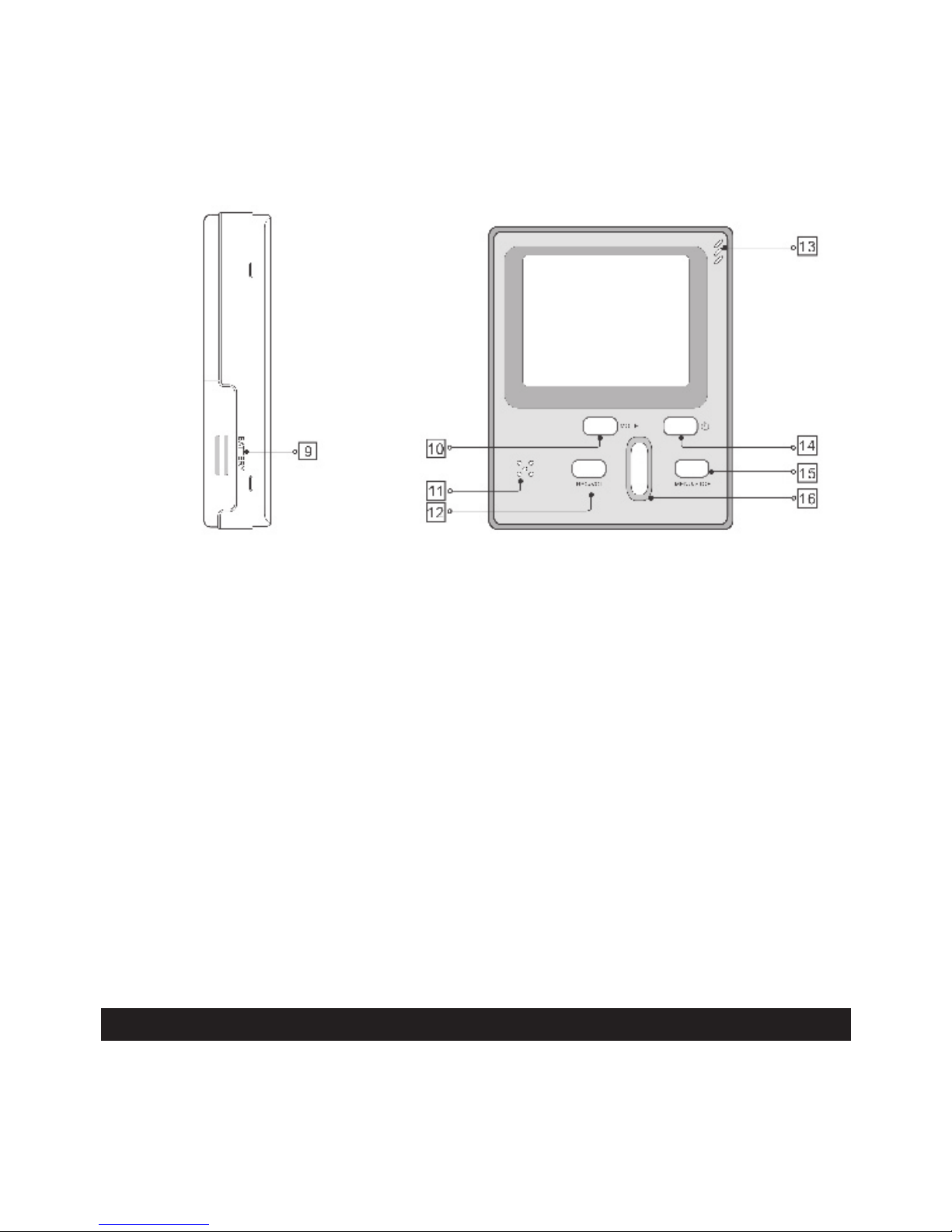
9. Battery Cover
10. Mode button
Press the Mode button to switch to different modes.
11. Speaker
12. Record/Vol button
13. Microphone
A built-in microphone for voice record.
14. Power button
15. Menu/Stop button
Use this button to call up the menu under each mode.
16. Play/Pause/OK button

PVR User Guide 7
Software Installation
The installation CD bundled with the PVR contains all the necessary
software and useful information (PVR User Guide PDF) you need before
operating PVR. Please follow the instructions below to complete the soft-
ware installation.
1. Insert the Installation CD into CD-ROM. The Select Language dialog
box appears.
2. Select your preferred language and click “OK”
to continue.
3. A Welcome dialog box appears. Click “Next”.
4. The Select Components dialog box appears.
Click and select the software you want to
install and then click “Next“.
5. The Select Program Folder dialog box ap-
pears telling you that setup program is about
to add a program icon to your system, you can
change the folder name listed in the text box,
or simply click “Next” to continue.
6. The Start Copying Files dialog box appears
confirming that the listed software will be
installed. Click “Next” to continue.
7. Follow the on-screen instructions to continue
and complete the installation.

8 PVR User Guide
Synchronizing files between PC and
PVR
Converting and Transferring Files
To synchronize the files between a PC and your PVR, read and follow the
instructions below.
1. Power on the PVR. Connect the PVR to the computer with the USB cable
provided in the package. The following appears. Then the Multimedia
Converter dialog box appears.
2. Press Browse button to select the path where your files reside. The
files will be listed as thumbnails in the Source field.
3. Press Browse button to select the path where you temporary files
will reside before uploading to PVR.
4. Press Convert button. The conversion starts.
Note: The Multimedia Convert program is for Windows98 SE/ME/2000/XP only.

PVR User Guide 9
5. The Convert Progress dialog box appears listing the conversion detail. To
cancel the conversion, press button to stop.
Mass Storage Mode
For IBM-PC Compatible Users
Connect your PVR to a computer and extra disk drive (USB Portable Disk)
will appear. Your PVR is now in Mass Storage Mode. In this mode, you can
copy, move or delete files (pictures) exactly the way you manipulate files in
Windows user interface.
Note: Do not put the files you want to play on the PVR via Mass Storage Mode. For those files
you want to play on the PVR, use only the Multimedia Converter to convert and upload.
For MAC Users
(Mac OS: 9.x and 10.1 above)
By connecting your PVR to a MAC computer (refer to the previous page),
it will automatically detect Mass Storage drive. You can easily manipulate
your files the way you do in MAC user interface.

10 PVR User Guide
Disconnecting the PVR from your
Computer
We strongly recommend you disconnect the PVR from your computer when
it is not in use.
Windows XP
1. Click “Safely Remove Hardware” ( ) icon in the taskbar.
2. Select Safely remove USB Mass Storage
Device from the menu.
Windows 2000/ME
1. Click “Unplug or Eject Hardware” ( ) icon in the taskbar.
2. Select “Stop USB Mass Storage Device”
from the menu (Windows 2000).
Select “Stop USB Disk” from the menu
(Windows ME).
Windows 98SE
1. In My computer, right click on the removable disk cor-
responding to the player.
2. Select “Eject” from the menu.
Mac OS 9.1 and 10.X above
1. Select the player icon (shown as ‘NO_NAME’or ‘untitled’
drive) on the desktop.
2. Drag and drop the drive to the Trash.
Tabla de contenidos
Otros manuales de DVR de Audiovox


