10
ABOUT SECURE FEATURES
Beyond the basic operational features are many special features and functions that can dramatically enhance the
switching system’s convenience and utility. Secure Features allow you to control and restrict access to the display, put
the switching system into the SLEEP mode, protect stored systems from accidental erasure, etc. These special features
are initiated with the SECURE Key. Properly used, Secure Features will eliminate most of the risks associated with giving
customers access to the switching system, making offensive “Please Don’t Touch” signs unnecessary. The Access System
is designed to be equally appropriate for operation by you or your customer.
Control over these special features is by two different SECURITY CODES – a MANAGER CODE and an OPERATOR
CODE. Whenever a Code is required to execute a Secure Feature, “coA” will appear in the display window to prompt
for the Manager Code, or “coB” to prompt or the Operator Code.
Security Codescan be any number from 0 to 999. Or, either Code
may be set to null or empty, to bypass the requirement of entering a
Code altogether. The Manager’s Code is used to control access to
certain system setup parameters, while the Operator Code is used
to restrict Customer access. The MANAGER CODE, or Code A, is
factory set at 999. The OPERATOR CODE, or Code B, is factory set
as blank or null.
Changing the Manger’s Code requires you to press and hold the
recessed button on the Control Panel. To reach the button, you must
unbend a paper clip and insert it through the hole in the Control
Panel (Figure 6). While holding the recessed button, short press
the A key. The Manager’s Code will appear. To change the code,
press the C key to backspace, and then enter a new three digit code
and long-press the A key to enter. Release the recessed button to
exit Change Password Mode. Changing the Operator’s Code is a
similar process: while holding the recessed button, short press the
B key. The Operator’s Code will appear. To change the code, press
the C key to backspace, and then enter a new three digit code.
Long-press the B key to enter. Release the recessed button to exit Change Password Mode.
All Secure Commands are initiated by PRESSing the SECURE Key, followed by the number of the desired feature or
function. During Secure Command key sequences, the SECURE Key is used like an “Enter” key to conrm input and
move to the next operator prompt. Also, the Arrow Keys, depicted as for UP and for DOWN, are used to toggle between
available choices. When one Secure Command has an impact on, or is dependent on another, that is also noted. The
Manager Code may be substituted at any prompt for the Operator Code. Of course, the opposite is not true.
Most secure functions have a TIMEOUT function that automatically terminates the command in process and puts you
back where you were previously if the keystrokes are not entered properly or if you take too long. So if you are interrupted
in the middle of entering a Secure Command, you need not worry about the system being inadvertently left vulnerable.
It may take a little practice for the Secure Features to become second nature. After all, this aspect of the Control Panel’s
operation is security related and should not be too obvious.
TIP: If you experience any initial uncertainty in entering any Secure Command, DOUBLE-CLICKing the SECURE Key will
terminate the current command sequence and return the Control Panel to its previous state, allowing you to start over.
The different Secure Commands are listed in the following section along with an explanation of what each code does.
Using the Secure Features
Please acquaint yourself with the Secure 91 and Secure 95 Codes rst, since they are generally required for other Secure
Features to operate. Generally, those Secure Features that are used frequently and by store personnel have lower
numbers to reduce keystrokes. Secure Features requiring the Manager Code to make changes generally have higher
numbers.
In this section, the keys to press are capitalized. Keystrokes are separated by a dot (•). The entry of numbers is indicated
by the # sign, one for each possible digit. An asterisk (*) indicates that a keystroke is optional, that is, it will automatically
execute if the key is not pressed.
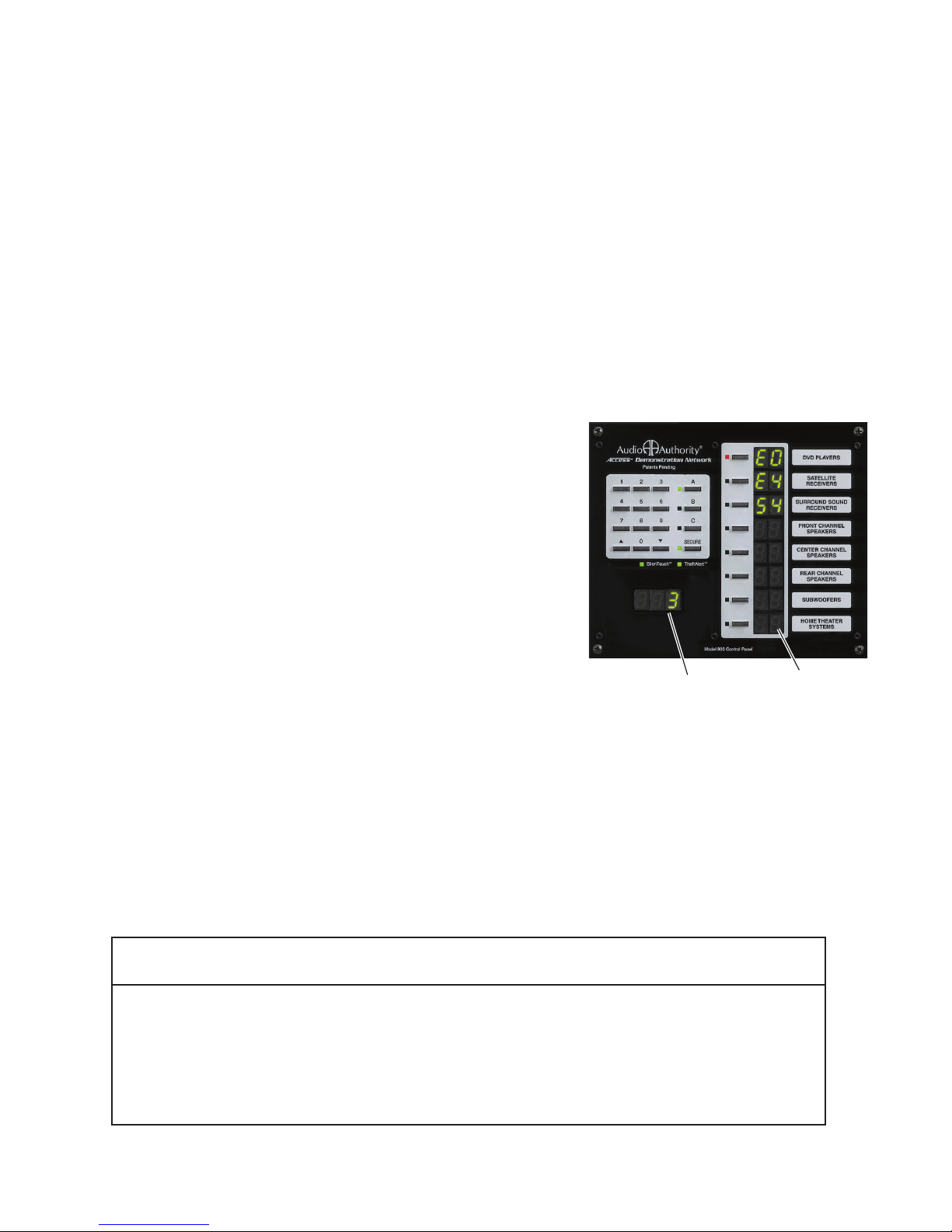
Figure 7. Recessed button used to activate Change Password Mode