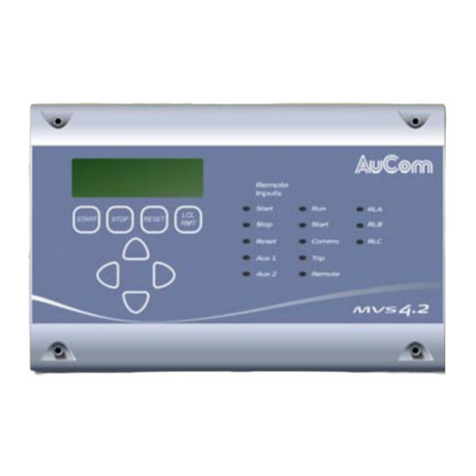
AuCom PROFINET CARD Manual de usuario

INSTRUCTIONS
PROFINET CARD
RIGHT FROM
THE START
Profinet Card | Rev C 5/2021
Contents
1. Introduction ......................................................................................... 3
2. Installation........................................................................................... 5
3. Device configuration............................................................................ 6
4. Master configuration......................................................................... 11
5. Ground fault protection..................................................................... 11
6. Operation ........................................................................................... 12
7. Packet structures.............................................................................. 13
8. Network design ................................................................................. 21
9. Specifications .................................................................................... 23
Compatibility
This manual is suitable for:
•Profinet Card
•Profinet Card with Ground Fault
These cards are suitable for use with EMX4e and EMX4i soft starters.
The available features may vary according to the model and version of the starter.
This user manual is intended for use with version 3.x of the Profinet Card. Version 2.x
of the Profinet Card does not support custom users or IoT operation.
© 2021 AuCom Electronics Ltd. All Rights Reserved.

INSTRUCTIONS
2Profinet Card (710-16502-00C)
Disclaimer
The examples and diagrams in this manual are included solely for illustrative
purposes. The information contained in this manual is subject to change at any time
and without prior notice. In no event will responsibility or liability be accepted for
direct, indirect or consequential damages resulting from the use or application of this
equipment.
Failure to follow the information and instructions in this manual will void the warranty.
Warnings
It is the installer's responsibility to follow all instructions in this manual and to follow
correct electrical practice.
WARNING
For your safety, isolate the soft starter completely from mains voltage before
attaching or removing accessories.
WARNING
Inserting foreign objects or touching the inside of the starter while the
expansion port cover is open may endanger personnel, and can damage the
starter.

INSTRUCTIONS
Profinet Card (710-16502-00C) 3
1. Introduction
1.1 Product design
The Profinet Card allows the soft starter to connect to an Ethernet network and be
controlled or monitored using an Ethernet communication model.
Familiarity with Ethernet protocols and networks is required to operate the device
successfully. For difficulties using this device with third party products, including
PLCs, scanners and commissioning tools, contact the relevant supplier.
1.2 Connections
23081.A
2 31
1
2 x RJ45 ethernet ports, supporting line, star, ring and loop network topologies
2
2 pin connector for ground fault CT (selected models)
3
DB9 connector for optional remote keypad
1.3 Communication protocols
The Profinet Card supports the following protocols:
Profinet
Industrial ethernet via Profinet
MQTT
Message Queue Telemetry Transport
OPC UA
Open Platform Communications Unified Architecture
22542.A
1
23
4

INSTRUCTIONS
4Profinet Card (710-16502-00C)
1
Soft starter
2
Network switch
3
IoT connection (MQTT/OPC UA)
4
Industrial ethernet connection to programmable logic controller

INSTRUCTIONS
Profinet Card (710-16502-00C) 5
2. Installation
2.1 Installing the expansion card
1. Push a small flat-bladed screwdriver into the slot in the centre of the expansion
port cover, and ease the cover away from the starter.
2. Line up the card with the expansion port. Gently push the card along the guide
rails until it clicks into the starter.
B4 B5 10
1112 13 14 15 21 22
33 34 41 42 44 53 54
B4 B5 10
1
1 12 13 14 15 21 22
33 34 41 42 44 53 54
1 2
17049.A
2.2 Network connection
Ethernet ports
The device has two Ethernet ports. If only one connection is required, either port can
be used.
Cables
Use Category 5, 5e, 6 or 6e cable to connect to the device.
EMC precautions
To minimise electromagnetic interference, Ethernet cables should be separated from
motor and mains cables by 200 mm.
If the Ethernet cable must cross motor or mains cables, the crossing should be at an
angle of 90°.
2.3 Network establishment
The controller must establish communications directly with each device before the
device can participate in the network.
2.4 Addressing
Each device in a network is addressed using a MAC address and a device name. The
MAC address is fixed within the device and is printed on a label on the front of the
device.

INSTRUCTIONS
6Profinet Card (710-16502-00C)
3. Device configuration
3.1 Configure the device name
Use the Ethernet Device Configuration Tool to configure the device. The Ethernet
Device Configuration Tool is available from your local supplier.
To identify the device using the Ethernet Device Configuration Tool:
1. Start the Ethernet Device Configuration Tool.
2. Click on Search Devices. The software will search for connected devices.
3. To configure a device name, click Configure then select Device Name.
NOTE
The Error LED is on if the device is not configured. If the device is configured
but is not passing I/O data, the Error LED will flash. The Error LED will be
active during the configuration process.
NOTE
If your PC has a firewall enabled, you must add the tool to the list of authorised
programs.

INSTRUCTIONS
Profinet Card (710-16502-00C) 7
3.2 Enabling network control
The soft starter will only accept commands from the Profinet Card if parameter 1A
Command Source
is set to 'Network'.
NOTE
If the reset input is active, the starter will not operate. If a reset switch is not
required, use parameter 7I to set the reset input to normally open or fit a link
across terminals 10, 11 on the soft starter.
3.3 On-board web server
Settings in the Profinet Card can be configured via the card's web server.
Connect to the device
To configure settings using the on-board web server, the card must be installed in a
soft starter, control power must be available, and the card and computer must both be
connected to the Ethernet network.
The computer must use a fixed IP address (not DHCP) and the same subnet mask as
the card. The default IP address for the card is 192.168.0.2. The default subnet mask is
255.255.255.0.

INSTRUCTIONS
8Profinet Card (710-16502-00C)
Once connected, the web server reports basic information about the card and the soft
starter.
Manage users and passwords
NOTE
For security reasons, we recommend that you define a custom administrator
ID and password.
The default username and password are:
username: admin
password: 1978
NOTE
Version 2.x of the Profinet Card does not support custom users.
The Profinet Card supports multiple users and levels of privilege.
•Users can view the home screen and IP address settings
•Supervisors can view the home screen and IP settings and can change
configuration settings
•Administrators can view the home screen, change configuration settings and add or
delete users
To add a new user:
1. Connect to the web server then click Administration.
2. Click Create new user.
3. Enter the new username and password then click Create an account.
4. Set privileges (user, supervisor, administrator) as appropriate.
5. Click Save changes.

INSTRUCTIONS
Profinet Card (710-16502-00C) 9
To delete a user:
1. Connect to the web server then click Administration.
2. Click the required entry in the user list then click Delete user. Click Delete again to
confirm the action.
Configure IoT settings
The Profinet Card supports soft starter status monitoring over IoT. The card cannot
control or program the soft starter.
NOTE
Version 2.x of the Profinet Card does not support IoT operation.
•Configure MQTT settings
1. Connect to the web server then click Configuration > MQTT Client.
2. Tick the Enable checkbox to enable MQTT client operation. The MQTT client is
enabled by default.
3. Click Connection then configure the settings as required.
4. Use Connection > Actions to select which information the card will publish.
5. Click Submit to save all settings in the card.

INSTRUCTIONS
10 Profinet Card (710-16502-00C)
•Configure OPC UA settings
1. Connect to the web server then click Configuration > OPC UA Server.
2. Tick the Enable checkbox to enable OPC UA client operation. The OPC UA client is
enabled by default.
3. Click Server Configuration then configure the settings as required.
4. Use Actions to select the actions for different object instances.
5. Click Submit to save all settings in the card.
Tabla de contenidos
Otros manuales de Equipos industriales de AuCom