
AT&T Z221 Manual de usuario

User Manual
AT&T Z221

Legal Information
Devices purchased for use on AT&T’s system are designed for use exclusively on AT&T’s system. You agree that
you won’t make any modifications to the Equipment or programming to enable the Equipment to operate on any
other system. A voice plan is required on all voice-capable devices, unless specifically noted otherwise in the terms
governing your agreement. Some devices or plans may require you to subscribe to a data plan.
Your phone is designed to make it easy for you to access a wide variety of content. For your protection, AT&T wants
you to be aware that some applications that you enable may involve the location of your phone being shared. For
applications available through AT&T, AT&T offers privacy controls that let you decide how an application may use the
location of your phone and other phones on your account. However, AT&T’s privacy tools do not apply to applications
available outside of AT&T. Please review the terms and conditions and the associated privacy policy for each location-
based service to learn how location information will be used and protected.
Your phone may be used to access the Internet and to download, and/or purchase goods, applications, and services
from AT&T or elsewhere from third parties. AT&T provides tools for you to control access to the Internet and certain
Internet content. These controls may not be available for certain devices which bypass AT&T controls.
AT&T may collect certain types of information from your device when you use AT&T services to provide customer
support and to improve its services. For more information on AT&T’s Privacy Policy, visit att.com/privacy.
Copyright © 2011 ZTE CORPORATION.
All rights reserved.
No part of this publication may be excerpted, reproduced, translated or utilized in any form or by any means, elec-
tronic or mechanical, including photocopying and microfilm, without the prior written permission of ZTE Corporation.
The manual is published by ZTE Corporation. We reserve the right to make modifications on print errors or update
specifications without prior notice.
Version No.: V1.0
Edition Time: July, 2011
Manual No.: 079584502900

Getting Started ................................................ 3
Removing the Back Cover ..................................... 3
Battery ................................................................. 3
SIM Card .............................................................. 4
Charging Your Phone ............................................ 4
Powering Phone On/Off ........................................ 5
Getting to Know Your Phone ................................ 6
Entering Text ................................................... 11
Changing Input Mode ........................................ 11
Calls ................................................................ 13
Making a Voice Call ............................................ 13
Using the Address Book ...................................... 13
Using Call Options ............................................. 13
Receiving Calls ................................................... 13
Adjusting the Volume ......................................... 13
Using Call History ............................................... 13
Messages ......................................................... 14
Types of Messages ............................................. 14
SMS and MMS ................................................... 14
Voicemail ........................................................... 15
Message Folders................................................. 15
Using Message Options ...................................... 15
Message Settings ............................................... 16
Using Message Templates ................................... 16
Instant Messaging .............................................. 17
Mobile Email ...................................................... 18
Address Book .................................................. 19
Adding a Contact ............................................... 19
Searching for a Contact ...................................... 19
Setting Speed Dial .............................................. 19
Making a Speed Dial .......................................... 19
Using Address Book Entry Options ...................... 20
Bluetooth® ...................................................... 21
Enabling Bluetooth ............................................. 21
My Devices ......................................................... 21
Sending Data ..................................................... 22
Receiving Data ................................................... 22
Mobile Web ..................................................... 23
Using the att.net Homepage ............................... 23
Visiting a Website ............................................... 23
Tools ................................................................ 24
Alarm ................................................................ 24
Calendar ............................................................ 24
Calculator .......................................................... 25
Tip Calculator ..................................................... 25
Stopwatch .......................................................... 25
World Time ......................................................... 26
Currency Conversion .......................................... 26
Recent Calls ....................................................... 26
Entertainment................................................. 27
Pictures .............................................................. 27
Video ................................................................ 27
Music ................................................................ 28
Voice Recorder ................................................... 28
Table of Contents
1

Social Networking.......................................... 29
AT&T Social Net ................................................. 29
Yellow Pages ................................................... 30
YPmobile ........................................................... 30
Settings ........................................................... 31
Sound Profiles Settings ....................................... 31
Phone Settings ................................................... 31
Display Settings .................................................. 32
Connections Settings .......................................... 32
Calls Settings ..................................................... 32
Security Settings ................................................. 33
Accessibility .................................................... 35
TTY Mode .......................................................... 35
HAC (Hearing Aid Compatibility) Mode ............... 35
Care and Maintenance .................................. 36
General Care ...................................................... 36
General Guidelines ............................................. 37
CTIA Requirements ............................................. 38
Aircraft Safety .................................................... 39
Hospital Safety ................................................... 39
Road Safety ........................................................ 39
Vehicles Equipped with an Airbag ....................... 39
Third-Party Equipment ........................................ 40
Declaration of Conformity ................................... 40
Disposing of Your Phone ..................................... 40
Emergency Service .............................................. 40
Privacy Information............................................. 41
Turn on the HAC Setting ..................................... 41
Copyright Notice ................................................ 41
Troubleshooting and FAQs ............................ 42
Specifications ................................................. 45
FCC Compliance .............................................. 46
Radio Frequency (RF) Energy ........................ 47
Table of Contents
2

Getting Started
3
NOTE: In this User Manual, “press a key” means to
press the key and release it, while “hold a key” means
to press the key for at least two seconds and then
release it.
Removing the Back Cover
1. Hold the Power/End Key to turn off
the phone.
2. Lift the bottom of the back cover from the notch and
remove the back cover as shown below.
Battery
Installing the Battery
NOTES:
• The phone automatically turns off if the battery
power is too low.
• If you are not going to use the battery for a long
time, remove it from the phone and store it in a cool,
dry place.
1. Hold the Power/End Key to turn off the phone.
2. Remove the back cover of your phone.
3. Carefully insert the battery with the contacts located
against the metal springs.
4. Push down the battery until it clicks into place.
5. Replace the cover on the back of the phone.
CAUTION: Make sure the cover is lined up before
pressing it into place. Do not force it. Doing so will
damage the back cover.
Removing the Battery
1. Hold the Power/End Key to turn off the phone.
2. Remove the back cover of your phone.
3. Lift the end of the battery near the bottom of the
phone to remove it.
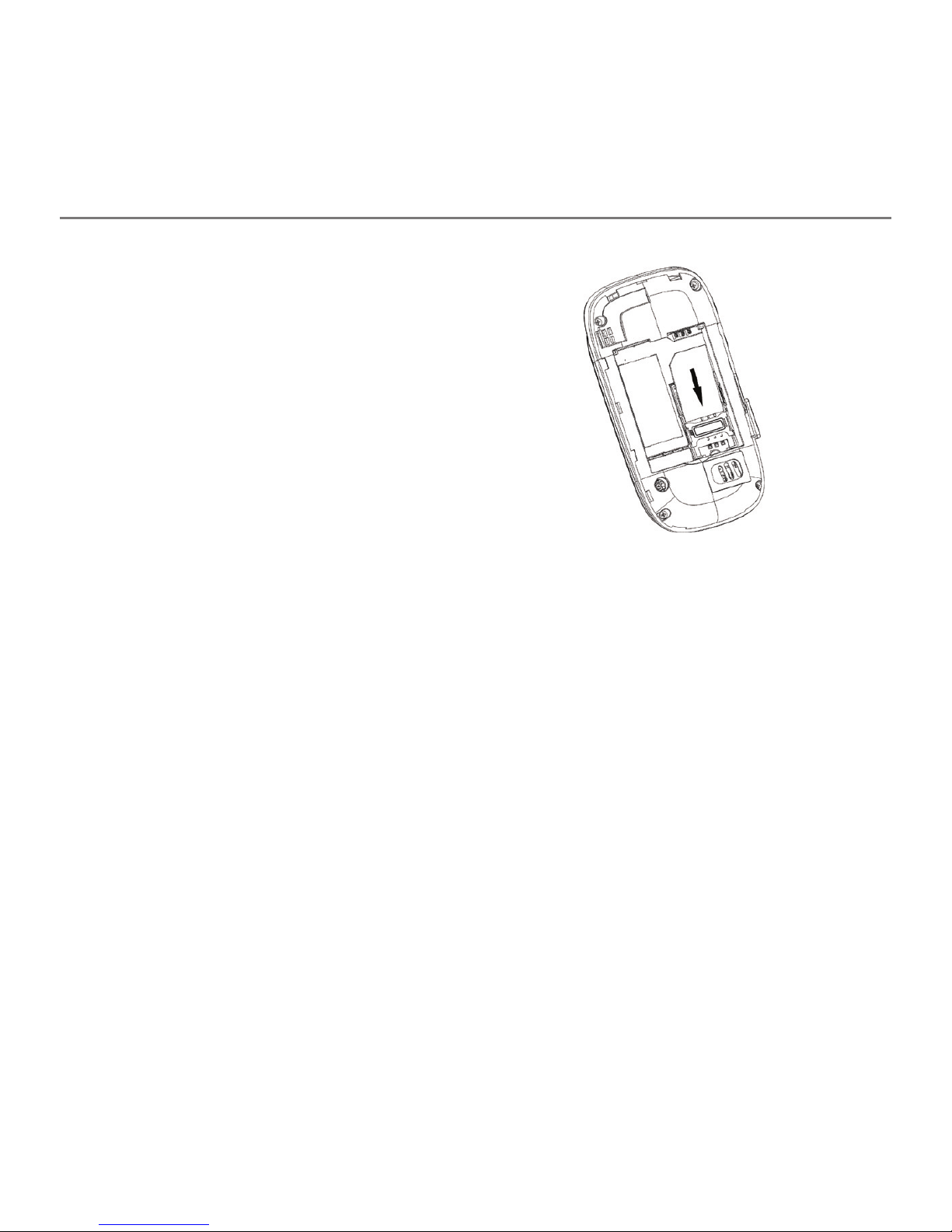
Getting Started
4
SIM Card
Inserting the SIM (Subscriber
Identification Module) Card
You can obtain a SIM card from your service provider
when you sign on as a subscriber.
CAUTION:
• Do not bend or scratch your SIM card. Keep the card
away from electricity and magnetism.
• Don’t touch the metal surface of the SIM card. Doing
so could cause information on the card to be lost or
destroyed.
• Disconnect the charger and other accessories from
your phone and remove the battery before inserting
and removing your SIM card.
1. Hold the Power/End Key to turn off
the phone.
2. Remove the back cover of your phone.
3. Hold the SIM card with the metal contacts facing
downward and the cut corner at the upper left.
Insert the card into the card holder and push it until
it clicks into position.
4. Replace the cover on the back of your phone.
Removing the SIM Card
1. Hold the Power/End Key to turn off the phone.
2. Remove the back cover (and battery, if necessary) of
your phone.
3. Gently remove the SIM card from the card holder.
Charging Your Phone
Your phone uses a rechargeable battery. When you
first unpack the phone, the battery is not fully charged,
but there might be enough power to turn on the
phone. You can use the provided charger to charge
the phone battery.

Getting Started
5
1. Open the USB port cover.
2. Insert the charger’s USB adapter into the USB port.
3. Plug the charger into a standard AC wall outlet.
4. When the battery is fully charged, unplug the
charger and disconnect it from the phone.
NOTES:
• The phone automatically switches off if the battery
power is too low.
• Make sure the charger’s connector is inserted
correctly. Do not force the connector into the port.
• The battery will remain fully charged for 3 to
4 hours.
• Only use the charger provided by the original
provider. Using an unapproved charger might
be dangerous and violate the authorization and
warranty rules of the phone.
• If the phone is used too often when the battery is
low or not used for a long time, the screen may not
display the charge indicator until the battery has
been continuously charged for 10 to 40 minutes.
• To get the maximum performance out of your
battery, it is recommended that you completely
charge the battery before using the phone for the
first time. A new battery’s full performance is only
reached after three complete charge and discharge
cycles have been finished.
• Charging is only possible within a temperature range
of 32°F to 113°F.
Powering Phone On/O
NOTE: Do not turn your phone on in areas in which
wireless phone use is not permitted, or when it could
cause interference or danger.
Hold the Power/End Key to turn your phone on or off.
TIPS:
• When prompted, enter your PIN (Personal
Identification Number) code or handset code and
press the OK Key.
• The PIN code is the password provided by your
network service provider. You cannot use the SIM
card without it.
• When the PIN code or handset code is accepted, the
phone automatically searches for the network. After
a few seconds, your phone displays idle mode.

Getting Started
6
Getting to Know Your Phone
Earpiece
Left Soft Key
OK Key
Send Key
Task Key
Camera Key
Internal
Display
4-Way
Navigation Key
Right Soft Key
Power/End Key
Microphone
Clear & Back Key
# Key
* Key
(back)
Camera Lens
External
Display
Volume Up/
Down Keys
Charger/
Headset Port
Speaker

Getting Started
7
Key Description
OK Key From idle mode: Press to open att.net.
In lists and menus: Press to start an application/function.
4-Way
Navigation Key
From idle mode: Used to activate preset functions.
In lists, messages, and menus: Used to scroll up, down, left, and right.
Left Soft Key/
Right Soft Key
The bottom line of the display shows the options that can be selected using the Left and
Right Soft Keys. The options change depending on the application/function being used.
Send Key Press to dial or answer calls.
From
idle
mode: Press to show a list of all calls.
Power/End Key Hold to turn the phone on/off.
Press to end a call.
Press to reject an incoming call.
Press to cancel dialing.
Press to return to idle mode.
Volume Up/
Down Keys
Adjust the volume of the phone.
Task Key
Press to perform multiple tasks and switch among various applications.
Camera Key Press to activate the camera.
Clear &
Back Key
Press to delete the character on the left of the cursor when entering text or numbers.
Hold to delete all characters during text entry.
Press to return to the previous page when navigating menus or browsing the Internet.
Number Keys
Press the number keys to enter a phone number.
Key Functions

Getting Started
8
Key Description
* Key
Press to enter *.
In an editing screen: Press to enter punctuation and symbols.
# Key Press to enter #.
In an editing screen: Press to change the input method.
From idle mode: Hold to activate meeting mode with vibration.
Key Functions (continued)
Idle Mode
After powering on the phone, when the name of the
network is displayed on the screen, the phone is in idle
mode and ready for use. The display has 4 areas:
Indicators and
Icons area
Date and
Time area
Text and
Graphics area
Soft key
function
indicators
Indicators and Icons
Indicator What it means
Signal strength
3G network
EDGE network
GSM network
New SMS
New MMS
New email
New voicemail
Vibrate mode
Tabla de contenidos
Otros manuales de Teléfono móvil de AT&T

AT&T
AT&T Avail 2 Manual de usuario

AT&T
AT&T 8525 Manual de usuario

AT&T
AT&T 8525 Manual de usuario

AT&T
AT&T Axon M Manual de usuario

AT&T
AT&T Trek HD Manual de usuario

AT&T
AT&T MOTO Q 9h Manual de usuario

AT&T
AT&T Avail Manual de usuario

AT&T
AT&T Z831 Manual de usuario

AT&T
AT&T Avail Evolution Manual de usuario

AT&T
AT&T Radiant Hoja de especificaciones

AT&T
AT&T Z223 Manual de usuario

AT&T
AT&T Maestro 3 Manual de usuario

AT&T
AT&T Z432 Manual de usuario

AT&T
AT&T Link Manual de usuario

AT&T
AT&T Cingular Flip IV Manual de usuario

AT&T
AT&T Axia Manual de usuario

AT&T
AT&T Radiant Manual de usuario

AT&T
AT&T R225 Manual de usuario

AT&T
AT&T Tilt Manual de usuario

AT&T
AT&T Z431 Manual de usuario


