
Aros 12k55enua Manual de usuario


RPS SpA
via Somalia, 20
20032 Cormano (MI)
Tel. +39 02 66327.1
Fax +39 02 66327.231
www.aros-solar.com

1
CONTENTS
PRESENTATION .................................................................................................... 3
CONFIGURATION.................................................................................................. 4
Overview .......................................................................................................... 4
Basic interactions............................................................................................... 7
Description of the Menu ...................................................................................... 8
Measurements ................................................................................................ 8
Historical data ...............................................................................................11
Configuration.................................................................................................15
Alarms and statuses .......................................................................................28
Actions .........................................................................................................29
Information ...................................................................................................30
TECHNICAL DETAILS............................................................................................32
Technical specifications...................................................................................32
Compatibility Protocols ...................................................................................32
software version ............................................................................................32

2

3
PRESENTATION
1. Touch screen
2. USB port
3. Ethernet port
1
2
3

4
CONFIGURATION
Overview
Sirio Central inverters have a new man-machine interface (MMI) as standard, consisting of a colour
LCD Touch panel. The characteristics and the quantity of information enrich the experience of user
interaction with the solar inverter.
Everything can be done with just a touch.
When the inverter is started up for the first time after commissioning, a screen appears asking you
choose the country where the inverter is installed:
Press the arrows on the right to scroll between the countries currently managed. Once the choice has
been made, simply touch the image of the Earth to proceed with the configuration:
You can confirm or cancel your choice going back to the previous screen.

5
CAUTION: Choosing the country configures the inverter to the values prescribed by
the regulations in force in the country of installation. Once you have made your
choice, you cannot change this setting without contacting Technical Assistance
Service staff. The interface language can still be changed at a later date using the
ADVANCED SETTINGS menu.
The next times the device is turned on, after the welcome AROS logo, the screen will appear as
shown below (the background color may vary according to the inverter operating conditions):
The screen consists of the following main areas:
1. At the top of the screen, the model, date, time and rated power of the inverter are displayed
from left to right.
2. The daily graph showing the power delivered is shown in the middle of the screen. The
horizontal scale represents the hours (from 5 to 22 i.e. 5 am to 10 pm) while the vertical scale
represents the kW. In the top right of the graph is the value of the instantaneous power while
on the left is the energy produced during the current day.
3. At the bottom of the screen is a line providing status information, with messages that alternate
once per second.
4. On the right of the screen, there is a column with buttons that allow you to navigate within the
interface.
After 5 minutes of inactivity, the LCD screen enters screensaver mode. Just tap it to return to normal
viewing. The following symbols may appear on the off screen during daytime:
The first symbol indicates that inverter operation is regular, the second that solar radiation is low and
the third indicates an alarm.

6
The buttons on the right-hand side of the column let the user access the main functions; they have the
following symbols and meanings:
Inverter measurements
Page 8
Data log
Page 11
System configuration
Page 15
Inverter statuses and alarms
Page 30
Inverter actions
Page 29
Information
Page 30
Note that, on the main screen, touching the graph area of the screen displays the energy produced
monthly:
Swiping the finger on the screen from left to right or from right to left it’s possible to see data of
previous/next month. Touching it again will display the annual graph:
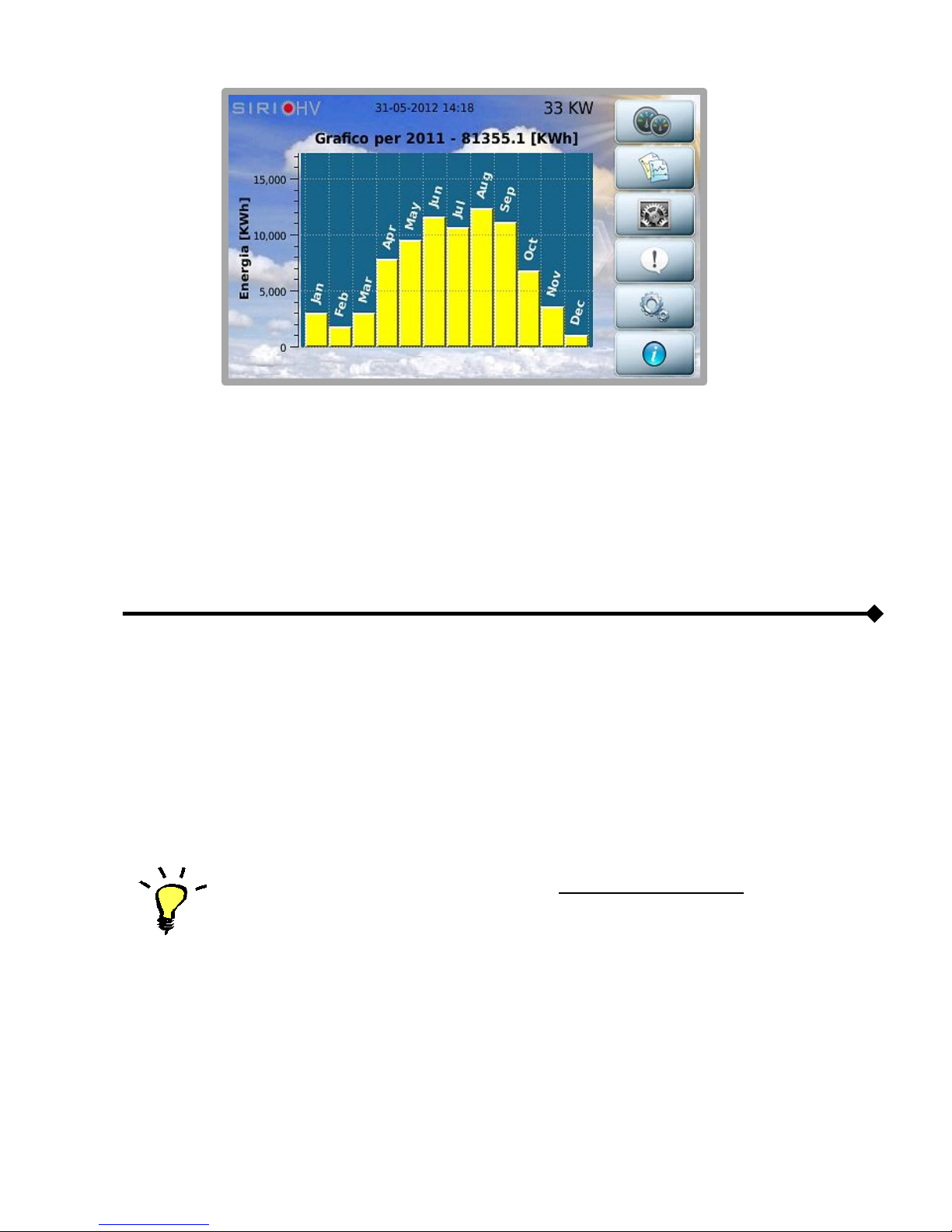
7
Swiping the finger on the screen from left to right or from right to left it’s possible to see data of
previous/next year
Touching it again returns you to the home page.
Basic interactions
All the features and customizations of the system can be queried using the following actions:
Touch: touching the button or specific area of the screen;
Swipe: moving your finger on the screen while holding it down, from right to left or from left to
right. This may be required to navigate through the daily graphs or between different screens
on some occasions.
Whenever a touch or swipe is recognized, the MMI will confirm with a beep.
For file transfer, a USB flash drive with a single FAT32 partition is required;
otherwise it will be impossible to complete the data saving operation correctly.

8
Description of the Menu
MEASUREMENTS
From the main window, as seen, you can access the other areas of the interface. In particular, press
the button to consult the inverter measurements:
The synoptic panel shows all the main device measurements.
The two buttons on the right-hand side allow you to view the temperatures measured inside the
inverter and the measurements of the four analogue probes if connected.
By pressing the Temperature button accesses the following screen.
If a DC-BOX is present that monitors the current for each individual input
(and suitably configured), pressing the button allows for viewing the current readings for
each input.
Tabla de contenidos
Manuales populares de Panel táctil de otras marcas


IBASE Technology
IBASE Technology ASTUT-152-RE1S Manual de usuario

YASKAWA
YASKAWA TP 610C Manual de usuario

B&R
B&R Power Panel C Series Manual de usuario

Beijer Electronics
Beijer Electronics X2 control Manual de usuario

AXIOMTEK
AXIOMTEK GOT321W-521 Manual de usuario

TRIDONIC.ATCO
TRIDONIC.ATCO x-touchBOX Manual de usuario


