Archos Gmini 400 Manual de usuario

1
• MPEG-4 Video Player
• MP3 & WMA Music Player
• Photo Viewer
• USB 2.0 Hard Disk
• Game player
User Manual for ARCHOS Gmini™ 400
Version 1.1
English Language User Manual
Please visit our website to download the most recent manual and software for this product.
Gmini™
400
Pocket Music / Photo / Games / Video

2
Table of Contents
1 INTRO - Ports, Buttons and Connections 6
2 INTRO - First Time Usage 8
2.1 Plugging in the AC Adapter 8
2.2 Turning on the Gmini 400 8
2.3 Shutting off the Gmini 400 and Battery saving features 8
2.4 Changing the Language 9
2.5 Foreign Character Sets 9
2.6 Charging the Batteries 9
2.7 Caring for the Gmini 400 10
2.8 Hardware Reset 10
3 MUSIC - Playing Music Files 11
3.1 Button Control 11
3.2 Playing Through your Stereo System 12
3.3 Artist, Album, Title … ID3 Tags 13
3.4 The ARCLibrary (Browsing by Album, Artist, or Song name) 13
3.5 Setting a Bookmark 14
3.6 The Resume Function 15
4 MUSIC - Playlists 16
4.1 Playing a Playlist 16
4.2 Creating a Playlist 17
4.3 Saving a Playlist 17
4.4 Adding songs to a Playlist while listening to Music 18
5 MUSIC - Recording Music 19
5.1 Cable Connections for Audio Recording 19
5.2 Recording Procedure 20
Microphone
21
Analog Line-In
21
Incremental Recording
21
5.3 Where is the Recording Saved? 21
5.4 Audio Editing 22
6 MUSIC - Using Windows® Media Player 9 24
6.1 Installing Windows Media Player 9 24
6.2 Installing the WMP9 Service Provider Plug-in 24
6.3 Copying Music to your Gmini 400 25
6.4 Copy Protected Music Downloads 25
7 MUSIC - Using iTunes™ with your Gmini 400 26
8 GAMES - Playing Mophun® games 27
8.1 Downloading Games 27
Copy to Gmini 400 root
27
8.2 Playing a Game 28

3
9 VIDEO - Playing Video 29
9.1 Setting a Bookmark 30
9.2 The Resume Function 30
9.3 Display Format Settings 31
9.4 Playing Video Files from the Internet 31
10 VIDEO - Creating MPEG4 video files with your computer 32
How to create an MPEG-4 video file
32
PC Tools
32
Macintosh Users
32
10.1 Installing the PC Software 33
DivX™ Codec
33
Virtual Dub™
33
MPG4 Translator
33
MP3 Sound Codec
34
10.2 Using MPG4 Translator 35
Select Source & Destination Files
35
Change Settings
35
Target & Priority
36
Start
36
11 PHOTO - Viewing Photos 37
11.1 Viewing Photos 37
Magnifying Photos
38
11.2 Viewing a slideshow 38
11.3 Transferring photos to your Gmini 400 39
12 BROWSER - Using the Browser 41
12.1 Navigating the Directory Structure 41
12.2 Navigating the Directory Structure 42
File Operations
42
Folder Operations
42
Copying and Moving Files and Folders
43
12.3 Using the Virtual Keyboard 44
13 Connecting/Disconnecting the Gmini 400 to/from your PC 45
13.1 Connecting the Gmini 400 45
Windows® ME, 2000, XP (Home/professional)
45
Macintosh™ OS 9.X
46
Macintosh™ OS X
46
Macintosh™ OS X (10.2 Jaguar and 10.3 Panther)
46
13.2 Disconnecting the Gmini 400 from your Computer 46
Windows®
47
Macintosh®
48
14 SETTINGS 49
14.1 Sound Settings 49
14.2 Play Mode Settings 50
14.3 Clock Settings 52
14.4 Display Settings 52
14.5 Power Settings 54
14.6 System Settings 55

4
15 Updating the Gmini 400 Firmware Operating System (OS) 56
Download the Update_Gmini400.AOS file
56
Read the History.txt File
56
Copy to Gmini 400 root and Update
56
16 Technical Support 58
17 Troubleshooting 60
17.1 USB Connection issues 60
17.2 Charging and Power issues 61
17.3 Gmini 400 locks up (freezes operation) or Stops 61
17.4 The Computer locks-up (freezes operation) or Stops 62
17.5 File issues, corrupted data, formatting, and partitioning 62
Windows® 98SE & ME Running Scan-Disk (Error Checking)
63
Windows® XP & 2000 Running Check Disk Utility (ChkDsk)
64
18 Technical Specifications 65
19 Legal 66

5
Dear Customer,
ARCHOS thanks you for your choice of this exciting Gmini 400 product.
With this beautiful device in your pocket, you can enjoy digital music,
digital photos, games, or digital video anytime and anywhere. We are
sure that your Gmini 400 will give you years of listening and viewing
enjoyment. Of course you can always use it as a regular portable hard
disk too for all your personal computer files.
This guide will explain to you the functions of the Gmini 400. Our
engineers have packed this product with many functions and capabilities.
The better you know how to use it, the more enjoyment you will get from
it. Remember, with the Gmini 400, you can…
• Listen to MP3, WMA, or WAV music files
• Play a variety of 2D and 3D Mophun® video games
• Play MPEG-4 video files on the built-in screen, or to a television or video
projector
• View digital photos and make personalized slide shows
•
Record music files directly into digital format from your hi-fi without a computer
• Use it as a voice recorder with its built-in microphone
•
Store .DOC, .PDF, or any type of data file – it’s a portable hard drive too!
• Create music Playlists
•
Copy Pictures or data from CompactFlash™ cards directly to the Gmini
400 (may require a freely available plug-in from the Archos website).
We wish you many years of enjoyment from your Gmini 400 product.
Please do register your product at our website www.archos.com/
register/products.html to ensure that you get access to our help line
and to be informed of free software updates for your product.
Wishing you the best music, photo, gaming, and video experience,
The ARCHOS TEAM

6
a Hard disk activity indicator (red)
b On indicator (green)
c Battery charger indicator (green) – blinks when the battery is fully charged
d On/Enter/Play/Go ► – Hold for 3 seconds to turn on the Gmini 400
e Move UP (also increases volume during media playback)
f Move DOWN (also decreases volume during media playback)
g Move LEFT (also plays previous song or fast reverse through a song or video)
h Move RIGHT (also plays next song or fast forward through a song or video)
i Game Control 1 (Function depends on game) [acts as Enter/Play when not
in game mode]
j Game Control 2 (Function depends on game) [acts as Escape/Stop when
not in game mode]
k Escape/Stop/Go back/Off - Hold for 3 seconds to turn off device
l F1 command or function
m F2 command or function
n F3 command or function
o Function button F1 – activates the on-screen function or command above it (l)
p Function button F2 – activates the on-screen function or command above it (m)
Long press to switch display between built in screen and external TV
q Function button F3 – activates the on-screen function or command above it (n)
1
INTRO - Ports, Buttons and Connections

7
a Multiconnect adapter – allows for an analog audio input (Line In)
b Multi-connect jack – for headphones, AV cable, or FM Remote control
(optional accessory)
c Microphone – for making digital voice recordings
d CompactFlash™ slot – Type I compatible
e USB 2.0 port (USB 1.1 compatible) to connect the Gmini 400 to your computer
f Power Connector (Use only the supplied Archos power charger/adapter)

8
Please take the time to read though this manual. There are many
things that this device can do that you may not be aware of.
2.1 Plugging in the AC Adapter
• Use only the included ARCHOS charger/adapter.
•
Before using for the first time, charge the batteries completely.
• You may use the Archos Gmini 400 while its battery is charging, but it
will then take longer before the battery is completely charged.
2.2 Turning on the Gmini 400
•
Hold the PLAY/ON button
►
for 4 seconds. The green “On”
indicator light will turn on. Be patient, it will take a few seconds for the
operating system to boot up.
•
If the unit shuts off after holding the ON button for several seconds, plug
in the Archos adapter/charger to make sure the batteries get charged.
2.3 Shutting off the Gmini 400 and Battery saving features
To shut off the unit, press and hold the STOP/ESC/OFF button for 3 seconds.
In the Power menu [Setup
Power: Battery Operation]
there is a Power Off parameter. It is factory set to 2
minutes. Thus, if your Gmini 400 is idle for 2 minutes, it
will shut off. This setting can be changed from one to nine
minutes or to ‘never’.
In the Power menu [Setup
Power: Battery Operation]
there is a Backlight Off parameter to save battery power
(the lighting of the screen consumes a lot of the battery
power). It is factory set to 30 seconds. That is, if there are
no buttons pressed, the screen will shut off in order to save battery life.
To turn the screen back on, just click once on any button. See section 14.5
for a complete explanation.
2
INTRO - First Time Usage

9
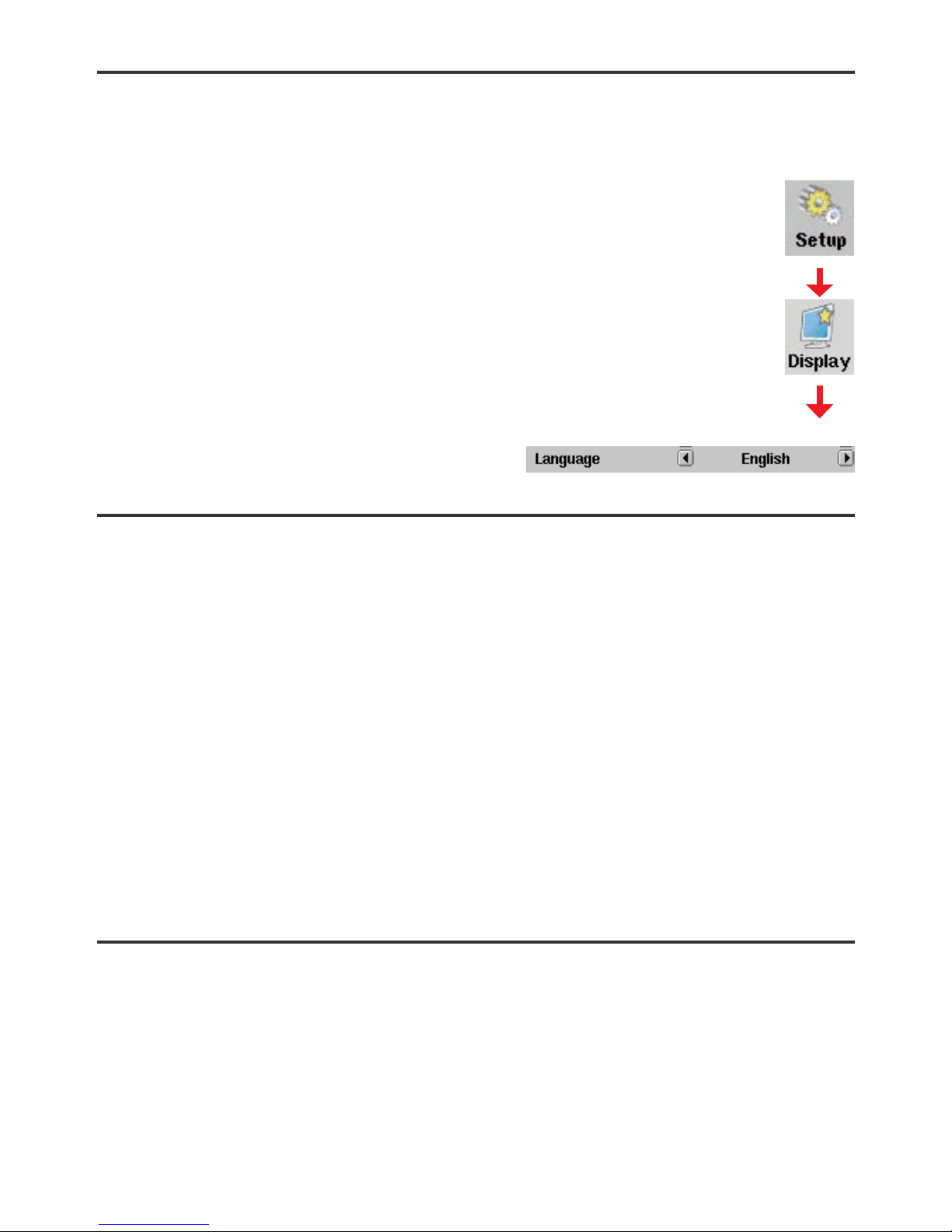
2.4 Changing the Language
The Gmini 400 interface can be set to English (default), French, German
or Spanish.
• To change the language, move the cursor to Setup and then
click PLAY/ENTER ►.
•
Then move with the joystick to Display and click PLAY/ENTER
►
.
• Highlight the Language parameter.
• Use the Right or Left button to choose the desired language.
• Choose French, German, Spanish or English.
• The language displayed will change immediately.
• Click on the STOP/ESC button to exit this screen.
2.5 Foreign Character Sets
You have the possibility to display your file names, folder names, and
MP3 ID3 tags in various character sets (ex: Korean, Japanese, Simplified
Chinese, etc.). You can find the language files CodePage_name.4FZ
in the font folder under /Data on the Gmini 400 hard disk or on the
Archos website under the heading Software. If, for example, you would
like to have the Korean language display, then you would copy the file
CP949.4FZ into the folder /system on the Gmini 400 and shut down and
restart the Gmini 400. File names, folder names, and ID3 tags written
using the Microsoft® codepage for the language will now be displayed in
that character set. Only one .4FZ can be used at a time, thus you should
only put one .4FZ file into the /system folder. When an .4FZ language file
is used, the interface language will be set to English.
2.6 Charging the Batteries
Use ONLY an Archos charger/adapter that is specified for the Gmini
400. Other chargers or adapters may damage the Gmini 400. The green
CHARGE indicator lights up to indicate that the external adapter is
connected. The batteries will charge automatically when the AC adapter/
charger is plugged in. Once the batteries are fully charged, this light
will blink, indicating that you can disconnect the charger/adapter. Once
charged, you can get up to 10 hours* of MP3 music playback time and
up to 5 hours* of AVI video playback time (on the built-in screen) from

10
the batteries. The Gmini 400 is made with integrated batteries which are
designed to last for the life of the Gmini 400. This means that you will
not have to change them. If, in the exceptional case, the batteries need
changing, this should only be done by an Archos technician.
* depending on how you use it (start/stop/writing, etc.)
2.7 Caring for the Gmini 400
The Archos Gmini 400 is an electronic product that needs to be treated
with more care than typical consumer electronic products.
• Do not subject it to shock.
• Do not subject it to heat. Keep it ventilated (especially when connected
to a computer).
• Keep the Gmini 400 away from water and excessively humid areas.
• Keep the Gmini 400 away from high electromagnetic fields.
• Keep any connected cords to the Gmini 400 neatly arranged. This light
product could fall if a cord is accidentally pulled by a child.
• Do not open up the Gmini 400. There are no user serviceable parts
inside. Opening will void your warranty.
2.8 Hardware Reset
In the event that your Gmini 400 freezes operation (due to electrostatic
phenomena for example), you can actuate a hardware reset by holding
down on the STOP/ESC button for 10 seconds. In normal operation, the
STOP/ESC button will shut down the Gmini 400 after being held down for
3 seconds.
Otros manuales para Gmini 400
2
Este manual sirve para los siguientes modelos
1
Tabla de contenidos