
Aopos E120 Manual de usuario

Proficient in Commercial POS Receipt printers
E120
User’s Manual
Thermal Barcode Printers
POS

1
1. Introduction..............................................................................................2
1.1 Safety Warning ..........................................................................................................2
1.2 Note ...........................................................................................................................2
2. General Information ................................................................................3
2.1 Introduction ................................................................................................................3
2.2 Main Features ............................................................................................................3
3. Printer Parts ...........................................................................................3
4. Paper Roll Installation ............................................................................5
5. Specification ...........................................................................................8
5.1 Specification Table .....................................................................................................9
6. Setting Up the Printer ...........................................................................10
6.1 Unpacking ................................................................................................................10
6.2 Power Cable Connection .........................................................................................10
6.3 Data Cable Connection ............................................................................................10
6.4 Media Installation .....................................................................................................10
7. Power On Utilities .................................................................................10
7.1 Self-Test ...................................................................................................................10
7.2 Gap Sensor Calibration ...........................................................................................11
7.3 Hexadecimal Dumping .............................................................................................12
7.4 Skip AUTO.BAS .......................................................................................................12
7.5 Printer Initialization ...................................................................................................13
8. Indicators and Buttons..........................................................................13
8.1 Indicators ..................................................................................................................13
8.2 Buttons .....................................................................................................................13
9. Maintenance ..........................................................................................14
9.1 Printer Cleaning .......................................................................................................14
Thermal Barcode Printers

2
1 、Introduction
Thanks for choosing our new thermal label printer E120. This product provides reliable
performance and high printing quality at economic price. With powerful functions and easy
operation design, is your best choice of thermal label printer.
CAUTION, NOTE
CAUTION: MUST COMPLY, OTHERWISE HUMAN GET HARM AND DEVICES
DAMAGE.
NOTE: IMPORTANT INFOMATION AND TIPS FOR PRINTERS OPERATION.
SAFETY WARNING
PLEASE READ THE BELOW WARNINGS AND NOTES CAREFULLY BEFORE USING
THE PRINTER.
1.1 SAFETY WARNING
CAUTION: THE PRINT HEAD IS A HEATED PART, PLEASE DO NOT TOUCH THE
PRINT HEAD AND OTHER PARTS AROUND IT IN AND AFTER THE PRINTING
PROCESS.
CAUTION: DO NOT TOUCH THE PRINT HEAD AND PLUG-IN PARTS TO AVOID
PRINT HEAD DAMAGE.
CAUTION: DO NOT TOUCH THE PAPER TEAR-OFF KNIFE TO AVAOD GETTING
HARM.
E120
1.2. Safety Notice:
* Don't touch the printer head with anything.
* Don't touch the cutter blade.
* Don't bend the power cord excessively or place any heavy objects onto it.
* Don't use the printer when it is out of order. This can cause a fire or and electrocution.
* When connecting or disconnecting the plug, always hold the plug but not the cord.
* Keep the desiccant out of children's reach.
* Use only approved accessories and do not try to disassemble, repair or remodel it by
yourself.
* Install the printer on the stable surface. Choose firm, level surface where avoid vibration.
* Don't let water or other foreign objects into the printer.
* Don't connect a telephone line into the peripheral drive connector.
* We recommend that you unplug the printer from the power outlet if no use it for a long
Thermal Barcode Printers

3
1
2
3
4
5
6
7
8
9
( 1)
2 、General Information
2.1 Introduction
is designed for real-time and batch label printing, which is applicable in the field of
transportation, logistics, post, retail sale, and etc. The printer can be connected with other
equipment with various interface cards, such as Parallel, Serial, USB and LAN. It supports
different paper media, including thermal paper roll, thermal label paper and sticker paper.
The printer provides direct thermal printing at selectable printing speed of 2.0, 3.0, 4.0 and
5.0 inches per second. It accepts roll feed, die-cut and fan-fold labels. All common bar
code formats are available. Font and bar codes can be printed in 4 directions and in 1 to
10 times enlargement size. High performance and efficiency of label printing save your
time!
2.2 Main Features
● Support thermal paper roll, thermal label paper and sticker paper.
● Support printing media width from 16mm to 82mm.
● Print head pressure is adjustable.
● Auto paper adjusting function.
● Auto temperature control for durable printing.
● Module design for different application.
3 、Printer Parts
E120
1- Top Cover 2- Base housing 3- Top Cover Open Button
4- Backing Paper Opening 5- Label Opening 6- Feed Button
7- Pause Button 8- Error Indicator 9- ONLINE/POWER Indicator
Thermal Barcode Printers

4
10
11
12
13 15 14 12
10
11
16
17
20 18
21
22
23
24
25
18
19
( 5)( 4)
( 3)( 2)
10- Power Switch 11- Power Jack 12- Cashdrawer Jack
13- Parallel Interface 14- USB Interface 15- Serial Interface
16- Print Head 17- Paper Roll 18- Label Guide 19- Paper Presence Sensor
20- Peel-off Roller Lever 21- Light Transmission Sensor Light Source
22- Paper Roll Spindle 23- Light Transmission Sensor Receiver
24- Peel-off Spindle 25- Peel-off Roller
Thermal Barcode Printers

5
( 8)
( 7)
( 6)
4. Paper Roll Installation
(1) Insert the paper roll spindle into a paper roll, and place the paper roll into the printer.
Fixing tab on the paper roll spindle should be inside the internal paper roll mount. Adjust
the paper roll spindle position with the paper roll mount.
① Press the top cover open button and the top
cover lift.
② Insert the paper roll spindle into the paper roll, and adjust the spindle position to
make it in the center of the paper roll.
paper roll
Thermal Barcode Printers

6
( 9)
( 10)
( 11)
( 12) ( 13)
③ Place the paper roll into the internal paper roll mount. Please make sure the paper
printing side face up as shown in the below photo.
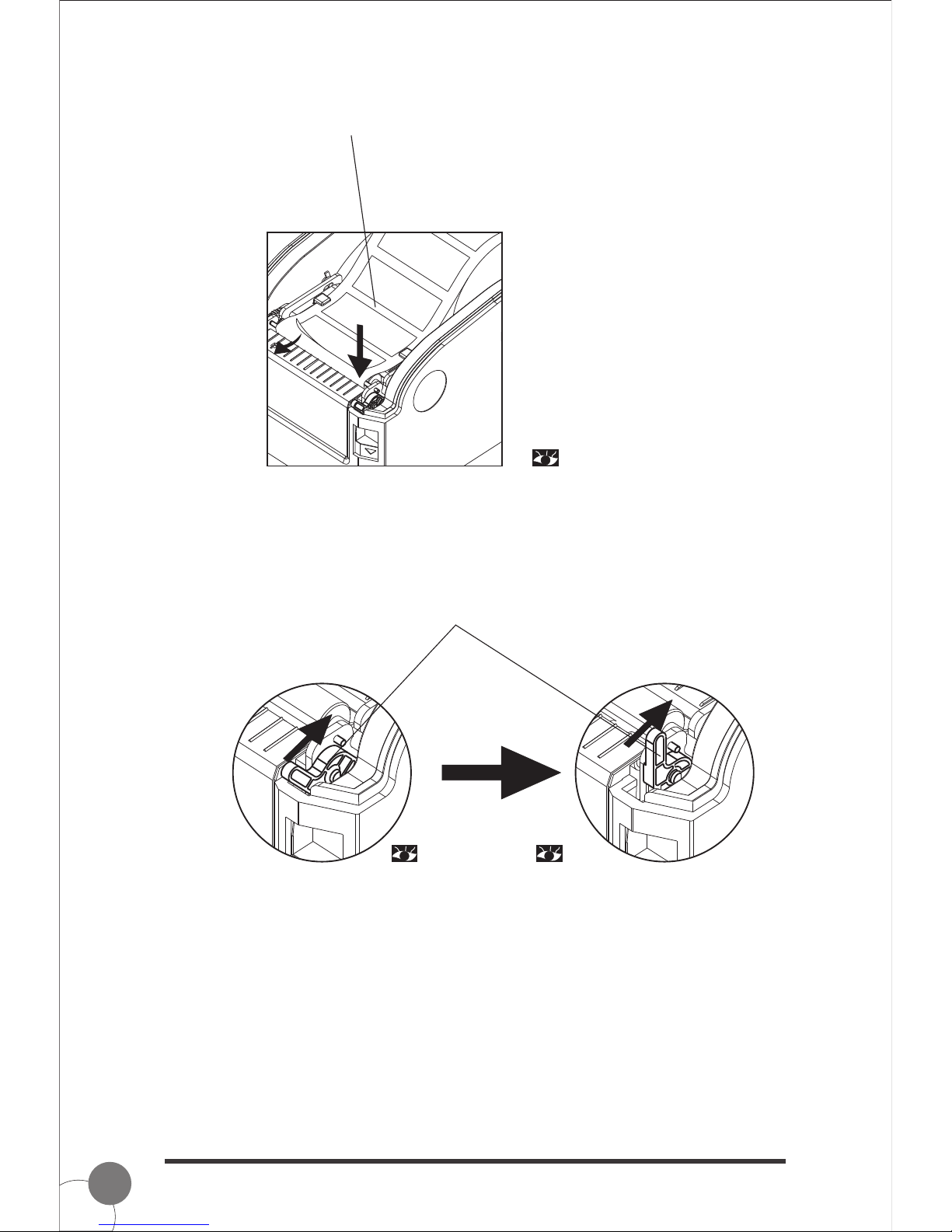
(2) Loading label for peel-off mode
① Thread the label through the label guides and move the label guides to adjust the
fitness paper width.
② Pull down the peel-off roller lever to unlock the peel-off roller.
Lever stands, the peel-off roller is locked. Lever down, the peel-off roller
is unlocked.
Thermal Barcode Printers
7
( 14)
( 15) ( 16)
③ Split the label paper and backing paper manually and keep the label paper in the label
opening. Thread the backing paper in front of the peel-off spindle and into the peel-off
part.
④ Pull up the peel-off lever and the peel-off roller presses on the backing paper. Close the
top cover.
Lever down, the peel-off roller is unlocked. Lever stands, the peel-off roller is
locked, and the backing paper is in
the peel-off part.
Thermal Barcode Printers

8
( 17)
( 18) ( 19)
Note:
If the peel-off function fails, please check:
1.The printing media is installed correctly.
2.The backing paper must be in front of the peel-off spindle.
3.The peel-off roller needs to press on the backing paper.
4.The peel-off roller lever must be stand.
Please refer the pictures below:
Label Opening
Label Printing Side
Backing Paper
Peel-off
Spindle
Peel-off
Roller
Backing
Paper
5. Specification
5.1 Specification Table
Peel-off
Spindle
Peel-off
Roller
Backing
Paper
Thermal Barcode Printers

9
203DPI
16-82mm
DRAM: 2M FLASH: 2M
Parameter
Printing method Direct Thermal
Resolution
Max. 127mm/s; Min. 101mm/s
Memory
Print head
temperature sensor
Print width
Print speed
Thermal Sensitive Resistance
Print head
position sensor Microswitch
Black and white PCX and BMP files can be
downloaded into FLASH and DRAM
CODE128, EAN128 ITF CODE39 CODE93
EAN13, EAN13+2, EAN13+5, EAN8, EAN8+2,
EAN8+5, CODABAR, POSTNET, UPC-A,
UPCA+2, UPCA+5, UPC-E, UPCE+2, UPC-E+5,
CPOST, MSI, MSIC, PLESSEY, ITF14, EAN14
, , , ,
Black mark sensor Photoelectric sensor
Interface Parallel, Serial+USB, LAN
Internal font
1 to 10 times enlargement in both
0°, 90°, 270°, 360°rotation
directions
Enlargement &
rotation
Graphics
Bar code
FONT 0 to FONT 8
Simplified Chinese, Traditional Chinese and Korean
Bar code
Font
Graphics
Work
Storage
16mm~82mm
24VDC, 2.5A
5~45℃, 20-80%RH
-40~55℃, ≤93%RH(40℃)
220(L) x 150(W) x 150(H)mm
1.5kg
Media type Continuous, sticker, fan-fold, etc
Media width
Media diameter Max. 85mm
Media core diameter Min. 25mm
Paper off mode Tear off and Peel off
Diameter
Weight
Imput
Media
Environment
condition
Physical
dimension
Power
Print
SPECIFICATIONS
The printer supports both continuous and non-continuous paper.
● Continuous type: Paper roll
● Non-continuous type:
1) Label roll;
2) Sticker paper.
Thermal Barcode Printers
Tabla de contenidos
Otros manuales de Lector de código de barras de Aopos


