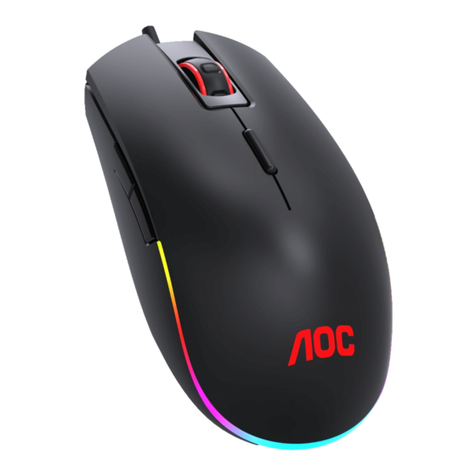
AOC AGON AGM600 Manual de usuario

1
USER'S GUIDE
AGM600 Gaming Mouse
CAUTION: To use this product properly, please read the user's guide before installing.

2
Contents
1 Package Contents and System Requirements.............................................................3
2 Technical Specifications...............................................................................................3
3 Device Layout..............................................................................................................4
4 Windows Installation ..................................................................................................5
5 Open Methods ............................................................................................................7
6 Software Update.........................................................................................................8
7 Home...........................................................................................................................8
8 Device Setting............................................................................................................10
8.1 Mouse Settings...............................................................................................14
8.1.1 Customize............................................................................................15
8.1.2 Sensitivity............................................................................................19
8.1.3 Light FX................................................................................................20
8.1.4 Light FX Sync........................................................................................21
8.2 Macro.............................................................................................................23
8.3 Discover..........................................................................................................27
8.3.1 Download profile ................................................................................29
8.3.2 Configure Profile .................................................................................30
8.3.3 Upload.................................................................................................32
8.3.4 Search..................................................................................................33
8.3.5 Login....................................................................................................33
8.4 Setting ............................................................................................................42
8.5 Tray.................................................................................................................42
9 Safety Guide and Maintenance.................................................................................43

3
1 Package Contents and System Requirements
Package Contents
◼AGM600 gaming mouse
◼Quick setup guide
◼Warranty card
Product Requirements
◼Windows® 7 or above
◼Available USB port
AOC G-Menu Requirements
◼Windows® 7 or above
◼500MB free hard disk space
◼Internet connection
Technical Support
◼2 years limited warranty
Free online technical support at www.aoc.com
2 Technical Specifications
Technical Specifications
◼Advanced optical sensor with true 16,000 DPI
◼Switchable DPI - 1200/1600/3200/6400/12000/16000 (default 1200 DPI)
◼Up to 400 inches per second (IPS) and 50g acceleration
◼10 programmable buttons
◼Kailh mechanical switch with up to 80 million clicks lifespan
◼Up to 1000 Hz/1ms report rate
◼2 onboard memory profiles
◼Customizable RGB lighting effect syncing with other AOC gaming devices
◼1.8 M braided cable
Approximate Size & Weight
◼Length: 130.5 mm/ 5.13 in
◼Width: 73.9 mm/ 2.9 in
◼Height: 43.3m/ 1.7 in
◼Weight: 115g/0.25 lbs (without cable)
◼Cable Length: 1.8 m/ 5.9 ft

4
Operating Environment
◼Operating Temperature: 0 ° C (32 ° F) to 40 ° C (104 ° F)
◼Operating Humidity: 10% - 85%
3 Device Layout
1. Left Button
2. Right Button
3. Middle Button/Scroll Wheel
4. Volume up
5. Volume down
6. DPI shift
7. Browser Forward
8. Browser Backward
9. DPI Up
10. DPI Down
11. Profile Switch

5
4 Windows Installation
1. Download the AOC G-Menu executable, and double click the EXE file to start the installation.
2. Accept the license agreement by selecting the I Agree radio button, and clicking the Next
button.
3. Select the installation folder. Select the default folder by pressing the Next button.
Selecting the Browse button will open a Browse for Folder dialog box.

6
4. Confirm Installation by pressing the Next button.
5. Complete the installation by pressing the Close button. Congratulations on
installing G-menu!

7
To uninstall G-Menu:
For Windows 10: Go to Windows Settings > Apps > Apps and Features > select G-
Menu and press the Uninstall button.
For Windows 7/8/8.1: Go to Control Panel > Programs > Programs and Features >
select G-Menu and press the Uninstall button.
5 Open Methods
There are 3 ways to access the G-Menu application.
① Start Menu>G-Menu
② Taskbar>Right click on the taskbar icon
③ Shortcut on Desktop

8
6 Software Update
⚫When you enter the G-Menu home page, the software will automatically check for updates, if
there is a new version, it will be downloaded in the background.
⚫After the download is complete, the interface will alert you to install the update.
⚫Note: If there is no network connection, G-Menu will not be able to detect updates.
7 Home
⚫Open AOC G-Menu application and enter the home page.

9
1) Application name: Displayed on the top left, not clickable.
2) Brand logo, Software version: Displayed at the bottom right, not clickable.
3) Minimize/Restore: Displayed at the top right. Click to switch the interface to zoom in/restore the
display.
4) Setting: Displayed at the top right. Click to enter the setting interface, where you can set the
language.
5) Device display:
⚫The device types supported by the current software are displayed by default, including: Monitor,
Keyboard, Mouse, Mouse mat, and Headset.
⚫Currently connected devices are highlighted and may be clicked. Other device types are grayed
out and cannot be clicked.
⚫Click on the device icon to enter the device settings interface.
6) Discover
⚫Click the Discover button to find the latest game profiles.
7) Close: Click the Close button to close the application interface, the actual application is still
running in the background.

10
8 Device Setting
1. Top Navigation
⚫G-Menu navigation options: Home, Monitor, Mouse, Keyboard, Mouse mat, Headset, and Macro.
⚫The names of unconnected devices are greyed out.
⚫Click an active button to open the device settings interface.
⚫Click the Home button to return to the homepage.
2. Left Navigation
⚫Navigation button are, from top-to-bottom: Monitor, Keyboard, Mouse, Mouse mat, Headset.
⚫The icons of unconnected devices are hidden.
3. Multi-model
⚫Click on the Model drop-down menu to display a list of devices attached to the system.
⚫Data will start loading automatically after selecting a model.
4. Select a profile
⚫Click on the Profile drop-down menu to display all local profiles.
⚫After switching the profile, it will be automatically configured on the current board and takes
effect in real time.
5. More Profile Management
Tabla de contenidos
Otros manuales de Ratón de AOC