
Amarina Souris 4D Manual de usuario

®
MANUEL UTILISATEUR
USER’S GUIDE
BENUTZERHANDBUCH
GUIDA PER L’UTENTE
GUIA DEL USUARIO
GEBRUIKERSGIDS
MANUAL DO USUARIO
FRANCAIS
ENGLISH
DEUTSCH
ITALIANO
ESPANOL
NEDERLANDS
PORTUGUESES
SOURIS 4D OPTIQUE MULTIMEDIA
SOURIS 4D OPTIQUE MULTIMEDIA

Consignes de Sécurité
1. Débrancher l’alimentation secteur avant tout nettoyage. N’utiliser aucun produit liquide ni aucun aérosol. Nettoyer à l’aide
d’un chiffon humide.
2. Ne jamais utiliser le produit à proximité d’un point d’eau.
3. S’assurer qu’aucun objet ni aucun meuble ne s’appuie sur le cordon .
4. Les réparations doivent être effectuées par des techniciens qualifi és.
5. Procéder à l’installation en respectant les instructions du fabricant.
Conditions de garantie
- les produits AMARINA sont vendus avec une garantie usine de 24 mois, à compter de leur date d’achat.
- En cas de défaut, retourner le produit complet à votre revendeur en lui précisant le défaut, accompagné de la preuve
d’achat.
- Pour des composants manquants, tels que le manuel, un logiciel, ou d’autres pièces, veuillez contacter votre revendeur ou
notre service technique par email ([email protected])
- La garantie n’est plus applicable en cas d’altération du produit, de dommages mécaniques, de mauvaise utilisation, de
modifi cations effectuées sur le produit, de réparations effectuées par des tiers, de négligence, et d’utilisation du produit à
d’autres fi ns que celles prévues pour ce produit.
Ne sont pas couverts par la garantie
• Les dommages causés par des accidents, sinistres, tels que l’incendie, l’eau, un tremblement de terre, la guerre, le
vandalisme ou le vol.
• L’incompatibilité avec d’autres logiciels ou matériel informatique non mentionnés dans les exigences minimales du
système.
• Les accessoires tels que les piles et les fusibles (selon le cas).
En aucun cas le fabricant n’est tenu pour responsable de tout dommage accidentel ou conséquent, y compris la perte de
revenus ou toute autre perte commerciale, provenant de l’utilisation de ce produit.

Vue d’ensemble
Installation du matériel
Comment employer la molette.
Votre souris est équipée d’une molette 4 directions qui sert comme outil de défilement (gauche, droite en avant, en arrière)
idéale pour vos documents Excel, Word etc... mais aussi comme bouton paramétrable.
Pour l’utiliser comme un bouton de souris normal, faites un clic sur la molette.
Pour défiler sur l’écran, tourner la molette.
1
La souris se branche à votre ordinateur par l’intermédiaire d’un câble.
Elle est alimentée par le port USB de votre ordinateur.
Installation au port USB
Pour installer la souris, la configuration requise est Windows 98, 2000, ME, XP
ou Macintosh OS 8.6 (au minimum).
Brancher la prise de la souris au port USB de l’ordinateur.
Si vous avez un système Windows, vous serez peut-être invité à insérer le CD-rom Windows.
Si vous l’êtes, insérez ce CD dans le lecteur CD-ROM et suivez les démarches recommandées.
Comment employer la souris. 2
Molette 4 directions
Suivant
Précédent
Diminuer volume
Augmenter volume
Lecture/pause
1
2
3
4
5
6
4
5
6
3
2
1

Veuillez suivre les étapes ci-dessous pour installer le pilote de la souris :
1. Insérez le CD pilote dans le lecteur CD ROM :
le cd démarre automatiquement, sélectionner “Install” et suivre les instructions à l’écran.
Utilitaire & touche directe :
Seules les touches «page» et la molette peuvent être parametrées, pour cela vous devez cliquer sur l’icône en bas à droite
de votre écran.
Vous verrez deux onglets (wheel/button). Wheel vous permet de parametrer la vitesse du scroll horizontal et vertical.
L’onglet «button» vous permet d’affecter une fonction prédefinie à une touche.
3L’installation du logiciel.

•Dépannage
Après l’installation, la souris ne marche pas :
Essayer des solutions suivantes :
• Vérifiez que vous avez correctement installé le pilote.
• Vérifiez que le câble est bien branché au port USB
• Débranchez et puis rebranchez la souris. Vérifiez que le système d’exploitation détecte la souris.
• Vérifiez que votre port souris est bien configuré. Vous reporter au dossier de votre ordinateur pour trouver la bonne
configuration pour le port.
© 2005 «AMARINA», all rights reserved. AMARINA logo is a registered trademark.All the other trademarks are the property
of their respective owners.

®
MANUEL UTILISATEUR
USER’S GUIDE
BENUTZERHANDBUCH
GUIDA PER L’UTENTE
GUIA DEL USUARIO
GEBRUIKERSGIDS
MANUAL DO USUARIO
FRANCAIS
ENGLISH
DEUTSCH
ITALIANO
ESPANOL
NEDERLANDS
PORTUGUESES
SOURIS 4D OPTIQUE MULTIMEDIA
SOURIS 4D OPTIQUE MULTIMEDIA

Security Advice
1. Do not use any liquid or aerosol products. Clean with a damp cloth.
2. Never use the device near water.
3. Ensure that no furniture or any other object is touching the cord.
4. All repairs must be carried out by qualifi ed technicians.
5. Follow the installation instructions provided by the manufacturer.
Warranty conditions
· AMARINA products are sold with a 24-month factory guarantee dating from the time of purchase.
· If the product is faulty, return it in its entirety, plus proof of purchase, to your dealer. Specify the nature of the fault.
· If parts, such as manual, software or any other part, is missing, please contact your dealer or email our technical service
department ([email protected]).
· The warranty will be void if this product is altered, damaged, used incorrectly, modifi ed, neglected, repaired by a third party
agent or used for any purpose other than that for which it was designed.
The following are not covered under warranty
· Damage caused by natural disasters and accidents such as fi re, fl ood, earthquakes, war, vandalism or theft.
· Incompatibility with other software or computer material not mentioned in the minimum system requirements.
· Accessories such as batteries and fuses
· The manufacturer cannot be held responsible for any accidental or consequential damages, including the loss of income or
any other commercial loss that may be a result of using this product.

Overview
Installation
How to use the button.
Your mouse comes with a four-way button that works as the perfect customizable scrolling tool (left, right, forward and
back) for your Excel, Word and other documents.
To use it like a normal mouse button, click.
To scroll, turn it.
1
The mouse attaches to your computer by way of a cable attached to the USB port
of your computer.
Installing the USB port
To install the mouse the minimum system requirements are Windows 98, 2000, ME, XP or
Macintosh OS 8.6.
Connect the mouse to your computer’s USB port.
If you have a Windows system, you may be asked to insert the Windows CD. If so, insert
the CD in the CD-ROM player and follow the instructions
How to use the mouse. 2
Four-way button
Next
Previous
Volume down
Volume up
Play/pause
1
2
3
4
5
6
4
5
6
3
2
1
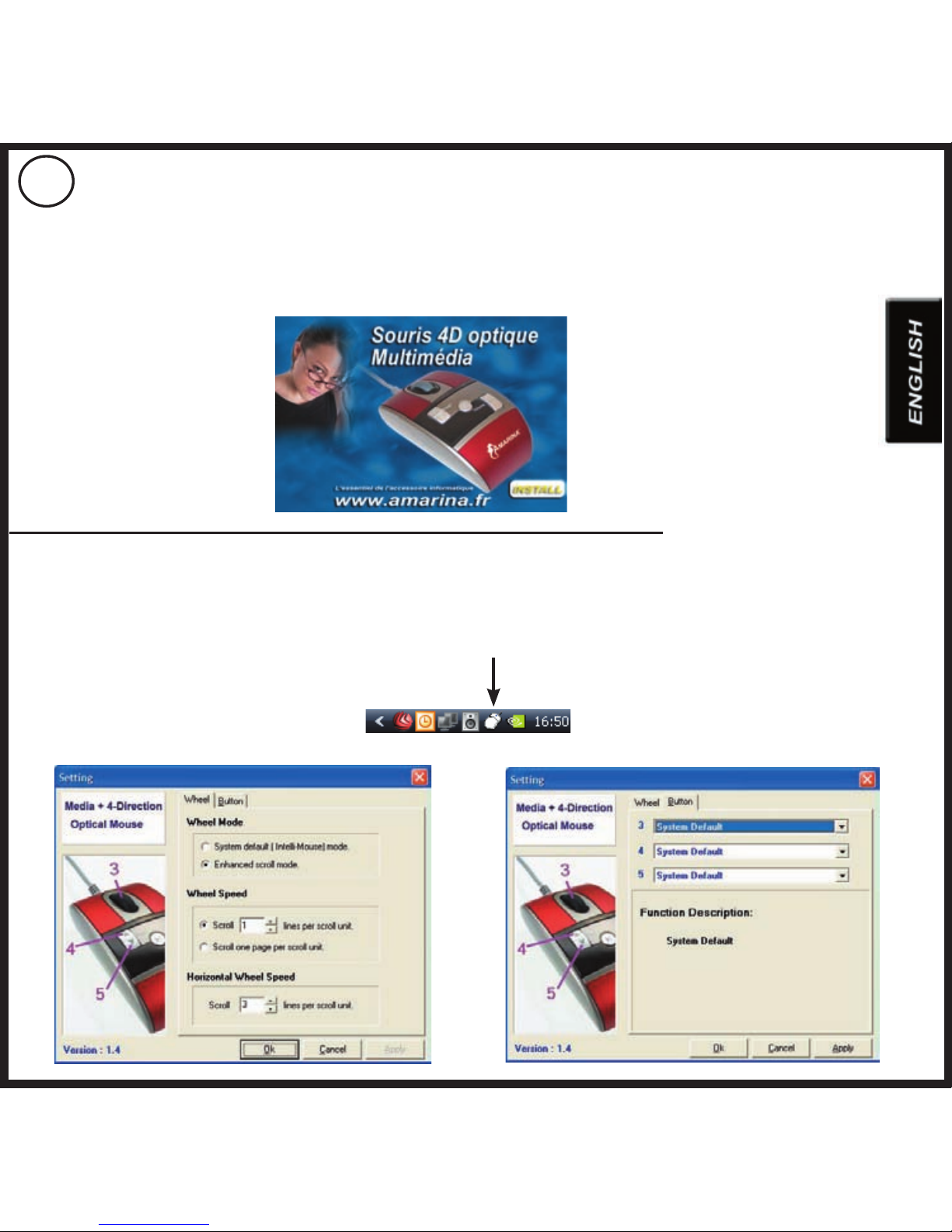
Follow the steps below to install the mouse driver.
1.Insert the driver CD in your CD ROM drive.
The CD will start automatically. Choose “Install” and follow the instructions onscreen.
Utilities and hot keys:
Only the “page” keys can be customized. To do so click on the icon at the bottom right of your screen.
You will see two miters (wheel/button). Wheel allows you to customize the speed of horizontal and vertical scrolling.
Button lets you carry out a preset task at the touch of a button
3Installing the software

•Troubleshooting
After installation the mouse does not work:
Try the following solutions:
• Check that you have correctly installed the driver.
• Check that the cable is properly attached to the USB port.
• Disconnect and then connect the mouse. Check that the computer can find the mouse.
• Check that the mouse port is correctly configured. You can check the information that came with your computer to find the
correct port configuration.
© 2005 «AMARINA», all rights reserved. AMARINA logo is a registered trademark.All the other trademarks are the property
of their respective owners.
Tabla de contenidos
Idiomas:


