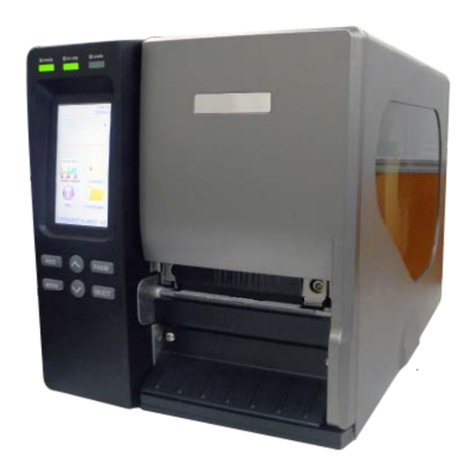
Altec TTP-343E Plus Manual de usuario

USER’S
MANUAL
TTP-245 Plus/TTP-245E Plus
TTP-343 Plus/TTP-343E Plus
THERMAL TRANSFER / DIRECT THERMAL
BAR CODE PRINTER
ALTEC industrial identification
altec.nl | altec.be

i
1. Introduction ......................................................................................... 1
2. Getting Started .................................................................................... 2
2.1 Unpacking and Inspection ............................................................ 2
2.2 Equipment Checklist ..................................................................... 2
2.3 Printer Parts ................................................................................... 4
3. Setup .................................................................................................... 5
3.1 Setting Up the Printer ................................................................... 5
3.2 Loading the Ribbon ....................................................................... 5
3.3 Loading Label Stock ..................................................................... 7
3.4 External Label Roll Mount Installation (Option) ......................... 9
3.5 Peel-off Module Installation (Option) ......................................... 10
3.5.1 Loading the Paper in Peel-off Mode .................................... 13
3.6 Cutter Module Installation (Option) ........................................... 15
3.6.1 Loading Label in Cutter Mode ............................................. 18
3.7 Instructions to Top Cover Operation ......................................... 19
3.8 Diagnostic Tool ........................................................................... 22
3.8.1 Start the Diagnostic Tool ...................................................... 22
3.8.2 Printer Function (Calibrate sensor, Ethernet setup, RTC
setup………) ................................................................................... 23
3.9 Setting Ethernet by Diagnostic Utility (Option) ........................ 24
3.9.1 Using USB interface to setup Ethernet interface ............... 24
3.9.2 Using RS-232 interface to setup Ethernet interface .......... 25
3.9.3 Using Ethernet interface to setup Ethernet interface ........ 26
3.10 Install Memory Card .................................................................. 28
4. Power on Utilities .............................................................................. 30
4.1 Ribbon and Gap/Black Mark Sensor Calibration ...................... 30
4.2 Gap/Black Mark Calibration;Self-test;Dump Mode .............. 31
4.3 Printer Initialization ..................................................................... 35
4.4 Black Mark Sensor Calibration .................................................. 36
4.5 Gap Sensor Calibration .............................................................. 36
4.6 Skip AUTO.BAS ........................................................................... 36
5. Maintenance ...................................................................................... 38
5.1 Cleaning ....................................................................................... 38
6. Troubleshooting ................................................................................ 40
6.1 LED Status ................................................................................... 40
6.2 Print Quality ................................................................................. 41
Contents
ALTEC industrial identification
altec.nl | altec.be

ii
7. LED and Button Operation ............................................................... 43
7.1 LED ............................................................................................... 43
7.2 Button Operation ......................................................................... 43
ALTEC industrial identification
altec.nl | altec.be

1
1. Introduction
Thank you for purchasing the TTP-245(E) Plus or TTP-343(E) Plus Series of Thermal
Transfer and Direct Thermal Bar Code Printers. Although the printer takes only a small
amount of space, it delivers reliable, superior performance.
This printer provides both thermal transfer and direct thermal printing at user selectable
speed of: 50, 63, 76, 88, 100, 113, 126 mm/s for TTP-245(E) Plus; 50, 63, 76 mm/s for
TTP-343(E) Plus. It accepts roll feed, die-cut, and fan-fold labels for both thermal transfer
and direct thermal printing. All common bar codes formats are available. Fonts and bar
codes can be printed in 4 directions, 8 different alphanumeric bitmap fonts and a build-in
true type font capability. You will enjoy high throughput for printing labels with this printer.
CAUTION
1. HAZARDOUS MOVING PARTS IN CUTTER MODULE. KEEP FINGER AND OTHER BODY
PARTS AWAY.
2. THE MAIN BOARD INCLUDES REAL TIME CLOCK FEATURE HAS LITHIUM BATTERY
CR2032 INSTALLED. RISK OF EXPLOSION IF BATTERY IS REPLACED BY AN
INCORRECT TYPE.
3. DISPOSE OF USED BATTERIES ACCORDING TO THE MANUFACTURER INSTRUCTIONS.
B급기기
(가정용 정보통신기기)
이 기기는 가정용으로 전자파 적합등록을 한기기로서
주거지역에서는 물론 모든 지역에서 사용할 수있습니다.
ALTEC industrial identification
altec.nl | altec.be

2
2. Getting Started
2.1 Unpacking and Inspection
This printer has been specially packaged to withstand damage during shipping. Please
carefully inspect the packaging and printer upon receiving the bar code printer. Please
retain the packaging materials in case you need to reship the printer.
2.2 Equipment Checklist
Printer
Altec driver CD with NiceLabel SE
Quick start guide
USB port cable
External universal switching power supply
Power Cord
Label Spindle, fixing tab x2, 1.5” core adapter
x2
Ribbon spindle x2
Ribbon rewind spindle paper core
If any parts are missing, please contact the Customer Service Department of your
purchased reseller or distributor.
Dealer option
Peel off module assembly
Support paper: Art paper (Plain paper)
Support label length: 1”~6”
Support speed: 2~3 ips
Guillotine cutter
Full cut:
Paper thickness: 0.06~ 0.19mm, 500,000 cuts
Paper thickness: 0.19mm 200,000 cuts
ALTEC industrial identification
altec.nl | altec.be

3
Partial cut:
Paper thickness: 0.06~0.12mm, 500,000 cuts
Note: Except for the linerless cutter, all regular/heavy duty/care label cutters DO NOT
cut on media with glue.
Main board integrated with internal Ethernet
Internal Ethernet print server module
User option
KP-200
KU-007 plus
External Ethernet print server
External wireless (802.11b/g) print server
External roll mount, media OD. 214 mm (8.4”) with 3” core label spindle
Contact CCD contact scanner
Long range linear image bar code scanner
ALTEC industrial identification
altec.nl | altec.be

4
2.3 Printer Parts
Fig. 1 Top front view
Note:
The interface picture here is for reference only. Please refer to the product specification for the
interfaces availability.
Top Cover Open Lever
LED Indicator
Feed Button
Printer Top Cover
Ribbon Access Cover
Clear Window
1
2
3
4
5
6
1. USB Interface
2. Centronics Interface
3. RS-232C DB-9 Interface
4. Power Jack
5. Power Switch
6. Rear Paper Guide
Fig. 2 Rear view
ALTEC industrial identification
altec.nl | altec.be

5
3. Setup
3.1 Setting Up the Printer
1. Place the printer on a flat, secure surface.
2. Make sure the power switch is off.
3. Connect the printer to the computer with the Centronics or USB cable.
4. Plug the power cord into the power supply connector at the rear of the printer, and
then plug the power cord into a properly grounded receptacle.
Fig. 3 Attach power supply to printer
Note:
Please switch OFF printer power switch prior to plug in the power cord to printer power jack.
3.2 Loading the Ribbon
The printer will detect if the ribbon is installed after turning on power on and it will set
printing mode to thermal transfer or direct thermal printing mode. If printer does not
detect the ribbon, the ribbon take up motor will be turned off.
Power Supply
Plug
Power Cable
Power Switch
USB
RS-232C
Centronics
ALTEC industrial identification
altec.nl | altec.be

6
Make sure both the ribbon access window and the printer top cover are closed prior to
powering up the printer.
Please follow the steps below to install the ribbon into printer.
1. Push down on the ribbon access window to unlatch and open the cover.
2. Place a paper core onto the ribbon rewind spindle.
3. Mount the ribbon rewind paper core on the front hubs.
4. Install a ribbon on the ribbon supply spindle.
5. Mount the ribbon supply spindle on the rear hubs.
6. Thread the ribbon leading tape downward pass the print head.
7. Attach the ribbon leader to the ribbon rewind paper core.
8. Rotate the ribbon rewind paper core until the ribbon leader is thoroughly, firmly
encompassed by the black section of the ribbon.
9. Close the ribbon access window.
Fig. 4 Ribbon installation (I)
Ribbon Spindle
Front Hub
Paper Core
Back Hub
Ribbon Access Cover
ALTEC industrial identification
altec.nl | altec.be

7
Fig. 5 Ribbon installation (II)
3.3 Loading Label Stock
1. Insert a 1” label spindle into a paper roll ( * If your paper core is 1 inch, remove the
1.5” core adapter from the fixed tab. If label width is 4 inch wide, two fixing tabs are
not required. ).
Fig. 6 Label roll installation (I)
2. Open the printer’s top cover by releasing the green top cover open levers located on
each side of the printer and lifting the top cover. A top cover support at the rear of the
printer will hold the printer top cover open.
Rear Hub
Paper Roll
1” Label Spindle
Printing Side
Face Up
1.5” Core
Adapter*
Fixed Tab
ALTEC industrial identification
altec.nl | altec.be
Este manual sirve para los siguientes modelos
3
Tabla de contenidos
Otros manuales de Lector de código de barras de Altec