
Allnet ALL0233mini Manual de usuario

ALL0233mini
Wireless 802.11b/g/n USB
Adapter
User’s Manual
V1.0

Wireless 802.11b/g/n Mini-USB Adapter Version 1.0
2
Table of Contents
COPYRIGHT
Copyright ©2007/2008 by this company. All rights reserved. No part of this publication may be
reproduced, transmitted, transcribed, stored in a retrieval system, or translated into any language
or computer language, in any form or by any means, electronic, mechanical, magnetic, optical,
chemical, manual or otherwise, without the prior written permission of this company
This company makes no representations or warranties, either expressed or implied, with respect
to the contents hereof and specifically disclaims any warranties, merchantability or fitness for any
particular purpose. Any software described in this manual is sold or licensed "as is". Should the
programs prove defective following their purchase, the buyer (and not this company, its
distributor, or its dealer) assumes the entire cost of all necessary servicing, repair, and any
incidental or consequential damages resulting from any defect in the software. Further, this
company reserves the right to revise this publication and to make changes from time to time in
the contents thereof without obligation to notify any person of such revision or changes.

Wireless 802.11b/g/n Mini-USB Adapter Version 1.0
3
Index
CHAPTER I : PRODUCT INFORMATION................................................................................................................. 4
1-1 Introduction and safety information ................................................................................................................... 4
1-2 Safety Information .............................................................................................................................................. 5
1-3 System Requirements .......................................................................................................................................... 6
1-4 Package Contents ............................................................................................................................................... 6
1-5 Familiar with your new wireless network card................................................................................................... 7
CHAPTER II : DRIVER INSTALLATION AND CONFIGURATION...................................................................... 8
2-1 Network Card Installation .................................................................................................................................. 8
2-2 Connect to Wireless Access Point ..................................................................................................................... 13
2-2-1 Using Ralink Utility....................................................................................................................................... 13
2-2-2 Profile............................................................................................................................................................ 17
2-2-2.1 Add/Edit Profile.......................................................................................................................................... 19
2-2-2.2 Example to Add Profile in Profile............................................................................................................... 23
2-2-2.3 Pre-logon Connect...................................................................................................................................... 25
2-2-3 Network ......................................................................................................................................................... 26
2-2-3.1 Example of Adding a Profile to the Network .............................................................................................. 28
2-2-4 Advanced ....................................................................................................................................................... 30
2-2-4.1 Certificate Management ............................................................................................................................. 31
2-2-5 Link Status ..................................................................................................................................................... 32
2-2-5.1 Throughput ................................................................................................................................................. 33
2-2-5.2 Statistics...................................................................................................................................................... 34
2-2-6 About ............................................................................................................................................................. 36
2-2-7 WPS ............................................................................................................................................................... 37
2-2-7.1 Example of Adding to Registrar Using PIN Method .................................................................................. 39
2-2-7.2 Example of Adding to the Registrar Using the PBC Method...................................................................... 43
2-2-7.3 Example of Configuring a Network/AP Using PIN or PBC Method .......................................................... 47
2-3 Security ............................................................................................................................................................. 50
2-3-1 Authentication\Encryption Setting - WEP/TKIP/AES.................................................................................... 50
2-3-2 802.1x Setting ................................................................................................................................................ 52
2-3-3 Example of Configuring a Connection with WEP on .................................................................................... 55
2-3-4 Example to Configure Connection with WPA-PSK........................................................................................ 57
2-3-5 Example to Configure Connection with WPA ................................................................................................ 59
2-4-1 Using Windows Zero Configuration .............................................................................................................. 65
CHAPTER III : AP MODE MANAGEMENT GUIDE FOR WINDOWS XP/VISTA ............................................ 69
3-1.1 Use Ralink soft AP in XP ............................................................................................................................... 69
3-1.2 Use Ralink soft AP in Windows Vista ............................................................................................................. 70
3-2.1 Start Ralink Soft AP ....................................................................................................................................... 73
3-2.2 Config AP ...................................................................................................................................................... 75
3-2.3 Advanced ....................................................................................................................................................... 79
3-2.4 Access Control List ........................................................................................................................................ 80
3-2.5 Associate List................................................................................................................................................. 81
3-2.6 About.............................................................................................................................................................. 82
CHAPTER IV : APPENDIX ......................................................................................................................................... 83
4-1 Hardware Specification .................................................................................................................................... 83
4-2 Troubleshooting ................................................................................................................................................ 84
4-3 Glossary............................................................................................................................................................ 86
4-4 FCC and Other Compliance Statements........................................................................................................... 90

Wireless 802.11b/g/n Mini-USB Adapter Version 1.0
4
Chapter I : Product Information
1-1 Introduction and safety information
Thank you for purchasing this high-speed 802.11b/g/Draft-N wireless network card! Excepting
common wireless standards 802.11b/g, this wireless network card is also 802.11 Draft-N
compatible - data transfer rate is 300Mbps, and that’s six times faster than 802.11g wireless
network! 802.11 Draft-N also provides wider wireless coverage, so you don’t have to worry if your
computer is far from your wireless access point. This wireless network card also supports MIMO
(Multi-In, Multi-Out) technology, which uses two different radio channels to enhance data transfer
rate and wireless coverage.
With easy-to-install USB 2.0 interface - a very common expansion port of computers - plug this
wireless network card into any empty USB port of your computer, just that simple!
Other features of this adapter including:
QoS function: Control the bandwidth required for different applications.
802.11b/g/n compatible.
Supports major encryption methods like WPS, WEP, WPA, and WPA2 encryption.
USB 2.0 interface - you can get it installed on your computer in just few seconds!
Support Cisco CCX.

Wireless 802.11b/g/n Mini-USB Adapter Version 1.0
5
1-2 Safety Information
In order to keep the safety of users and your properties, please follow the following safety
instructions:
1. This USB wireless network card is designed for indoor use only. DO NOT expose this
network card to direct sun light, rain, or snow.
2. DO NOT put this network card at or near hot or humid places, like kitchen or bathroom. Also,
do not left this wireless network card in the car in summer.
3. This network card is small enough to put in a child’s mouth, and it could cause serious injury
or could be fatal. If they throw the network card, the card will be damaged. PLEASE KEEP
THIS NETWORK CARD OUT THE REACH OF CHILDREN!
4. This network card will become hot when being used for long time (This is normal and is not a
malfunction). DO NOT put the network card on a paper, cloth, or other flammable objects
after the network card has been used for a long time.
5. There’s no user-serviceable part inside the network card. If you found that the network card is
not working properly, please contact your dealer of purchase and ask for help. DO NOT
disassemble the network card by your self, warranty will be void.
6. If the network card falls into water, DO NOT USE IT AGAIN BEFORE YOU SEND THE CARD
TO THE DEALER OF PURCHASE FOR INSPECTION.
7. If you smell something strange or even see some smoke coming out from the network card,
switch the computer off immediately, and call dealer of purchase for help.

Wireless 802.11b/g/n Mini-USB Adapter Version 1.0
6
1-3 System Requirements
An empty USB 2.0 port (May not work on USB 1.1 port, and performance will be greatly
reduced)
Windows 2000, 2003, XP, or Vista 32/64, WIN7 operating system
CD-ROM drive
At least 100MB of available disk space
1-4 Package Contents
Before you starting to use this wireless network card, please check if there’s anything missing in
the package, and contact your dealer of purchase to claim for missing items:
□USB wireless network card (1 pcs)
□Quick installation guide (1 pcs)
□User manual CD-ROM (1 pcs)
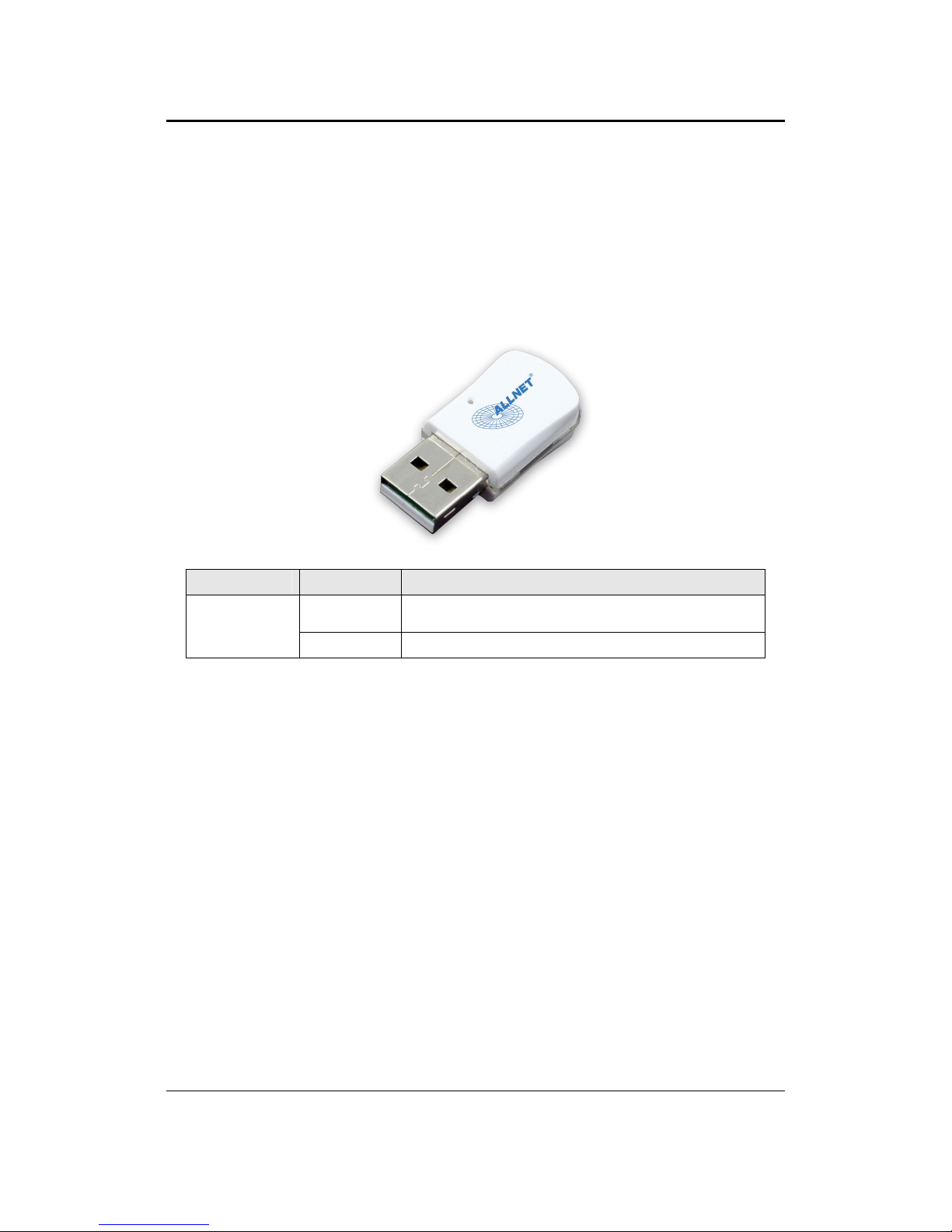
Wireless 802.11b/g/n Mini-USB Adapter Version 1.0
7
1-5 Familiar with your new wireless network card
USB Connector
Connector Cap (To protect USB connector when not in use)
WPS Button : Press this button to auto link to the AP with WPS encryption.
Act LED
LED Name Light Status Description
Act On Linked to a wireless access point / Transferring data
Off No wireless activity

Wireless 802.11b/g/n Mini-USB Adapter Version 1.0
8
CHAPTER II : DRIVER INSTALLATION AND CONFIGURATION
2-1 Network Card Installation
Please follow the following instructions to install your new wireless network card:
1. Insert the USB wireless network card into an empty USB 2.0 port of your computer when
computer is switched on. Never use force to insert the card, if you feel it’s stuck, flip the card
over and try again.

Wireless 802.11b/g/n Mini-USB Adapter Version 1.0
9
2. The following message will appear on your computer, click ‘Cancel’.
3. Insert device driver CD-ROM into the CD/DVD ROM drive of your computer, and install the
driver. Choose the Language you want to install and click ‘Next’.

Wireless 802.11b/g/n Mini-USB Adapter Version 1.0
10
4. Choose the ‘ Install driver and Boulanger WLAN Utility’ or ‘Install driver only’. When you
choose ‘Install driver and Boulanger WLAN Utility’, you can choose the configuration tool
used to configure the wireless network card here. It’s recommended to select ‘Boulanger
Configuration Tool’, which provides fully access to all function of this wireless network card.
If you prefer to use the wireless configuration tool provided by Windows XP, please select
‘Microsoft Zero Configuration Tool’, and then click ‘Next’.
Tabla de contenidos
Otros manuales de Adaptador de Allnet

Allnet
Allnet ALL 1685 Manual de usuario

Allnet
Allnet ALL0235NANO Manual de usuario

Allnet
Allnet ALL168207 Manual de usuario

Allnet
Allnet ALL-WA0100N Manual de usuario

Allnet
Allnet ALL0234Nano Manual de usuario

Allnet
Allnet ALL168205Mini Instrucciones de uso

Allnet
Allnet ALL168205 Manual de usuario

Allnet
Allnet ALL-WA0150N Manual de usuario

Allnet
Allnet ALL168205 Manual de usuario

Allnet
Allnet ALL168607 Manual de usuario


