Aigo P886 Manual de usuario

MP5 Player P886
User Manual
(Version 1.0)

Freedom in technology; Freedom in life aigo P886
Important Notice
Congratulations on purchasing your aigo MP5 Player P886. Please read this
user manual carefully before using your aigo product.
Warranty Registration
Register your aigo product online to enjoy warranty, member's perks and
more, please visit www.aigo.com.sg
Need Help Fast?
Read your User Manual first for quick tips. After you have read the
instructions and still need assistance, you may access our online help at
www.aigo.com.sg or call +65 6333 6388 with your product’s model and serial
number.
Obtaining Warranty Service
Please review the User’s Manual troubleshooting resources and online help
resources before seeking warranty service. If the product is still not
functioning properly after making use of these resources, access the online
website: www.aigo.com.sg for instructions on how to obtain warranty service.
Copyrights/ Trademarks Information
zaigo logo is registered trademark of Beijing Huaqi Information & Digital
Technology Co., Ltd.
zMicrosoft, MS-DOS, Windows and the Windows logo are registered
trademarks of Microsoft Corporation.
zIntel and Pentium are registered trademarks of Intel Corporation.
zSRS WOW is the registered trademark of SRS Labs, Inc.
zAll other products are trademarks or registered trademarks of their
respective owners and are hereby recognized as such.
zThe information on this manual is prepared with the current player
specifications. aigo reserves the right to make design and specification
changes for product improvement without prior notice. Actual contents
1

Freedom in technology; Freedom in life aigo P886
may differ slightly from those pictured.
zUnauthorized duplication of any recordings downloaded from the internet
or made from audio CDs is a violation of copyright laws and international
treaties.
Always Keep a Copy of Your Original Data
Before you deliver your product for warranty services please backup all data,
including all software programs. You will be responsible for reinstalling all
data. Data recovery is not included in the warranty service and aigo is not
responsible for data that may be lost or damaged during transit or a repair.
Safety Instructions
zDo not expose to extreme temperatures.
zDo not allow any liquid form into the device.
zDo not apply or subject the player to excessive pressure.
zDo not expose to direct sunlight or heat sources.
zDo not try to disassemble and repair the device yourself.
zDo not expose device to chemicals such as benzene or thinner.
zDo not store device in dusty or damp area.
zaigo will claim no responsibility for any damage on data loss due to
breakdown, repair or other causes.
2

Freedom in technology; Freedom in life aigo P886
Content
IMPORTANT NOTICE................................................................................................................ 1
CHAPTER I: GETTING TO KNOW THE P886..........................................................................4
1. OVERVIEW OF THE PLAYER ...................................................................................................4
Front View......................................................................................................................4
Top View.........................................................................................................................5
Left side view................................................................................................................. 6
BOTTOM VIEW..........................................................................................................................7
2. CHARGING THE BATTERY ...................................................................................................... 8
3. CONNECT TO PC..................................................................................................................9
CHAPTER II: OPERATION...................................................................................................... 10
1. POWER ON/OFF..................................................................................................................10
Power on ......................................................................................................................10
Power off...................................................................................................................... 10
2. FILE BROWSE.................................................................................................................... 11
2.1 More function.........................................................................................................13
3. MOVIE...............................................................................................................................14
3.1 Basic function........................................................................................................14
3.2 More function.........................................................................................................16
4. PHOTO..............................................................................................................................18
4.1 Basic function........................................................................................................18
4.2 More function.........................................................................................................20
5. MUSIC............................................................................................................................... 22
5.1 Basic function........................................................................................................22
6. EBOOK..............................................................................................................................25
6.1 Basic function........................................................................................................25
6.2 More function.........................................................................................................27
7. GAME ...............................................................................................................................28
8. AUDIOCORDER ..................................................................................................................29
8.1 Basic function........................................................................................................29
8.2 More function.........................................................................................................30
9. VIDEOCORDER...................................................................................................................31
9.1 AV In ....................................................................................................................... 31
9.2 AV out..................................................................................................................... 32
10. SETTING.......................................................................................................................... 33
10.1 Display..................................................................................................................34
10.2 Option................................................................................................................... 35
10.3 Clock.....................................................................................................................36
10.4 Sound ...................................................................................................................37
10.5 Power....................................................................................................................37
10.6 AudioCorder......................................................................................................... 38
10.7 Scheduler............................................................................................................. 39
10.8 System..................................................................................................................39
CHAPTER III APPENDIX.........................................................................................................41
1. TECHNICAL SPECIFICATIONS ...............................................................................................41
2. SUPPORTING FILE SPECFICATIONS ....................................................................................... 42
3. PACKING LIST ....................................................................................................................44
3


Freedom in technology; Freedom in life aigo P886
CHAPTER I: GETTING TO KNOW THE P886
1. Overview of the Player
Front View
C
B
A
A. 4.3 inch LCD screen
B. Speaker
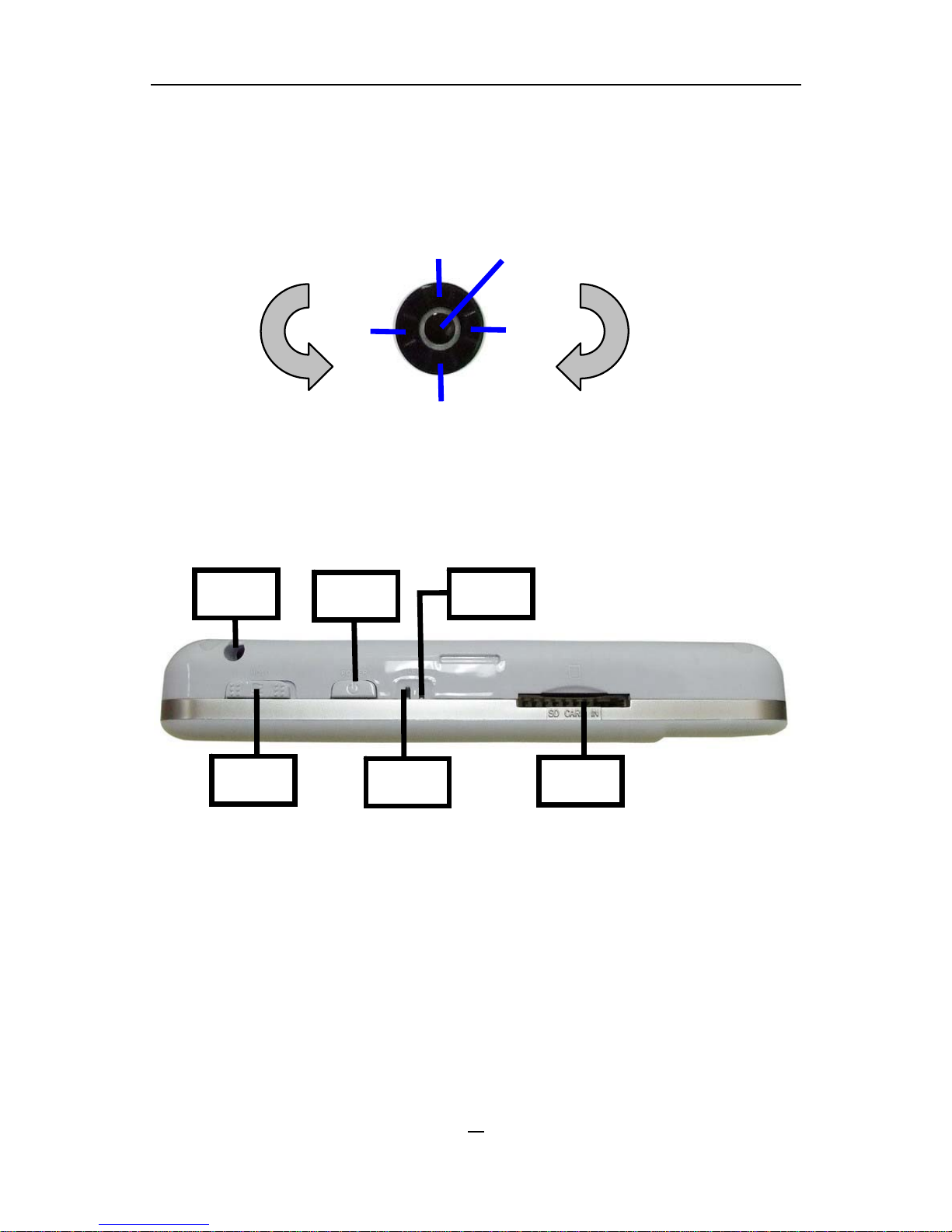
C. Idler wheel button
The details of this button:
Enter: Go into a mode or a folder or start or pause. Zoom in (In Image
mode).
Menu: Different menu comes out in different mode.
Exit: Quit or go back to the main menu.
Left: Back to the last directory. Move left (In the main menu). Fast Backward
(In Movie and Music mode). Last file (In Movie, Music and Image mode).
Right: Go into a folder or start a file. Move right (In the main menu). Fast
forward (In Moive and Music mode). Next file (In Movie, Music and Image
mode).
Clockwise turning: From up to down in the folder or file list and Ebook
mode. Volume down (In Movie, Music, AudioCorder and VideoCorder mode).
Clockwise rotate (In Image mode).
Anti-clockwise turning: From down to up in the folder or list and Ebook
4

Freedom in technology; Freedom in life aigo P886
mode. Volume up (In Moive, Music, AudioCorder and VideoCorder mode)
Anti-clockwise rotate (In Image mode).
Enter
RightLeft
Exit
Menu
Figure 1
Top View
D F
GI
H
E
D. Stylus hole
E. Hold button
F. ON/OFF button
G. Power on LED indicator
H. Charging LED indicator
I. SD card slot
5

Freedom in technology; Freedom in life aigo P886
Left side view
L
N
M
K
J
J. Earphone jack / AV out port
K. AV in port
L. Port cover
M. USB port
N. DC power point
6

Freedom in technology; Freedom in life aigo P886
Bottom view
P
O
O. Reset hole
P. Dock station port
P886 stylus (Please refer to the real item)
7

Freedom in technology; Freedom in life aigo P886
2. Charging the battery
The player comes with a rechargeable high capacity lithium battery. The
battery can be charged directly through the power adaptor.
1. When the player is out of power, recharge the battery with the power
adaptor for about 5 hours. The LED indicator is green color during it is
charging, after the battery is fully charged the indiator is blue color.
2. Please note the specifications of the power supply: output voltage: 5V,
output current: 2.5A.
Note:
1. Damage caused by using other power adaptor that does not come with this
device is not covered by our warranty.
2. For the initial use, please fully charge the battery.
3. If the screen of “Low Battery” appears repeatedly, this means the power is
insufficient, please recharge the battery; if “The battery is critical low! Please
plug in AC adapter.” appears on the screen, the device turns off automatically.
4. When power is insufficient, please turn off the device first and then plug in AC
adaptor to recharge the battery.
5. Personal data will be retained even the device is out of power, but please
remember to turn off the power before taking out the battery.
8

Freedom in technology; Freedom in life aigo P886
3. Connect to PC
The player can be used as a standard USB removable storage device. Files
can be transferred between the PC and the player.
3.1 Use of the player as removable storage device
1. Power on the player.
2. Connect the player with PC by mini USB cable, an icon should appear
indicating that aigo P886 is connected.
3. Double click “My Computer”, and you will see a new “Removable disk”
icon, representing the built-in hard drive of the aigo P886 player.
.Note: When using the player for the first time, the system will search for an aigo
P886 driver a while, please wait patiently. In Windows 2000/XP, an icon
will appear in the bottom right of the taskbar, which represents the
aigo P886 removable storage.
Never remove the USB cable while the computer is reading data, or else
your data will be lost.
3.2 Remove from PC
Left click the icon on the bottom right of the taskbar and a notice “Safely
remove USB Storage Device” will appear, and then click again, the “Safe To
Remove Hardware” hint appear (See figure below), now the player can be
removed from PC safely.
9
Tabla de contenidos
Otros manuales de Reproductor multimedia de Aigo