ADS Technologies USBAV-700 Manual de usuario

© 2001 ADS Technologies. All Rights Reserved
First Edition: Revision 1.0 October, 2001
Microsoft, Windows, and Windows 98 are registered trademarks of Microsoft Corporation. IBM is a registered
trademark of the International Business Machines, Inc.
ADS is a registered trademark of ADS Technologies Inc.
ADS Technologies (ADS) makes no warranty of any kind with regard to this material, including but not limited to,
the implied warranties of merchantability and fitness for a particular purpose. The information furnished within
this written document is for information purposes only and is subject to change without notice. ADS Technolo-
gies assumes no responsibility or liability for any errors or inaccuracies that may appear herein. ADS makes no
commitment to update or to keep current information contained within this document.
TableOfContents
System Requirements..................................................................................................2
USB Instant DVD Installation Guide..............................................................................2
1. Check USB Instant DVD package contents...........................................................2
2. Wire It Up!......................................................................................................3
3. Plug It In!........................................................................................................6
4. Install Device Drivers and Application Software...................................................7
5. Verify Hardware Installation..............................................................................8
6. Set Windows Audio Mixer..................................................................................9
7. Installation Summary and Diagram...................................................................10
8. Start Making DVD Movies................................................................................10
USB Instant DVD Wizard.............................................................................................12
Service and Warranty................................................................................................13
FCC Information..........................................................................................................14
uvs5_1edited.p65 12/5/01, 10:47 AM1

2
USBInstantDVDInstallationGuide
GettingStarted
1.CheckUSBInstantDVDContents
Hardware:
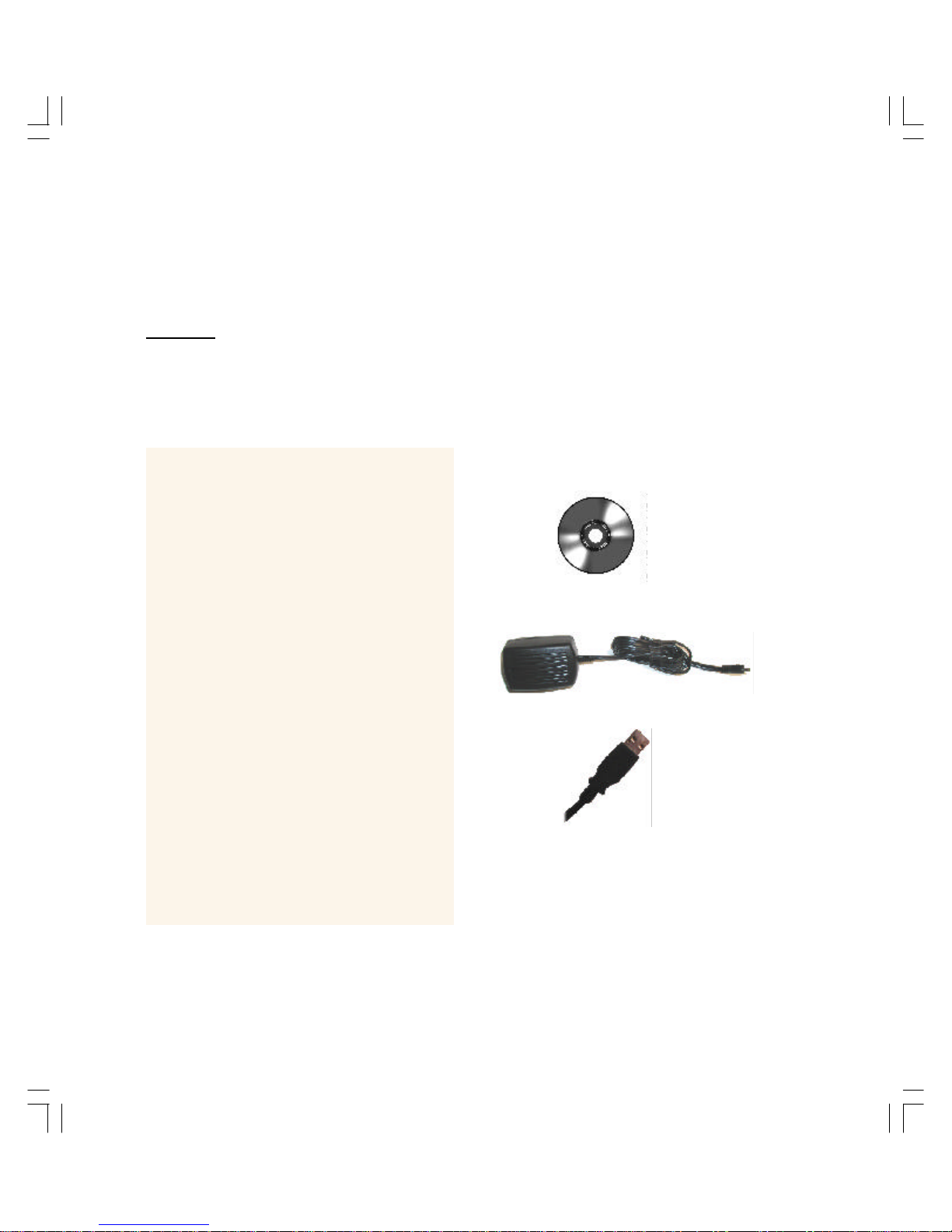
(A) USB Instant DVD device
(B) 5 VDC Power supply
(C) 6 ft. USB Cable
(D) 6 ft. A/V In cable (RCA video and Audio
to RCA video and 3.5 mm stereo)
(E) 6 ft. 3.5 mm male to 3.5 mm male stereo
audio cable
(F) 9 ft. Audio out to TV/VCR cable (3.5 mm
stereo w/female 3.5mm Y to R+L RCA audio)
(G) 9 ft. RCA Video cable
Instant DVD CD containing:
- Instant DVD Capture & Export utility
- Instant DVD device drivers
- Video Studio 5 – Special full version
customized for Instant DVD
- MyDVD 3.0
- Cyberlink PowerDVD 3.0
- Sound Forge XP 4.5
- Acid Style 2.0 with 100 audio loops
- Microsoft Media Player 7
- Quick Time player
- Intel Celeron 400 MHz or AMD K6-400 or better
- Windows 98, Win98SE, WinME, Win2000 or WinXP
- 64 MB (128 MB recommended)
- Sound Card (full duplex)
- 16 MB AGP video card
- CD-ROM Drive
- 150 MB hard disk space for capture/editing
applications
- Disk space for video captures; Video captured at
4 Mb/sec will use 1.8 GB per hour
- CD-R drive & software required for saving movie
files onto a CD
SystemRequirements
The basic steps are:
1. Check USB Instant DVD
package contents
2. Wire it Up!- audio and video connectors
3. Plug it In!- Power and USB connection
4. Install Device Drivers & Application
software
5. Verify Hardware Installation
6. Set Windows Audio Mixer
7. Installation Summary & Diagram
8. Start Making DVD Movies!
uvs5_1edited.p65 12/5/01, 10:47 AM2

In this section we will connect all audio
and video cables that you will use to
capture audio and video and then send
audio and video back to a TV or VCR for
viewing or recording.
2.WireItUp!
1. Connect your video source (VHS, DVD,
Laser Disc Player, TV. etc.) to your USB
Instant DVD.
Connect your (D) 6 ft. A/V In cable to
the 3 RCA jacks to your analog audio/
video source RCA Line Out.
The other end connects to the “RCA
Video In” jack and “Audio In” jack on the
back of your USB Instant DVD.
A/VSource
USBInstantDVD
uvs5_1edited.p65 12/5/01, 10:47 AM3

4
2.WireItUp!(cont’d)
2. Connect your USB Instant DVD Audio to
the Sound Card on your PC. This will send
Audio from your USB Instant DVD to your
PC.
4. Connect your USB Instant DVD to your TV
or VCR. This will send captured or edited
video back to your TV or VCR for viewing or
recording.
Connect (G) RCA cable to “Video
Out” on Instant DVD
Connect other end to Video IN on your
TV or VCR.
Connect one end of your (E) 6 ft.
male to male stereo audio cable
to the Audio Out jack at the back of
your USB Instant DVD.
Connect the other end to the Line In
jack on your sound card of your PC.
Check your diagram of connectors on
your Sound Card
USBInstantDVD
USBInstantDVD
A/VSource
PCSoundCard
uvs5_1edited.p65 12/5/01, 10:47 AM4

5
Connect the Right and Left RCA jacks of
the (F) 9 ft. Audio out to TV/VCR
cable to the Audio Inputs on your TV or
VCR.
Connect the 3.5mm stereo jack to the
Line Out or Speaker jack on your sound
card.
If you do not have a “Line Out” jack you can
connect this cable to your “Speaker Jack”. Then
you can plug your speakers into the “Y” female
3.5mm jack
3. Connect the Audio Out of your PC to the
Audio In on your TV or VCR. This will send
recorded audio from your PC out for record-
ing or listening on your TV or VCR.
Sound Card Color Coded Connectors:
Audio Line-In = Light Blue
Audio Line-Out = Lime Green
Microphone = Pink
Speaker Out/Subwoofer = Orange
Right to Left Speaker = Brown
*Sound Card Connector color codes according
to PC-99 spec.
2.WireItUp!(cont’d)
A/VSource
PCSoundCard
uvs5_1edited.p65 12/5/01, 10:47 AM5

6
3.PlugItIn
Plug it In!
In this section you will Connect USB Instant
DVD to your PC and Install Software Drivers.
Follow these step by step instructions to
connect your USB Instant DVD and install
device drivers and software applications:
1.) INSERT CD - Insert the
USB Instant DVD CD into
your PC’s CD-ROM drive.
The Instant DVD Installation
splash screen will appear.
2.) PLUG IT IN - Plug the 5
VDC power supply into the
power jack.
3.) CONNECT USB – Connect
the USB cable between a
USB Port on your PC and
the Instant DVD unit.
Cconnect directly to an
available USB port on the
motherboard or extra USB
PCI host card such as the
ADS USB Port card.
uvs5_1edited.p65 12/5/01, 10:47 AM6

7
4.InstallDeviceDriversandApplicationSoftware
Install Device Drivers
Windows will detect the device and install
the device drivers. Follow the “New
Hardware Wizard” to install the drivers. The
device drivers are located at the root of the
USB Instant DVD CD. Let Windows
Search for the appropriate drivers. Win-
dows will find the drivers on the Instant
DVD CD and load them for you. Follow the
instructions on the New Hardware Wizard
and click “Finish” once the drivers are
installed.
Install Application Software
The USB Instant DVD AutoRun installation
menu should be on the screen.
Follow these steps to install necessary
software applications:
1.) Click the “Install Drivers” button to install
the all necessary drivers install the USB
Instant DVD capture and export utility and
other software that is NECESSARY for
proper installation of the device.
a. Instant DVD Capture and Export
utility
b. PowerDVD 3.0
c. DirectX 8.0a
3.) Click Video Studio 5. The Video Studio 5
AutoRun screen will appear. Install Video
Studio 5 and all associated applications.
4.) Click MyDVD 3.0. This will install the
MyDVD 3.0 application.
Install all the other bundled software now or at a later
time by inserting the Instant DVD CD and selecting
the desired software application.]
Installation notes:
During the Instant DVD application installation we will
prompt you to enable “DMA” on your IDE hard drives.
We do this to optimize video capture. When DMA is
not enabled you will likely drop video frames resulting
in jerky video captures. We will also set your VGA
resolution to 1024 x 768. This is the optimal resolution
for viewing video at full resolution. DVD video is
captured at 704 x 480 (704 x 576) PAL. If your
resolution is not high enough you will not be able to
view the video at full resolution.
uvs5_1edited.p65 12/5/01, 10:47 AM7

8
5.VerifyHardwareInstallation
Check Device Manager to verify that the
USB Instant DVD hardware is recognized by
Windows and is properly installed.
Win98, Win98SE, WinME:
1.) Click Start, Settings, Control Panel.
2.) In Control Panel, click System.
3.) Click Device Manager tab.
4.) Double click the Imaging Device head-
ing.
5.) USB Instant DVD should be listed.
WinXP, Win2000:
1.) Click Start, Settings, Control Panel.
2.) In Control Panel, click System.
3.) Click on the Hardware Tab.
3.) Click Device Manager Button.
4.) Double click the Imaging Device
heading.
5.) USB Instant DVD should be listed.
If USB Instant DVD is listed under the
Imaging Device heading, then the device is
properly installed.
uvs5_1edited.p65 12/5/01, 10:47 AM8

9
5.WindowsAudioMixerSettings
Windows Audio Mixer Settings
USB Instant DVD uses your computer
sound card to record and playback the
audio portion of your video recordings.
You need to set up your audio mixers to
properly capture the audio.
Volume/ Play Control Mixer
1.) Click “Mute” on the Line-In Mixer. If
Line-In is not present click “Options” and
select Line-In as one of the mixer options
that should appear in the Volume/Play
Control mixer.
Don’t worry, you’ll still hear the audio when you
preview or record your video. You should have a
full duplex sound card. This means that it records
and play’s back at the same time so you will hear
the playback through the sound card while
previewing and recording video. If you hear and
echo while recording video, check your mixer and
be sure Line-In is muted or check your sound
card to be certain that it supports full duplex.
Record Mixer
1.) Make the Record Mixer appear by
Clicking Options on the Volume/Play
Control Mixer & click the “Recording”
option.
2.) When switching to Recording, be sure
that the Line-In option is selected.
3.) Click OK and the Record Control mixer
is displayed.
4.) Select Line-In on the Record Control
Mixer.
5.) You can control audio record levels with
this mixer.
uvs5_1edited.p65 12/5/01, 10:47 AM9

10
By now you should have completed the
following:
1.) Made all of the Audio and Video
connections between Instant DVD and
your Audio/Video equipment.
2.) Connected Instant DVD to the Power
Supply and USB Port on your PC.
3.) Installed USB drivers and verified the
device is properly installed
4.) Installed all necessary software
applications required for proper operation.
5.) Now you are ready to Start Making
DVD Movies.
7.InstallationSummary 8.StartMakingDVDMovies
USB Instant DVD Capture/Playback
Now you are ready to start capturing video.
We have created the USB Instant DVD
application to allow you to quickly capture
and export video on your PC without
starting a video editor or DVD Authoring
program. Use the USB Instant DVD
application to test video capture and
playback of video before moving on to
Video Studio 5.
We have created a simple getting started
Wizard that allows you to verify your
connections and make the proper setup
choices before capturing video.
uvs5_1edited.p65 12/5/01, 10:47 AM10
Tabla de contenidos
Otros manuales de Sintonizador de ADS Technologies