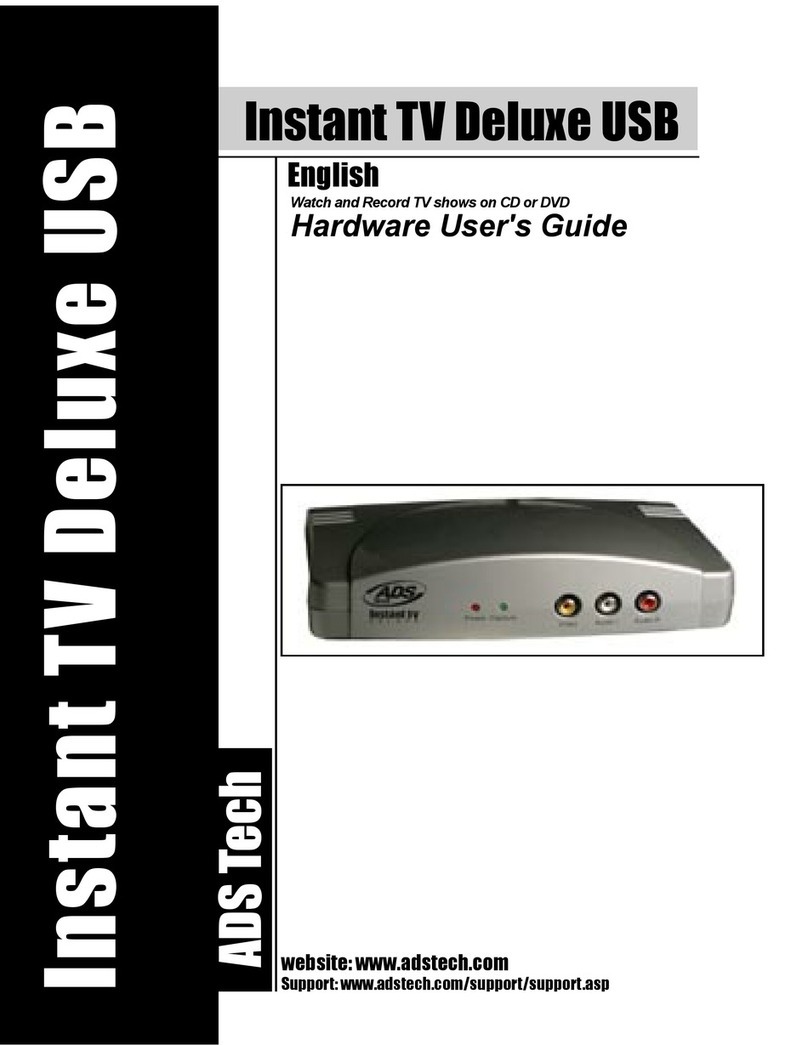
ADS Technologies INSTANT DVD 2 Manual de usuario

Convert Home Movies into DVD Movies
User's Guide : First Edition
Instant DVD 2.0 : Instant DVD + DV
English - German - French - Spanish Manual for
Instant DVD 2.0 / Instant DVD + DV
ADS Tech
Technical Support 562.926.4338
North America Support Hours:
M-F : 7 am - 6 pm, PST
Email : [email protected]
website : www.adstech.com
European Technical Support: +353.61.702042
If you have any problems or questions on this product, please call :

INSTANT DVD 2.0 Page 3
ENGLISH

INSTANT DVD 2.0 Page 3
ENGLISH
Table of Contents
Copyright Notice........................................................................................................................................................4
Quick Setup Steps.....................................................................................................................................................5
Instant DVD 2.0 Overview .........................................................................................................................................6
Ways to Capture and Edit Video .......................................................................................................................7
Instant DVD 2.0 Installation Guide...........................................................................................................................9
System Requirements...............................................................................................................................................9
Getting Started...........................................................................................................................................................9
1. Check Instant DVD 2.0 Contents ..................................................................................................................9
2. Wire It Up! ................................................................................................................................................... 11
3. Plug It In ......................................................................................................................................................12
4. Install Device Drivers and Software ............................................................................................................12
5. Install Software Applications .......................................................................................................................12
6. Verify Hardware Installation ........................................................................................................................13
7. Optimize System for Best Performance ......................................................................................................13
8. Installation Summary...................................................................................................................................14
9. Start Making DVD Movies ...........................................................................................................................14
USB Instant DVD Capture Wizard .........................................................................................................................14
Using Capture Wizard Video Capture/Playback tool for the rst time: ..............................................................16
Capture Wizard Feature and Functions.................................................................................................................19
Menu Options...........................................................................................................................................................20
Menu Options: Video Inputs/Outputs ..............................................................................................................20
Menu Options: Video Format .........................................................................................................................20
Menu Options: Brightness/Color .....................................................................................................................22
Menu Options: Optional Controls (for Instant DVD + DV Only).......................................................................22
Menu Options: For Instant DVD + DV Only.....................................................................................................23
Menu Options: Contol .....................................................................................................................................23
Menu Options: Applications.............................................................................................................................23
Menu Options: Options ...................................................................................................................................24

INSTANT DVD 2.0 Page 4
ENGLISH
INSTANT DVD 2.0 Page 5
ENGLISH
Help.............................................................................................................................................................................25
Ulead VideoStudio 7..................................................................................................................................................26
How VideoStudio Works ...........................................................................................................................................27
DVD, VCD, and SVCD................................................................................................................................................27
Installing and Running VideoStudio 7 (Disk 2).......................................................................................................28
Setting up for Instant DVD ...............................................................................................................................29
Selecting Instant DVD Capture Plug-In ............................................................................................................29
Getting Around VideoStudio .........................................................................................................................30
The Options Panel ...........................................................................................................................................31
Capture Options Panel............................................................................................................................31
Capture ............................................................................................................................................................32
Checklist for Successful Video Capture..................................................................................................32
Capturing Analog Video ..........................................................................................................................32
Video Capture Property Settings Dialog Box ....................................................................................................33
Ulead DVD MovieFactory 2.......................................................................................................................................34
Welcome to Ulead DVD MovieFactory 2..................................................................................................................35
Getting Around Ulead DVD MovieFactory 2............................................................................................................35
Which task should you choose..........................................................................................................................36
Working on a project .........................................................................................................................................37
Add Videos or Slideshows ......................................................................................................................37
Capturing Videos.....................................................................................................................................37
Capture Settings .....................................................................................................................................38
German Manual..........................................................................................................................................................39
French Manual............................................................................................................................................................74
Spanish Manual........................................................................................................................................................109
Service and Warranty..............................................................................................................................................144
FCC Information ......................................................................................................................................................145
Instant DVD Helpful Hints:......................................................................................................................................146
Copyright Notice
The Instant DVD 2.0 is an innovative, hassle-free device that is designed to let you edit and archive your home movies easily. ADS Technologies respects
the rights of copyright owners and asks that you do the same. The Copy Right Act gives owners of copyrights the exclusive right to reproduce and prepare
derivative works as well as to publicly perform, display and distribute their works. This means that you must obtain permission to engage in any of these
activities when using works that are copyrighted by another person.
© 2003 ADS Technologies. All Rights Reserved
First Edition: April 2003
Microsoft, Windows, & Windows 98 are registered trademarks of Microsoft Corporation. IBM is a registered trademark of the International Business
Machines, Inc.
ADS is a registered trademark of ADS Technologies Inc. ADS Technologies (ADS) makes no warranty of any kind with regard to this material, including but
not limited to, the implied warranties of merchantability and tness for a particular purpose. The information furnished within this written document is for
information purposes only and is subject to change without notice. ADS Technologies assumes no responsibility or liability for any errors or inaccuracies
that may appear herein. ADS makes no commitment to update or to keep current information contained within this document. (rtt)

INSTANT DVD 2.0 Page 4
ENGLISH
INSTANT DVD 2.0 Page 5
ENGLISH
For impatient people who only want to read one page:
1.) Connect the Audio/Video cables from your video source to
Instant DVD.
2.) Load the Instant DVD CD - The auto-run screen requires Quicktime.
If you don’t have Quicktime installed, it will install automatically.
No serial number required.
3.) Plug in Power and connect Instant DVD to your USB Port
4.) Drivers for WinXP and Win2000 are on the root of the CD. Drivers for
Win98SE and WinME are in the Win98SE&WinME folder on the CD.
Direct Windows to the drivers and they will install automatically.
5.) Install CapWiz – CapWiz must be installed as it installs the key
elements for Instant DVD to function.
6.) Double Click the CapWiz icon on your desktop.
7.) Answer the questions on the 5 Wizard screens.
8.) Press Play on your video source so you have video playing.
9.) Click Preview on the CapWiz interface and video will appear.
Play with CapWiz for a while and then install the other valuable software titles
we have included with Instant DVD
Quick Setup Steps

INSTANT DVD 2.0 Page 6
ENGLISH
INSTANT DVD 2.0 Page 7
ENGLISH
Instant DVD 2.0
Instant DVD 2.0 is a fun and easy way to get DVD, SVCD and VCD video
into your Windows PC so you can edit or archive your home movies.
Instant DVD then lets you share the video on CD or DVD disk, publish to
the Internet or send the video out through the Instant DVD unit to display
on a TV or to record on a VCR or camcorder for distribution on Tape.
All the video digitizing and compression takes place in the Instant DVD
device so when the video comes through the USB port it is already
compressed in the format you desire such as MPEG-1 for VCD
(Video on CD), or MPEG-2 for SVCD (Super Video CD) and DVD
(Digital Versatile Disc).
Instant DVD 2.0 includes several exible and dynamic software tools for your video projects:
Instant DVD Overview
Powerful Software bundle:
We want to be sure you receive the greatest benets from your Instant DVD purchase so we have included lots of
software to meet your various project goals. Some times you may just want to archive video to disk in the fastest
way possible. Other times you may want to get a bit creative, but you’ll save most of the video editing for a later
time. And for the big project you want to have a full featured video editor that gives you the freedom to be creative.
The good news is that Instant DVD lets you do all that. We don’t just give you one single way to use the product,
we provide many ways to get video in, out and on to disk.

INSTANT DVD 2.0 Page 6
ENGLISH
INSTANT DVD 2.0 Page 7
ENGLISH
Ways to Capture and Edit Video
CapWiz: EASY VIDEO CAPTURE & PLAYBACK
This is the fastest and easiest way to capture MPEG-1 (VCD) or MPEG-2
(SVCD, DVD) video on your PC. Use the Wizard screens to verify your video
connections, video compression format and where you want your video les
stored on your computer hard drive.
Use CapWiz to quickly capture video or send MPEG video back to a VCR
for recording or a TV for viewing. CapWiz also allows you to set up timed
recordings and delayed recordings and easily select video capture bit rates for
Good, Better or Best DVD video quality. You can even set custom settings for
video resolution, video and audio bit rate, constant or variable bit rates and set
video pre-processing lters to help reduce noise in old VHS tapes.
NOTE: When preparing to display captured video on a TV or recording to video
tape, be sure that you have connected audio video cables from the Instant DVD
to your TV’s audio and video input and that you have selected the external video
source on the TV. Only MPEG-1 and MPEG-2 les can be exported out to TV,
because Instant DVD is an MPEG decoder. If you have saved a movie to a
streaming video format (.wmv) for example, this le type cannot be decoded for
TV display.
VideoStudio 7.0 DVD SE: full video capture & editing
Video Studio steps you through the movie making process. Key steps are;
CAPTURE, EDIT, EFFECT, OVERLAY, TITLE, AUDIO and SHARE. Use Video
Studio if you want to edit video, add effects or video lters, titles, back ground
music or voice overs to create a unique video production. With Video Studio
you can capture, edit and then export video to TV or VCR or publish your movie
to disk.
Video Studio includes a DVD Wizard that lets you easily author and burn your
movie to disk. You can export any single le to the DVD Wizard, or save your
edited movie to a VCD, SVCD or DVD movie and then export it to the DVD
Wizard. You start the DVD Wizard by going to the SHARE step and clicking
“Create Disk”.
VCD and SVCD movies can be burned on a CD-ROM disk. DVD movies can
also be burned on a CD-ROM disk, but you are limited to about 20 minutes
of DVD quality video on a 700MB CD. If you have a DVD recorder, you can
get about 2 hours of DVD quality video on a 4.7 GB DVD disk. Video Studio
also supports publishing SVCD (MPEG-2 at 2.4 megabits/sec.) to a CD-ROM.
SVCD is playable in many home DVD players. You can t about 35-40 minutes
of SVCD content on a 700 MB CD disk.

INSTANT DVD 2.0 Page 8
ENGLISH
INSTANT DVD 2.0 Page 9
ENGLISH
DVD Movie Factory 2.1 SE:
Direct publishing to CD or DVD disks without editing the video
If you just want to archive your video to disk and save the editing for another
time, DVD Movie Factory is the easiest and fastest way to capture “disk ready”
video. Use DVD Movie Factory to capture video in VCD, SVCD or DVD format
and go directly to the Authoring and burning step. You can even use the “Direct
to Disk” * to capture directly to CD or DVD disk in a single step. If you use
re-writable media you can enable “On the Fly” for direct recording to DVD+RW
or DVD-RW media. DVD Movie Factory even lets you import still images to
create VCD or DVD slideshows. You can create custom backgrounds and
menus allowing you to put multiple slideshows on a single disk then add music
to your slideshows to create a multimedia experience.
Create an Auto-Muvee!
Muvee autoProducer DVD Edition SE
We all want to create a fun, movie that looks like it was edited by a professional,
but we may not have the patience, the time, or let’s face it the talent to edit
video and have it look great. Muvee autoProducer DVD Edition SE is the
fastest and simplest way to create a nished production from raw video. With
the DVD Edition, you have the added benet of saving your videos as
DVD-ready MPEG-2 les that you can easily import to DVD Movie Factory
and burn to DVD disk. muvee autoProducer DVD Edition takes one minute to
learn and is typically a hundred times faster to use than any other video editing
software. You simply give the program your video, choose any piece of music
(MP3 or WAV) you like, select an editing style and it does the rest.

INSTANT DVD 2.0 Page 8
ENGLISH
INSTANT DVD 2.0 Page 9
ENGLISH
1. Check Instant DVD 2.0 Contents
Hardware:
(A) Instant DVD 2.0 device
(B) 5 VDC Power supply
(C) 6 ft. USB Cable
(D) 6 ft. A/V Out cable (RCA video and (L+ R) Audio to
RCA video and 3.5 mm stereo)
(E) Two (2) Installation CD's
(F) User's Manual
System Requirements
- Intel Celeron 400 MHz or AMD Athlon 600 MHZ or better
- Windows: Win98SE, WinME, Win2000 or WinXP
- 128 MB recommended
- Sound card
- 16 MB AGP video card
- CD-ROM Drive
- 150 MB hard disk space for capture/editing applications
- Disk space for video captures; Video captured at
4 Mb/sec will use approx.1.8 GB per hour
- CD Recordable Drive for making VCD and SVCD disks
- DVD Recordable Drive for making DVD disks
Getting Started
The basic steps are:
1. Check USB Instant DVD package contents
2. Wire it Up!- Audio and video connections
3. Plug it In!- Power and USB connection
4. Install Device Drivers
5. Install Application software
6. Verify Hardware Installation
7. Optimize System for Best Performance
8. Installation Summary & Diagram
9. Start Making DVD Movies!
Instant DVD 2.0 Installation Guide
• CD 1 Contains:
- Capture Wizard Capture & Export utility
- USB Instant DVD device drivers
- Ulead DVD Movie Factory 2.0 SE for Instant DVD
- Muvee autoProducer
• CD 2 Contains:
- Ulead VideoStudio 7 SE customized for Instant DVD

INSTANT DVD 2.0 Page 10
ENGLISH
INSTANT DVD 2.0 Page 11
ENGLISH
Many USB 2.0 upgrade cards ship with non-Microsoft, third party drivers. These drivers have many revisions and
may have compatibility issues with some USB 2.0 devices. In many cases the USB 2.0 driver you have may work
ne, but we cannot guarantee proper operation with third party USB 2.0 drivers. Contact your USB 2.0 add-in card
supplier for the latest versions of USB 2.0 drivers for Win98SE and WinME.
USB 1.1
We recommend using the USB 1.1 port on your motherboard or from a USB 1.1 add-in card. All USB 1.1 cards use
the Microsoft USB drivers. If you are using Win98SE or WinME we recommend using the USB 1.1 connection on
your PC for proper operation of Instant DVD.
Hardware Overview:
USB 1.1 and USB 2.0 connections and drivers
USB 2.0
We strongly recommend using only WinXP or Win2000 with Microsoft USB 2.0 drivers for proper operation of your
Instant DVD at USB 2.0 connection speeds.
Microsoft Windows USB 2.0 drivers can be obtained from Microsoft directly:
WinXP – Included on your new PC, Windows Update,
Download WinXP Service Pack 1
Win2000 – Download Win2000 Service Pack 3
Este manual sirve para los siguientes modelos
2
Tabla de contenidos
Idiomas:
Otros manuales de Reproductor de DVD de ADS Technologies