
ActiveEye K9504L-W Manual de usuario

Net Video Recorder Instructions
1
NVR Operation Manual

Net Video Recorder Instructions
1
Welcome
Sincere thanks for purchasing our products. Please contact us to discuss any problem or requirement.
This manual is issued in respect of the network video recorder.
This user manual may contain incorrect place in technology, place not matching with product function or
operation, or printing mistake.
We will update our user manual according as and when our products are updated, and will periodically
improve or update the product and programming. the updating content will add in the new user manual, we
won’t inform.
If the product’s description in user manual is inconsistent with the products themselves, please rely on the
actual products.
Important Safeguards and Warnings
Do not place heavy objects on the NVR.
Do not let any solid or liquid fall into or infiltrate the NVR.
Please brush printed circuit boards, connectors, fans, machine box and so on regularly. Before
cleaning the dust please switch off the power supply and unplug it.
Do not disassemble or repair the NVR by yourself. Do not replace the components by yourself.

Net Video Recorder Instructions
2
Directory
Directory..........................................................................................................................................................2
1.Introduction ..................................................................................................................................................4
1.1 Production Introduction......................................................................................................................4
1.2 Main functions: ..................................................................................................................................4
1.3 Open-package check:.....................................................................................................................4
2.Hardware......................................................................................................................................................5
2.1 Front Panel Description.....................................................................................................................5
2.2 Rear Panel Description......................................................................................................................5
3. Installation...................................................................................................................................................5
3.1 Environment.......................................................................................................................................5
3.2 Before installation..............................................................................................................................5
3.3 WIFI camera location.........................................................................................................................7
3.4 Antenna location................................................................................................................................7
Installation diagram.........................................................................................................................................7
4. Software Operation.....................................................................................................................................9
4.1 Turn on/off/Log in/Reboot..................................................................................................................9
4.1.1 Turn on ....................................................................................................................................9
4.1.2 Log in.......................................................................................................................................9
4.1.3 Turn off ....................................................................................................................................9
4.1.4 Reboot...................................................................................................................................10
4.2 Settings............................................................................................................................................10
4.3 Video Manage..................................................................................................................................10
4.3.1Add device and Match code..................................................................................................10
1.Introduction:.............................................................................................................................. 11
2.How to match code:.................................................................................................................. 11
3.Add IPC:.................................................................................................................................... 11
4.3.2.Delete device.........................................................................................................................12
4.3.3.Manual Edit............................................................................................................................13
4.3.4.Encode setup ........................................................................................................................13
4.4 Network setup..................................................................................................................................14
4.4.1.Network setup .......................................................................................................................14
4.4.2.DDNS ....................................................................................................................................15
4.4.3.FTP........................................................................................................................................15
4.4.4.E-Mail ....................................................................................................................................16
4.4.5.PPPoE...................................................................................................................................19
4.4.6.3G..........................................................................................................................................19
4.5 PTZ setup........................................................................................................................................19
4.6 Record .............................................................................................................................................20
4.6.1 Manual record .......................................................................................................................20

Net Video Recorder Instructions
3
4.6.2 Record Plan...........................................................................................................................21
4.6.3 Alarm setup............................................................................................................................21
4.7 Playback ..........................................................................................................................................22
4.8 Video backup...................................................................................................................................23
4.9 Video Detect....................................................................................................................................24
4.9.1 Motion Detect........................................................................................................................24
4.9.2 Video loss..............................................................................................................................24
4.10 General setup................................................................................................................................25
4.10.1 General setup......................................................................................................................25
4.10.2 Time setup...........................................................................................................................25
4.10.3 Screen setup .......................................................................................................................26
4.10.4 HDD setup...........................................................................................................................26
4.11 System admin................................................................................................................................27
4.11.1 System version....................................................................................................................27
4.11.2 User Admin..........................................................................................................................28
4.11.3 Factory setting.....................................................................................................................29
4.11.4 System maintenance...........................................................................................................29
5. WEB..........................................................................................................................................................30
5.1 Access in LAN..................................................................................................................................30
5.2 Access in WAN ................................................................................................................................31
6.Mobile Connection.....................................................................................................................................31
7. Hard drive capacity unit ............................................................................................................................33
8. FAQ...........................................................................................................................................................33

Net Video Recorder Instructions
4
1.Introduction
1.1 Product Introduction
K9504L-W NVR support WIFI network video. This series NVR is designed specially for the security field
and is an outstanding digital surveillance product. It introduces embedded LINUX operating system which
is more stable. It also supports 720P wireless real-time video preview, video encoding and playback
operations. Wireless WIFI Security Surveillance System, installation is also simple and convenient.
The series NVR can be applied in office security, home security, school security and so on.
1.2 Main functions:
•Real-time monitoring video image. Surveillance function through monitor or display;
•The camera transmits video images through wireless, installation also simple and convenient;
•match code WIFI camera;
•Internet service:P2P,DHCP,DDNS,PPPoE, E-Mail, FTP so on;
•Alarm linkage;
•P2P mobile connection;
• Individual real-time video recording as well as searching, playback, network surveillance, recording check,
downloading and so on;
•Set the recording parameters in the surveillance channel;
•Support PTZ direction control, image rollovers and mirror image. Support local manual video and
Snapshot.
1.3 Open-package check:
After receive product, please open giftbox, remove NVR and put it on suitable place, check
accessories. If any damage or missing parts, kindly contact the distributor.
The label in the real panel is very important for the after service. Please protect it carefully. When you
contact us for after service, please provide the product type and serial number in the label.

Net Video Recorder Instructions
5
2.Hardware
2.1 Front Panel Description
1.POW:POWER light
2.HDD:HARD DISK light
2.2 Rear Panel Description
3. Installation
3.1 Environment
1. Please place and use the NVR between 0℃and 40℃. Avoid direct sunlight. Stay away from heat
source.
2. Do not install the NVR in damp environment.
3. Do not use the NVR in smoky or dusty environment.
4. Avoid collision or strong fall.
5. Please insure the NVR level installation in a stable workplace.
6. Please install in ventilated place. Keep the vent clean.
7. Use within the rating input and output scope.
3.2Before installation
1.NVR location:NVR should be located in centre of the monitoring area. When there is no obstacle

Net Video Recorder Instructions
6
between NVR and IPC, the maximum distance is 60 meters.
2.Install the HDD.
Please note make sure already cut off the power when install the HDD.
Install Steps:
(1) Remove the screw of the DVR.
(2) Connect the HDD cable and power line.
(3) Assemble the screw, and fix the HDD in the bottom of NVR
(4) Close the cover and fix it
3.Install the antenna for the camera and NVR.
4.Power up the camera and NVR.
5.Match code for camera to NVR.(create the corresponding IP address to NVR)
Normally, we have processed “match code” for the cameras with the recorder into one kit when they leave
the factory. So you should see the picture on the NVR monitor when you power up them. If the camera
don’t display on the NVR monitor, you need to process “match code”.
How to match code:
(1) Connect the power to the camera and NVR.
(2) Take one network cable connect one camera to NVR any Lan port.

Net Video Recorder Instructions
7
(3) Click “video manage”-> click “Match Code”-> start to match code.
(4) When one camera is matched code successful, take out the network cable for next camera with same
operation. You can take out or ignore the network cable after all cameras is matched code.
6、Format the HDD
The NVR will recording automatic after the HDD be formatted.
Click “System setup”-> “General setup”-> “HDD setup”-> tick “Format”-> “Format”
3.3WIFI camera location
1. 12V power;
2. Installing wireless cameras inside WIFI signal.
3. If no image, indicating that the distance is too far, need to shorten the distance.
3.4 Antenna location
Installation diagram
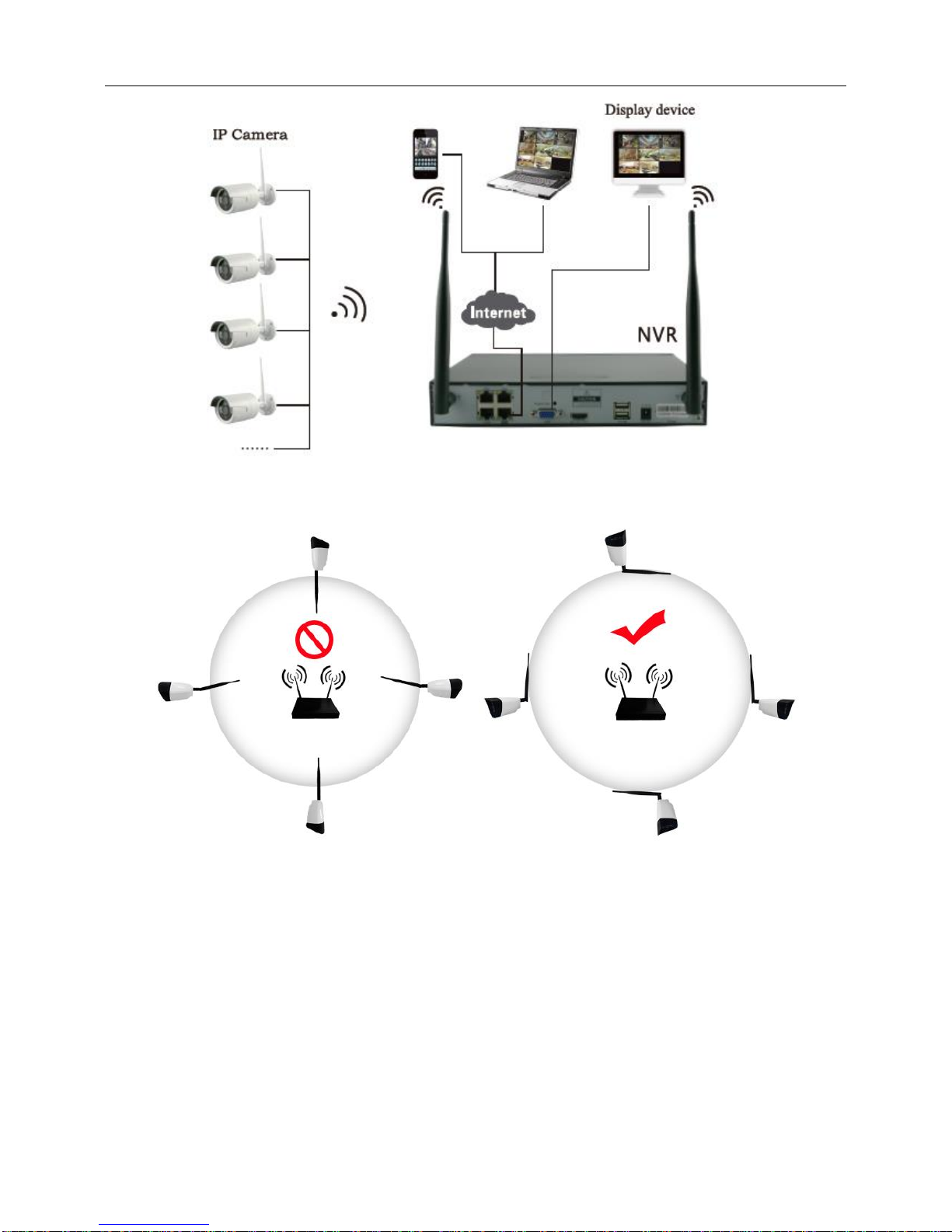
Net Video Recorder Instructions
8
The signal coverage of Antenna is similar to a round circle. Antenna located in center of the round circle,
signal of surrounding is much stronger, but much weaker if antenna endpoints back off direction.According
to the signal divergence of antenna, and in order to guarantee the video quality, IPC antenna should try to
keep in parallel or tangent with NVR antenna.

Net Video Recorder Instructions
9
4. Software Operation
4.1 Turn on/off/Log in/Reboot
4.1.1 Turn on
Confirm thatAC voltage accessible matches with DVR. Ensure that the DVR power outlet connect with
a good middle ground grounding.After switching power, the device started,【POWER】light is on. Turn
into system, if the pane l status light flashing, it’s normal conditions.
4.1.2 Log in
When the NVR boots up, the user must login and the system provides the corresponding functions with the
user purview. There is one user settings. The name is Admin and has no password. Admin is the super
user purview. User Admin’s password can be revised, while their permissions can’t be revised.
Step:
1.User name is admin and has no password.
2.click “YES”, Finish.
The password cannot exceed 10 characters.
4.1.3 Turn off
right click “Exit System”-> click “Shutdown”
Tabla de contenidos
Manuales populares de Hardware de red de otras marcas

Matrix Switch Corporation
Matrix Switch Corporation MSC-HD161DEL Manual de usuario

B&B Electronics
B&B Electronics ZXT9-IO-222R2 Manual de usuario

Yudor
Yudor YDS-16 Manual de usuario

D-Link
D-Link ShareCenter DNS-320L Manual de usuario

Samsung
Samsung ES1642dc Instrucciones de uso

Honeywell Home
Honeywell Home LTEM-PV Instrucciones de montaje


