Acoustic Research Xsight Plus Manual de usuario

Owners
Manual
PLUS

2
The Acoustic Research Xsight™ Plus Advanced Universal Remote will change your home
entertainment experience forever. You can start using it right out of the box through the
guided setup on the full-color LCD screen. The Setup Guide that came with your remote helps
with the rst steps.
The CD-ROM included with the Xsight™ Plus gives you the tools to tap into the real power
of this remote through the EZ-RC™ Remote Control Setup Wizard website. Expand and
customize features to control your entire home theater with simple one-touch activities (like
Watch TV or Listen to CD) and a favorite channel list.
This Owners Manual guides you through the remote menus that let you get the most from
your Xsight™ Plus.
Contents
Unpacking ............................................................................................ 3
Getting Started ................................................................................... 3
Tour of the Remote ............................................................................. 4
Hard keys ..........................................................................................................................4
Interactive LCD screen ...................................................................................................5
Home Screen ....................................................................................... 6
Devices ................................................................................................. 6
What is Quick Power? ....................................................................................................6
Activities ............................................................................................. 7
Setting Up Activities ....................................................................................................... 7
Using Activities ................................................................................................................8
Favorites .............................................................................................. 9
Choosing Favorite Channels .........................................................................................9
Settings ..............................................................................................10
Device Setup .................................................................................................................. 10
Learning ..........................................................................................................................13
Volume Control ...............................................................................................................16
Contrast .......................................................................................................................... 18
Brightness ....................................................................................................................... 18
Timeout ........................................................................................................................... 18
Language .........................................................................................................................19
Tilt On/Off ........................................................................................................................19
About ................................................................................................................................19
Reset ............................................................................................................................... 20
Factory Reset ................................................................................................................ 20

3
Unpacking
Getting Started
The Xsight™ Plus setup has three easy steps to get started:
1. Install the batteries
Remove the battery door from the back of the Xsight™
Plus. Insert the batteries provided, matching them to the
(+) and (-) marks inside the battery case. Then, replace
the battery door.
Before you start, make sure you’ve found the following parts included in your Xsight™ Plus
package:
• The Xsight™ Plus remote • 4 AAA batteries • 1 USB adapter
• CD-ROM • The Setup Guide
IMPORTANT: Please refer to the Setup Guide for more
detailed setup information.
2. Follow the Remote’s On-Screen Setup Routine
Once the remote has working batteries installed, it’s
ready to start its setup routine.
To start using your remote at any time, simply pick it up.
The remote’s LCD screen will come on and the backlight
will illuminate.
For more information on the Xsight™ Plus on-screen
setup routine, see the Setup Guide.
3. Connect to Your PC for Advanced Setup
Once you’ve set up the remote to operate your devices,
connect it to your PC to unlock its true potential! The
Xsight™ Plus uses the EZ-RC™ Remote Control Setup
Wizard website to congure its advanced functionality,
such as Activities, and Favorites.
See the Setup Guide for more information on connecting
the remote to your PC.
Language
English
Español
Deutsch

4
Tour of the Remote
Your Xsight™ Plus remote control offers two ways of controlling your home entertainment
devices:
• the interactive LCD screen gives you the ultimate control over your home
entertainment system by letting you customize and simplify your home entertainment
experience
• hard keys let you control common device features, much like the keys on your original
remote controls
Hard keys
Power turns devices on and off.
GUIDE brings up the active device’s guide (if the active device
has guides, like satellite receivers or cable boxes, for example).
MENU brings up the active device’s menu (if the active device
has menus). For DVD players, it brings up the disc menu.
INFO displays information about your video or audio signal.
EXIT leaves the device guide or menu.
+ and – (Channel) keys operate channel up/down functions in
video devices and preset up/down in audio devices.
(Go Back) takes you to the previous channel or menu/guide
screen on your device.
and (Volume) keys increase or decrease the volume.
(Mute) decreases the volume to its lowest level.
Arrow keys and OK navigate through device menus and
guides and choose menu/guide items.
Red, green, yellow, and blue keys access interactive functions
for cable boxes, satellite receivers, or Blu-ray Disc players (if
available).
, , , , , , LIST, , and (transport) keys
operate DVR functions and perform traditional play/pause/
fast forward/rewind/record/stop on all other video and audio
devices.
Numbers 0-9 enter digits directly (or text for customizing
labels).
INPUT selects inputs on your display device or receiver.

5
ENTER/— operates channel enter and 10+ digit entry. For
digital TV channels, this key also separates the main channel
from the subchannel. For example, to choose the channel 59.1,
press “5”, “9”, ENTER/–, and “1”.
Tour of the Remote
Interactive LCD screen
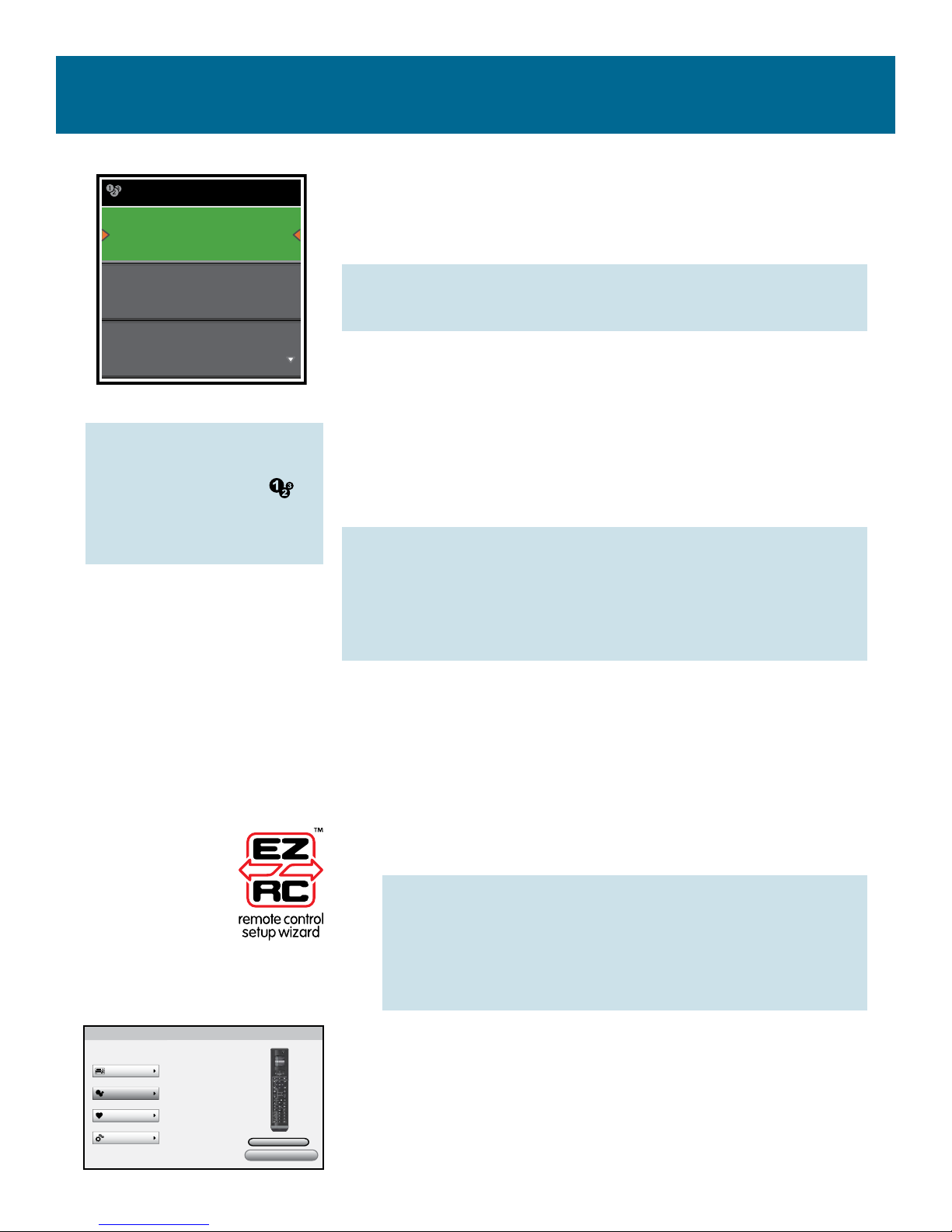
Your remote’s customizable LCD screens can be set up via the remote or by connecting to
your PC. To select an item on the remote screen, all you have to do is highlight and select.
Many remote menus have more items than will t on a single
screen. If you don’t see the item you want on a menu screen,
look for the arrow in the lower-right corner of the screen...
that means there are more items in this menu. To access these
items, just keep pressing the down arrow when you get to the
last item showing.
The top of the remote also offers Shortcut keys to give you
one-touch access to some of the remote’s advanced functions:
(Home/Back) goes back one screen in the menus.
Holding this key down for three seconds takes the remote to
the Home Screen.
(Activities) accesses the Activities screen directly.
(Favorites) accesses the Favorites screen directly.
(Devices) accesses the Devices screen directly.
To highlight an
item: Use the up
and down arrow
keys beneath the
screen.
To select an
item: Press the
key.

6
The Home Screen of the Xsight™ Plus is your gateway to the
remote’s full functionality.
To access the Home Screen at any time, hold down the
(Home/Back) key for 2 seconds. Pressing this key once takes
you back one screen.
The Home Screen of the remote has the following options:
• Devices
• Activities
• Favorites
• Settings (on the second page of the screen—press the
down arrow key below the screen to access this option)
Home Screen
Home
Devices
Activities
Favorites
Devices
The Devices menu gives you direct access to all the devices
your remote is set up to control. Selecting a device puts the
remote into the correct mode to control the device selected. If
you select TV, for instance, the remote will control your TV.
Once you’ve selected a device to control, the remote screen
displays the “soft” keys for that device. These are keys that
your original device remote may have that the Xsight™ Plus
does not have physical (or “hard”) keys for.
Devices can be set up using the remote (via Device Setup or
Learning in the Settings menu), or using PC Setup.
To access the Devices
Screen at any time:
Press the (Devices)
shortcut key underneath
the screen.
Devices
Quick Power
TV
DVD
What is Quick Power?
The Xsight™ Plus offers another option for quickly turning
multiple devices on or off: Quick Power. This feature puts
the power commands for all your devices on a single screen,
where you can manage your home entertainment system
with a single touch.
To use Quick Power:
1. Press the shortcut key. Then press the key to select
Quick Power.
2. Use the arrow keys to highlight the device you want to turn
on or off. Press the key to turn that device on or off.

7
The Activities menu gives you access to all of the One-Touch
Activities you’ve set up using the EZ-RC™ Remote Control
Setup Wizard website.
Activities
To access the
“Activities” Screen at
any time: Press the
(Activities) shortcut key
underneath the screen.
An activity lets you condense a multi-step action to a single
touch. For example, you can create an activity called “Watch
Movie” that will automatically execute all the steps needed to
start watching a movie on your home theater system.
When you have set up your Activity, it appears on your remote
screen in the Activities menu. When you select this Activity,
the remote automatically goes through the steps you set up.
IMPORTANT: Activities can only be created or edited using
the EZ-RC™ Remote Control Setup Wizard website.
NOTE: You can also tell the remote exactly what keys
control which devices when you’re “watching a movie”—like
having the transport keys (play, reverse, fast forward, etc.)
control the DVD player but the volume keys control your
A/V receiver.
Setting Up Activities
1. Connect the Xsight™ Plus to your PC using the supplied
USB cable.
2. Double-click on the EZ-RC™ Remote Control Setup
Wizard icon on your PC desktop to launch.
NOTE: If you haven’t already installed the EZ-RC™
Remote Control Setup Wizard on your PC, you can
install it using the CD-ROM that came with your
remote. See the Setup Guide that came with your
remote for instructions.
3. Follow the prompts from the EZ-RC™ Remote Control
Setup Wizard website until you get to the screen shown
here.
4. Click on the Activities button and choose Add an Activity
to start creating activities.
Activities
Hello
Good Night
Watch DVD
Main menu
...........................................................................................................................................................
Download to Remote
Here, you can set up your Devices, Activities, F a vorites and
Advanced features in minutes.
Devices
Activities
Favorites
Advanced Review
1
2
3

8
Using Activities
1. When you start using your home theater—before you turn
anything on—choose the Hello activity on the Xsight™
remote.
IMPORTANT: Keep the remote pointed at your home
entertainment devices until you can see the activity
has nished and your devices have responded to the
remote’s commands.
Need help after the “Hello” activity has
nished?
Select Assist. Then select Power to turn devices
on manually. Use the arrow keys below the
screen to access more devices.
2. Choose the home entertainment activity you want to
perform (for example, Watch TV).
Hello
Hello
Assist?
Back
PIP
Watch Movie
Assist
Picture
Sound
Power
3. When you’re nished with your home theater, choose the
Good Night activity.
Need help after a “Watch...” or “Listen...”
activity has nished?
Select Assist. Then select Picture or Sound.
Press the key for the input displayed until
you see or hear the correct signal. Press and
hold the key to go to the main menu.
Watch Movie
Assist?
Subtitle
Skip+
Assist
Picture
Sound
Power
Good Night
Activities

9
Favorites
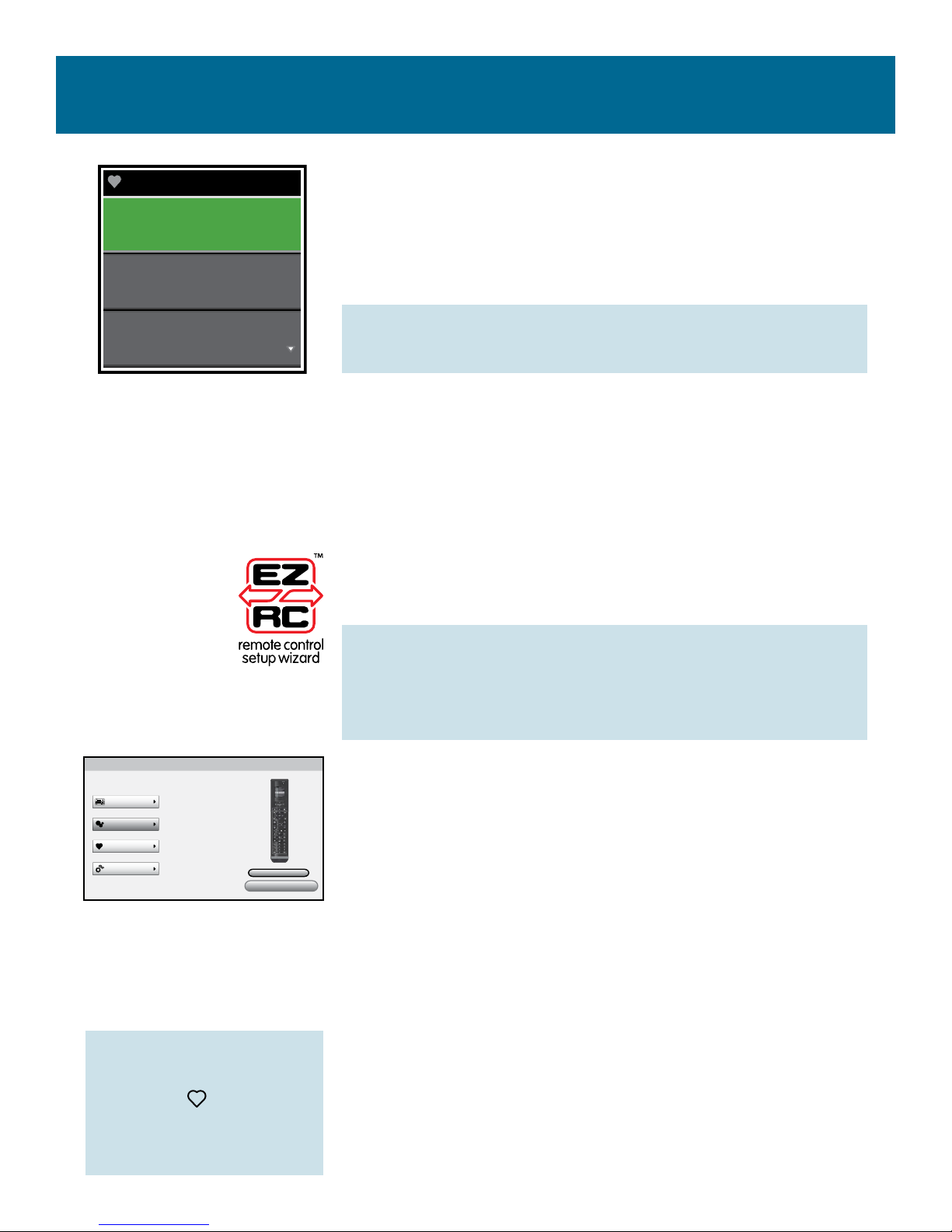
The Favorites menu gives you access to your Favorite
Channels, which you choose using the EZ-RC™ Remote
Control Setup Wizard website. You can choose up to 12
favorite channels. This section explains how to choose favorite
channels.
To access the Favorites
Screen at any time:
Press the (Favorites)
shortcut key underneath
the screen.
IMPORTANT: Favorites can only be created or edited using
the EZ-RC™ Remote Control Setup Wizard website.
Choosing Favorite Channels
1. Connect the Xsight™ Plus to your PC using the supplied
USB cable.
2. Double-click on the EZ-RC™ Remote Control Setup
Wizard icon on your PC desktop to launch.
NOTE: If you haven’t already installed the EZ-RC™ Remote
Control Setup Wizard on your PC, you can install it using
the CD-ROM that came with your remote. See the Setup
Guide that came with your remote for instructions.
Main menu
...........................................................................................................................................................
Download to Remote
Here, you can set up your Devices, Activities, F a vorites and
Advanced features in minutes.
Devices
Activities
Favorites
Advanced Review
1
2
3
3. Follow the prompts from the EZ-RC™ Remote Control
Setup Wizard website until you get to the screen shown
here.
4. Click on the Favorites button and choose Modify Favorites
to start choosing your favorite channels.
Favorites
ESPN
CNN
ABC

10
Add Device
TV
Cable Box
Satellite Box
What is it?
Settings
The Settings menu lets you add or delete devices, learn
functions from your original remote control, and adjust
various options on your remote. The following section details
each option in the Settings menu.
Device Setup
The Device Setup menu lets you add or delete devices. This
menu also lets you see the individual codes the remote is
using to operate your devices.
Adding a Device
The Add Device procedure is similar to the initial setup.
1. Select Device Setup from the Settings menu.
2. Select Add Device. The rst page of devices is displayed.
3. Select the device type you are adding. After you select a
device type, the available device brands are listed.
NOTE: If you don’t see the device type you want to
add, press the down arrow key beneath the screen to
scroll through the pages to view more device types.
If your desired device type is not listed, you can use
PC setup to search for additional brands, or learn the
device from your original remote.
4. Select the device brand.
NOTE: If you don’t see your device brand, scroll
through the pages to view more brands. If your
desired brand is not listed, you can use PC Setup to
search for additional brands, or learn the device from
your original remote.
Settings
Device Setup
Learning
Volume Control
Add Device
Sony
Panasonic
Philips
Select Brand
Otros manuales para Xsight Plus
1
Tabla de contenidos
Otros manuales de Mando a distancia de Acoustic Research

Acoustic Research
Acoustic Research ARRU449 Manual de usuario

Acoustic Research
Acoustic Research Xsight Touch Manual de usuario

Acoustic Research
Acoustic Research ARRX18G Manual de usuario

Acoustic Research
Acoustic Research ARRU449 Manual de usuario

Acoustic Research
Acoustic Research Zentral ARRZ100BB Manual de usuario

Acoustic Research
Acoustic Research Xsight Color ARRX15G Manual de usuario

Acoustic Research
Acoustic Research ARRS05G Manual de usuario

Acoustic Research
Acoustic Research Xsight Plus Manual de usuario