
ACN Iris V Manual de usuario

User Manual
®

2
© 2010, ACN Inc. All rights reserved. ACN, ACN IRIS 5000 Videophone, ACN
Digital Phone Service are trademarks and/or service marks of ACN Inc. and
may be registered. All other trademarks are the property of their respec-
tive owners.
ACN is continually improving/updating the software of the ACN Video-
phone, which may result in screen shots in this manual not exactly match-
ing the actual display on the product. Information contained herein is
subject to change without notice. ACN may make improvements or
changes in the product(s) described in this manual at any time.
ACN INC. AND ITS AFFILIATES PROVIDE THIS MANUAL WITHOUT WARRAN-
TY OF ANY KIND, EITHER EXPRESS, IMPLIED OR STATUTORY, INCLUDING
BUT NOT LIMITED TO, ANY WARRANTIES OF NON-INFRINGEMENT, MER-
CHANTABILITY OR FITNESS FOR A PARTICULAR PURPOSE.
No part of this publication may be reproduced in any form or by any
means or used to make any derivative work (such as translation, transfor-
mation or adaptation) without written permission from ACN. The product
is subject to U.S. Patent 7,239,338
and may be covered by other pending patent applications. Use of the
product is subject to a license agreement.
IRIS
Videophone
V

3
Table of Contents
INTRODUCTION ...........................................................................................................................5
GETTING STARTED ....................................................................................................................6
WHAT YOU NEED ........................................................................................................................................6
UNPACKING AND CHECKING PACKAGE CONTENTS .......................................................................6
IMPORTANT SAFETY INSTRUCTIONS ...................................................................................................7
SETTING UP THE PHONE ..........................................................................................................................8
CONNECTING THE VIDEO PHONE TO THE NETWORK ....................................................................8
CONNECTING CONVENTIONAL PHONE TO YOUR IRIS V ...............................................................8
SETTING UP THE PHONE VIA A MODEM .............................................................................................9
RECEIVING SOFTWARE UPDATES ....................................................................................................... 10
GETTING THE BEST VIDEO IMAGE POSSIBLE .................................................................................. 10
GETTING TO KNOW YOUR NEW PHONE ......................................................... 11
FRONT VIEW ............................................................................................................................................... 11
BACK VIEW .................................................................................................................................................. 12
KEYPAD ........................................................................................................................................................ 13
NAVIGATING .............................................................................................................................................. 15
IN-PHONE HELP ........................................................................................................................................ 15
ENTERING TEXT......................................................................................................................................... 16
MAKING AND RECEIVING CALLS ....................................................................................... 17
DIALING A CALL ....................................................................................................................................... 17
MAKING A CALL FROM YOUR CONTACTS OR CALL HISTORY .................................................. 18
IN-CALL FUNCTIONS .............................................................................................................................. 19
TAKING A SNAPSHOT ............................................................................................................................. 19
ANSWERING CALLS ................................................................................................................................. 20
MAKING AUDIO-ONLY CALLS .............................................................................................................. 20
MAKING A CONFERENCE CALL ........................................................................................................... 21
PUTTING A CALL ON HOLD .................................................................................................................. 21
ANSWERING A CALL-WAITING CALL ................................................................................................. 22
REDIALING A CALL .................................................................................................................................. 22
HOMESCREEN AND MENU ................................................................................................... 23
HOMESCREEN ........................................................................................................................................... 23
MENU ........................................................................................................................................................... 25
VOICE AND VIDEO MAIL ........................................................................................................ 26
Table of Contents

4
EXTERNAL VIDEO DISPLAY .................................................................................................. 27
CONTACTS.................................................................................................................................... 28
SELECTING AND DIALING A CONTACT ............................................................................................. 28
ADDING/EDITING A CONTACT ............................................................................................................ 29
VIEWING CONTACT DETAILS ................................................................................................................ 30
DELETING A CONTACT ........................................................................................................................... 30
USING CONTACT GROUPS .................................................................................................................... 31
CALL HISTORY ............................................................................................................................ 32
VIEWING INCOMING, OUTGOING, AND MISSED CALLS ............................................................. 32
DIALING FROM YOUR CALL HISTORY ............................................................................................... 32
SAVING A CALL TO YOUR CONTACT LIST ......................................................................................... 33
VIEWING THE DETAILS OF A CALL ...................................................................................................... 33
DELETING A CALL .................................................................................................................................... 33
SETTINGS ..................................................................................................................................... 34
CONFIGURING APPEARANCE .............................................................................................................. 34
CONFIGURING THEME ............................................................................................................................ 34
CONFIGURING DISPLAY ......................................................................................................................... 35
CONFIGURING SOUND .......................................................................................................................... 37
CONFIGURING NETWORK ..................................................................................................................... 38
CONFIGURING DATE AND TIME .......................................................................................................... 39
ADMINISTRATOR SETTINGS ................................................................................................................ 40
DIGITAL PHOTO FRAME......................................................................................................... 41
PLAYING A SLIDESHOW ....................................................................................................................... 41
CONFIGURING A SLIDESHOW ........................................................................................................... 42
CREATING AND USING PICTURE ALBUMS .................................................................................... 44
VIEWING PICTURES ON YOUR PHONE ........................................................................................... 45
LOADING YOUR OWN PICTURES ...................................................................................................... 46
COPYING PICTURES TO USB ............................................................................................................... 47
VIEWING USB PICTURES ...................................................................................................................... 48
INFORMATION AND HELP .................................................................................................... 49
TROUBLESHOOTING ............................................................................................................... 50
INDEX ............................................................................................................................................. 54
Table of Contents
5
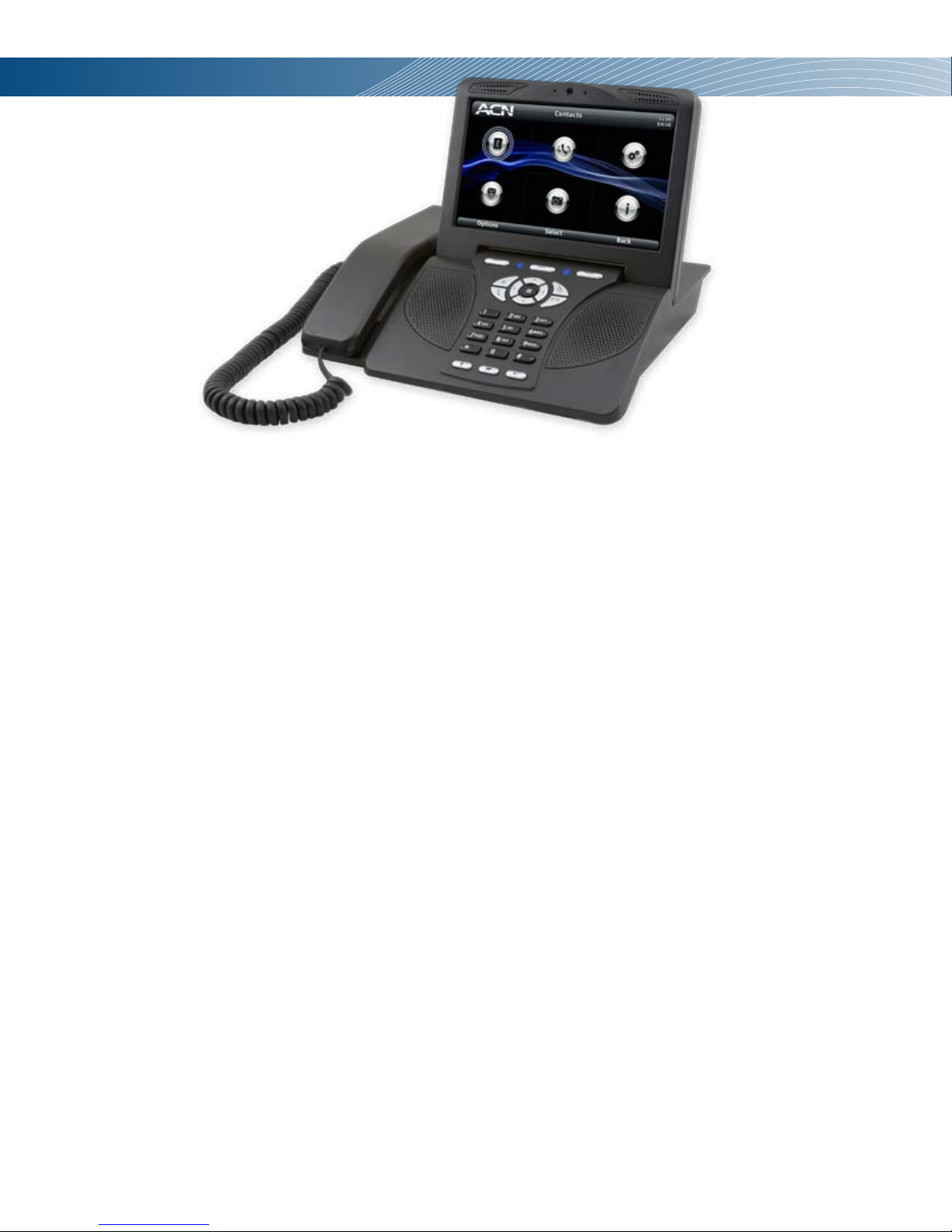
Welcome! Thank you for choosing the ACN IRIS 5000 Videophone from ACN.
The ACN IRIS 5000 Videophone represents the next generation in personal
multimedia communications. The ACN IRIS 5000 lets you make reliable, true-to-
life video telephone calls over the Internet.
With the ACN IRIS 5000 Videophone, you can also:
• build a directory of the people you call the most
• view a history of your calls
• access your voice and video mail
• customize your phone
• take a snapshot of the screen during a video call
• turn o the video for privacy
• make a conference call
• redial a call
• put a call on hold
• answer a waiting call
You can also continue to use your existing conventional phone. Simply plug your
conventional phone into the back of the ACN IRIS 5000 Videophone.
The ACN IRIS 5000 Videophone can function as a digital photo frame to
showcase your favorite photos. You can view your photos on the phone or direct
them to a larger screen, such as a TV.
With its simple plug-and-play installation and intuitive user-friendly interface,
the ACN IRIS 5000 Videophone is easy to use. If you have a question when using
a feature of your new phone, simply select the on-screen Help option.
Thanks again for choosing the ACN IRIS 5000 Videophone.
Introduction
Introduction
CHAPTER 1

6
What you need
To set up your ACN IRIS 5000 Videophone, you need:
• A high speed Internet connection (i.e., DSL, Cable, Fibre) with modem - 200
kbps upload speed
• ACN Digital Phone Service
Recommended Setup: Router with Ethernet cable
Unpacking and Checking Package Contents
Check to make sure that your box contains each of the items
pictured above:
1 Main body of the ACN IRIS 5000 Videophone
2 Handset
3 Ethernet cable (RJ-45)
4 Power adapter
Getting Started
Getting Started
CHAPTER 2
1
2
4
3

7
Important Safety Instructions
When using your telephone equipment, basic safety precautions should always be followed
to reduce the risk of re, electric shock and injury to persons, including the following:
• Do not use this product near water, for example, near a bathtub, washbowl, kitchen sink or
laundry tub, in a wet basement or near a swimming pool.
• Avoid using a telephone (other than a cordless type) during an electrical storm. There may
be a remote risk of electric shock from lightning.
• Do not use the telephone to report a gas leak in the vicinity of the leak.
• Use only the power supply shipped with this product.
Possible injury or nancial loss may occur if the instructions are not followed.
• Do not install the unit in a location where it can be aected by dust or gas.
• Do not disassemble or modify the Videophone or power adapter. The warranty will not
cover any defect that occurs due to such mishandling.
• To avoid damage, overheating or shock, do not install in a humid location.
• Do not install the unit in direct sunlight or near heat sources, such as radiators.
• To avoid electric shock, do not touch the power adapter during thunder and lightning.
• To prevent damage, keep the unit safe from sudden shock. Do not apply excessive force,
especially to the LCD screen or camera.
• Sudden changes of temperature may cause damage to the unit.
• Disconnect the power cable when the unit is not in use for an extended period of time.
• Do not install the Videophone in an unsafe place, or on an unstable surface.
• Use a soft fabric when cleaning the LCD or camera.
• Do not use strong chemical solutions or abrasive materials to clean your Videophone as
they can damage the equipment, especially the LCD or camera.
• Slowly remove the protective covering from the screen. Rapidly removing the covering
may damage the screen.
Save These Instructions
CAUTION: Changes or modications not expressly approved by the manufacturer may void
your authority to operate this equipment.
Getting Started

8
Setting up the Phone via a Router
Connecting the Phone to the Network
Your phone has been shipped precongured and ready to work out of the box.
You will need to follow some simple steps to get your ACN IRIS 5000 Videophone
connected to ACN’s network.
1 Plug the handset into the handset connector on the left side of the main
body.
2 Take the provided Ethernet cable and plug one end of the cable into an
open LAN/Ethernet port on the back of your router. Take the other end and
plug this into the blue port labelled WAN on the back of the ACN IRIS 5000
Videophone.
3 Take the supplied power adapter for the ACN IRIS 5000 Videophone and plug
it into a wall outlet or power strip. Insert the power jack into the port labelled
DC Power on the back of the phone.
• Once plugged in, the ACN IRIS 5000 Videophone will go through a start-up
process. The phone will establish a connection with the ACN network and
may download updated software. Once the ACN IRIS 5000 Videophone
nds the network, the blue light on the upper left of the keypad will
progress from ashing to on steadily. Your phone is ready to use.
• During the start-up process, a screen will display that enables you to select
a language for your phone’s on-screen text. Your choices are listed with the
default language highlighted. If you want the default language, you don’t
need to do anything. The default selection will be used after 15 seconds.
If you want a language other than the default, use the down/up directional
arrow keys to make a selection and then press the OK or Select key.
The next time your phone is restarted, your choice is remembered and
highlighted as the default.
Connecting a Conventional Phone to Your ACN IRIS 5000 Videophone
4 Plug the phone cord from your conventional phone into the port labelled
Phone on the back of the phone. Your conventional phone will act as an
extension, and ring any time the ACN IRIS 5000 Videophone rings.
Setting up the Phone
WANLAN
USB
DC Power
Phone
Video
Out
Audio
Out L
Audio
Out R
CHAPTER 2
1Handset
Ethernet Cable
Power Cord To Computer
To Internet
Typical Router
2
Phone Cord
4
3

9
Setting up the Phone via a Modem
Connecting the Phone to the Network
Note: If you have an ACN or a combined modem-router device, please follow these steps.
Before installing your Videophone, ensure your Internet connection is working.
1 Unplug and turn o your modem for 5 minutes.
2 Connect the Ethernet cable to blue WAN port on the back of your
Videophone.
3 Plug the Ethernet cable from the Videophone into a Line/Ethernet port on
your modem.
4 Plug in and turn on the modem. Note: It could take up to 2 minutes for the
lights to turn a solid colour on the modem.
5 Plug the power adapter into the Videophone and an electrical outlet.
6 Your phone will begin the registration process, which may take up to 15
minutes. Please do not press keys or try to make any calls during this process.
Once the blue registration light on the left is on and stops ashing, your
Videophone is ready to use!
Setting up the Phone

10
Receiving Software Updates
If you receive the onscreen message to the left while starting up or activating
your Videophone, your phone is ready to install a software update. Select Yes to
begin the installation right away or Ask Me Later to delay the installation.
Once the update has begun, the phone’s screen displays an install message until
it completes the update. Do not unplug your phone during a software update.
Upon completion, the phone will restart. Your phone is ready to use when the
blue status light on the upper-left corner of the keypad stops ashing and
remains on steadily.
Getting the Best Video Image Possible
Avoid strong backlighting
Strong backlighting occurs when you are sitting with a window or white wall
behind you. The camera attempts to compensate for the light coming in from
the back and darkens the image, making your face hard to see.
Avoid lights placed directly in front of the subject
Lights in front of the subject atten rather than atter the subject, and often
cause a big objectionable shadow in the background.
Additionally, frontal lighting causes a glare when you are wearing glasses.
Avoid overhead lighting
Overhead lighting causes shadows that mask the user’s eyes.
Additionally, these lights often reect into the camera from your forehead,
causing a result similar to strong backlighting.
Setting up the Phone
CHAPTER 2
Otros manuales para Iris V
1
Tabla de contenidos
Otros manuales de Teléfono de ACN

ACN
ACN Iris V Manual de usuario

ACN
ACN Videophone Manual de usuario

ACN
ACN IRIS X Manual de usuario

ACN
ACN IRIS X Manual de usuario

ACN
ACN IRIS 3000 Manual de usuario

ACN
ACN IRIS 3000 Manual de usuario

ACN
ACN IRIS 3000 Manual de usuario

ACN
ACN IRIS X Manual de usuario

ACN
ACN IRIS 3000 Manual de usuario

ACN
ACN DigitalTalk Express Manual de usuario


