3D Systems Geomagic Capture Series Manual de usuario

Harness the Power of 3D Scanning
Geomagic Capture®
User Guide
Geomagic Capture®Series 3D Scanner for 3D Scan-Based Design and Quality Inspection

TABLE OF CONTENTS
1INTRODUCTION 1
GEOMAGIC CAPTURE SERIES 3D SCANNER 1
COPYRIGHT 2
WARRANTY 2
2AT A GLANCE ON GEOMAGIC CAPTURE APPLICATION 3
3SPECIFICATIONS AND REQUIREMENTS FOR YOUR GEOMAGIC CAPTURE 5
SCANNER SPECIFICATIONS 5
SYSTEM REQUIREMENTS FOR GEOMAGIC CAPTURE APPLICATION 5
43D SCANNING BASICS 6
5SETTING UP GEOMAGIC CAPTURE SERIES 3D SCANNER 8
6CREATING SCAN DATA 11
SCAN AN OBJECT AND CREATE SCAN DATA 11
SCAN AN OBJECT USING MULTIPLE SCANNERS 12
AUTOMATICALLY SCAN AN OBJECT USING TURNTABLE 14
SCAN AN OBJECT USING MULTIPLE SCANNERS WITH TARGET MARKERS 15
7MENU OVERVIEW 17
SCAN 17
SETTINGS 19
ADVANCED SETTINGS 22

3D Systems, Inc. 1
1 INTRODUCTION
Thank you for purchasing the Geomagic Capture Series 3D Scanner. Geomagic Capture is a family of powerful, integrated scanner and
software systems for professional Scan-Based Design and quality inspection. It is available in six application-specic congurations,
combining the best of Geomagic software with a compact, ultra-precise blue light LED 3D scanner.
Geomagic Capture enables designers and engineers to incorporate real-world objects into CAD as a seamless part of their engineering
workow. Geomagic Capture for quality inspection delivers precision scanning integrated with Geomagic’s high-quality inspection tools
in a seamless, push-button manner. With unprecedented performance and affordability, Geomagic Capture ushers in a new era of
design-to-manufacturing productivity and utility.
• Harness the Power of blue LED
• Unleash More Creativity with Scan-Based Design and Quality Inspection
• Inspect and Verify with Condence
• Reduce Errors and Save Time
• Leverage the World Around You
• Plug-and-Play Simplicity
GEOMAGIC CAPTURE SERIES 3D SCANNER
Capture Capture Mini
• Larger Field of View
Great for shoebox-size objects. Larger parts can be
scanned using the included alignment targets.
• Precise
Accuracy of 60 -118 microns within the eld of view.
• Smaller Field of View
Ideal for small objects, such as electronic components,
jewelry, dental models, and things requiring extra precise
measurement.
• Highly Precise
Accuracy of 34 -70 microns within the eld of view.

3D Systems, Inc. 2
COPYRIGHT
©1993-2014. 3D Systems, Inc. All rights reserved. The content of this manual is furnished for informational use only, is subject to
change without notice, and should not be construed as a commitment by 3D Systems, Inc. Any names, places, and/or events in this
publication are not intended to correspond or relate in any way to individuals, groups or associations. Any similarity or likeness of
the names, places, and/or events in this publication to those of any individual, living or dead, place, event, or that of any group or
association is purely coincidental and unintentional.
WARRANTY
No warranties of any kind are created or extended by this publication. Any products and related material disclosed in this publication
have only been furnished pursuant and subject to the terms and conditions of a duly executed agreement to license the Software. Any
warranties made by 3D Systems, Inc. with respect to the Software described in this publication are set forth in the License Agreement
provided with the Software and printed in this publication. As more denitively stated and set forth in the License Agreement, 3D
Systems, Inc. does not and will not accept any nancial or other responsibility that may result from use of the Software or any
accompanying material including, without limitation, any direct, indirect, special or consequential damages.
Individuals or organizations using the Software should ensure that the user of this information and/or the Software complies with the
laws, rules, and regulations of the jurisdictions with respect to which it is used. This includes all applicable laws concerning the export
of technology and the protection of intangible or intellectual property rights. 3D Systems, Inc. asserts its rights in and will endeavor to
enforce all proprietary rights embodied in the Software and this publication including, without limitation, all copyright, patent, trademark,
and trade secrets or proprietary information. The only rights given to an individual or organization purchasing the Software are those
explicitly set forth in the License Agreement. Other than as explicitly allowed in the License Agreement, copying the Software or this
material (including any format or language translation) is prohibited absent the prior written consent of 3D Systems, Inc.

3D Systems, Inc. 3
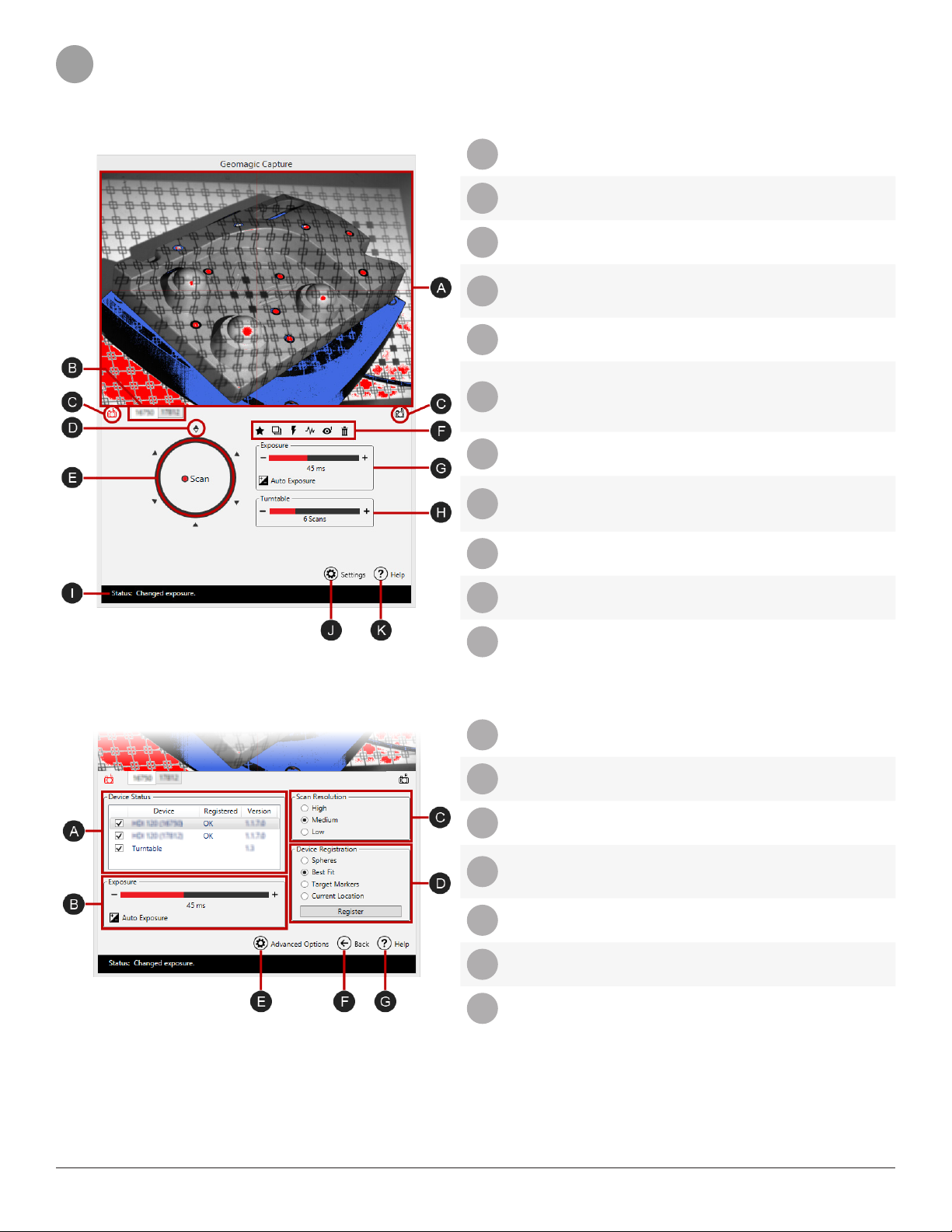
2 AT A GLANCE ON GEOMAGIC CAPTURE APPLICATION
Scan
ALive View Displays current camera view.
BScanner Tab Allows users to switch each scanner’s
camera view.
CCamera View Switch Allows users to switch between the
side of camera view.
D
Starting Position
of 360º Rotational
Scanning
Indicates the starting point of
rotational scanning (from 0 to 360
rotational degrees).
EScan Starts the scanning.
FCapturing Options
Options in this group allow users to
manage their working environment
and scan an object with optimal
results.
GExposure Settings Allows users to adjust an exposure
value.
HTurntable Settings
Allows users to adjust the number
of scan divisions in 360 rotational
degrees.
IStatus Bar Shows the current working status of
the scanner.
JSettings Goes to the Settings menu.
KHelp Shows the Help document.
Settings
ADevice Status Manages device connection status.
BExposure Settings Allows users to adjust an exposure
value.
CScan Resolution Adjusts the resolutions of scanners.
DDevice Registration
Methods for registering the position of
connected devices or aligning scans
into one coordinate system
EAdvanced Options Opens the Advanced Settings menu.
FBack Goes back to the Scan menu.
GHelp Shows the Help document.

3D Systems, Inc. 4
Advanced Settings
ADevice Status Manages device connection status.
BNetwork
Conguration
Congures the network to
communicate with scanners.
CUpdate Device
Firmwares Updates device rmwares via le.

3D Systems, Inc. 5
3 SPECIFICATIONS AND REQUIREMENTS FOR YOUR GEOMAGIC CAPTURE
SCANNER SPECIFICATIONS
Properties Specications
Scanner
Capture Capture Mini
Target Object Medium Sized Parts Small Parts
Weight (kg) 1.35 kg 1.04 kg
Dimensions (mm) 49 x 74 x 276 mm 49 x 100 x 155 mm
Data Capture Rate (per scan) 985,000 points / scan (0.3 seconds per scan)
Resolution (mm) 0.110 mm at 300 mm; 0.180 mm at 480 mm 0.080 mm at 157 mm; 0.100 mm at 227 mm
Accuracy (mm) 0.060 mm 0.034 mm
Stand-off Distance (mm) 300 mm 157 mm
Depth of Field (mm) 180 mm 70 mm
Field of View / Near End – Far End (mm) 124 x 120 mm (Near)
190 x 174 mm (Far)
87 x 68 mm (Near)
88 x 87 mm (Far)
Calibration Pre-calibrated
Note: It is not recommended that you use scanner setup mixed with different type of the Geomagic Capture Series 3D
scanners.
SYSTEM REQUIREMENTS FOR GEOMAGIC CAPTURE APPLICATION
• Hardware: The minimum hardware requirements are listed below. More memory will allow for larger models to be processed.
• Processor: Intel® and AMD® processors, quad-core 2-GHz or above
• RAM: 4 GB or more
• Graphics Card: OpenGL 2.1 or above, 32 bit true color, 512MB GM or above
• Scanner Interface: Gigabit Ethernet Interface
• Operating System: Supported operating systems are listed below.
• Windows 7 (32-bit or 64-bit)
• Windows 8 (32-bit or 64-bit)
• Third-Party Application: Microsoft .NET Framework 4.0

3D Systems, Inc. 6
4 3D SCANNING BASICS
Scan Quality
Scan quality can vary by the following factors:
• Environmental conditions
Light and vibration can cause inaccuracies. Ensure that a scanning environment is stable and the exposure is set according to the
current conditions.
• Stability of the scanner and an object
If either the scanner or the object move during the scan, the data will be inaccurate. Ensure both are stable and secure.
• Shape and size of an object
Target markers or reference spheres should be used in order to align scans correctly if the part to be scanned has limited fea-
tures.
Scan Preparation
When you set up the scanner, you should:
• Understand how the scan data will be used
This determines the mechanics of the scanning process and which features, if any, should be hard probed.
• Know who will use the scanned image and what they will need captured
This eliminates unnecessary work and potential rescanning.
Scanner Positioning
When positioning the scanner to acquire the most accurate data, consider the following items:
• Scanner position
Positioning the scanner perpendicular to the surface being scanned optimizes the amount data the scanner collects. When the
data is at an angle, the light can fade out as it goes farther back and the data becomes less accurate. Also, when you are de-
termining how to position the scanner and object, place the scanner so it can capture as much of the object as possible while
remaining perpendicular to the object’s surface.
• Line of sight
The scanner can capture only what is in its line of sight. If you scan a propeller, for example, it will need to be placed so that the
scanner can capture the curve of the blades and in between the blades. If the part needs to be held at a particular location, you
must decide the best method for holding the part while scanning. Any solution should allow you to fully capture the part in one
setup to minimize the amount of repositioning.
• Scanner volume and area
The scanner will have a dened area that can be captured. A large part may require several scans to capture all sides and then
will be aligned together by alignment methods provided in Geomagic Capture application. Each scan needs to overlap the previ-
ous section to be able to align them together or there needs to be common targets on each scan set for alignment. Be sure there
are enough features to align the data.
Part Preparation
Before scanning there are two steps for part preparation: placing reference target markers on the part and coating the part.
Placing Target Markers
For parts that have little geometry or are as big as insufcient in a scanner view range, place target markers on the part in order to
use these features during alignment.
Scanning with target markers provides a faster and more convenient way of aligning multiple scans since the alignment algorithm
is greatly speed up by having far fewer reference points to search for and match up.

3D Systems, Inc. 7
Target markers are generally small, round stickers that you place either on an object or on a movable surface the part rests on.
After scanning the part and generating a mesh, then the scanner searches for the target markers and attempts to align them
with a previous scan. If enough matches are found, the alignment is successful and you are ready for a new scan. If not enough
matching target markers are found, the alignment fails and you can either retry or use another alignment method.
For more information, See also Scan an object with target markers.
Coating a Part
Reective surfaces scatter the scanner light and create noise artifacts in the nal scan data. Laser and white-light scanners do
better when scanning matte, white surfaces. A white powder spray commonly used to create a at white surface for scanning and
is available at welding supply stores. Other products you can use include some athlete’s foot treatments, spray deodorant with
titanium oxide, and tempera paint from a compressor.
You must spray the part with a uniform, light coat. The thinner the coating, the better. Adding more than a thin coat of white
powder can impact a part’s thickness when scanning. A white powder spay comes off easily and is prone to ngerprints. Mounting
an object to a surface (such as a bolt through the center of a threaded section) can provide a hand-hold for moving the part after
spraying. You can also spray a portion of the part (leaving a section as a hand-hold), complete the rst scan, clean the part,
respray the area used as a hand-hold, and then rescan as needed. The following steps are a general procedure for applying a
white powder spay to a part.
1. Apply target markers on an object before spraying. Otherwise, the target markers will slip off the part.
2. If necessary, mount the part or decide which section to use as a hand-hold.
3. Hold the can 12 to 18 inches from the part and spray a light rst coat.
4. Set the object aside to dry for a few minutes.
5. Re-spray any areas that need it.
6. Clean any target markers with a cotton swab prior to scanning if necessary.

3D Systems, Inc. 8
5 SETTING UP GEOMAGIC CAPTURE SERIES 3D SCANNER
Follow these steps to set up the Geomagic Capture Series 3D scanner in your Geomagic application.
Network Conguration
1. Make sure that all cables and cordsets that were delivered with a scanner are connected to the Geomagic Capture Series 3D
scanner.
2. Connect the Geomagic Capture Series 3D scanner to a PC using a CAT5e Ethernet cable.
3. Enter the scanning command in the Geomagic application to connect the scanner.
Note: Consult the Online Help for additional information on the scanning command in the host application.
Note: If you receive the following warning message, check if all cables and
cordsets are connected to the scanner and the PC, and then click OK to
reconnect the scanner.
4. The Geomagic Capture application will initiate. Select the check box next to the name of detected scanner to connect the scanner
to the application.
Note: If it is the rst time to connect the Geomagic Capture series scanners to the PC, you must congure the network.
Once the check box is selected, the application will automatically try to connect the scanner.
For more information, see the following Scanner Setup section.
Scanner Setup
Option 1: Automatic Conguration
1. Go to Settings by clicking Settings to check device status.
2. In the Device Status, select the check box next to the name of detected scanner to
connect the scanner to the application.
The application will try to automatically congure the network.
Este manual sirve para los siguientes modelos
2
Tabla de contenidos
Otros manuales de Escáner de 3D Systems